
Monitor Buying Guide: Pixel Density First, Refresh Rate Second
Resolution alone tells you nothing. Pixels per inch, panel type, and the stand decide whether a monitor is pleasant to use all day.
Monitor listings are a wall of numbers, and most of them are chosen because they are large rather than because they matter. A 165 Hz panel is meaningless if you write documents. A 1 ms response time claim is measured under conditions the panel never actually runs in. Meanwhile the specifications that determine whether you finish a working day without a headache — pixel density, panel type, stand adjustment, and how many cables you need — are usually buried three tabs down.
Here is how to work through it, in the order that eliminates the most wrong options soonest.

Start with pixel density, not resolution
Resolution on its own tells you nothing, because the same pixel count looks completely different at different sizes. The number that matters is pixels per inch, and it decides whether text has visible stair-stepping at normal viewing distance.
A 27 inch 1440p panel lands around 109 PPI, which is the current sweet spot for desktop work: text is clean, and everything renders at 100 per cent scaling without the software awkwardness of fractional scaling. A 27 inch 4K panel is about 163 PPI, which is genuinely sharper but needs scaling at roughly 150 per cent, and how well that goes depends on your operating system. A 32 inch 4K panel is about 138 PPI and is arguably the best all-round desktop display available, because it is sharp and works at either 100 per cent with small text or a clean scaling factor.
What to avoid is the combination that dominates the cheap end: 27 inch at 1080p, which works out to about 82 PPI. Individual pixels are visible, text edges are soft, and no amount of font smoothing fixes it. If your budget puts you at 1080p, buy a 24 inch panel instead, where the same resolution gives a perfectly respectable 92 PPI.
Panel type decides colour and viewing angle
Three technologies dominate. IPS panels have accurate colour and wide viewing angles, and are the default sensible choice for almost everyone. Their weakness is black level: dark scenes look grey in a dim room, and backlight bleed shows at the edges. VA panels have far better contrast, typically three to four times the black depth of IPS, which suits film and dark-themed work, but colour shifts noticeably when you move off-axis and dark transitions can smear.
OLED monitors have per-pixel light control, so blacks are genuinely black and motion is instant. They are the best-looking option and carry two real caveats for desktop use: static interface elements can cause uneven wear over years of the same taskbar in the same place, and text rendering on the subpixel layouts used by current OLED desktop panels can look slightly fringed compared to IPS. Recent panels and firmware mitigate both, and manufacturers now ship burn-in warranties, but if your display shows the same spreadsheet header for eight hours a day, IPS remains the lower-risk pick.
Ignore "TN" unless you specifically want the cheapest possible high-refresh gaming panel and do not care about colour. Also ignore contrast ratio claims above about 3000:1 on any non-OLED panel; those figures come from dynamic backlight measurements that do not reflect what a static image looks like.
Ultrawide, dual, or one big 16:9
This is the decision that changes how your desk works, and there is no universal answer.
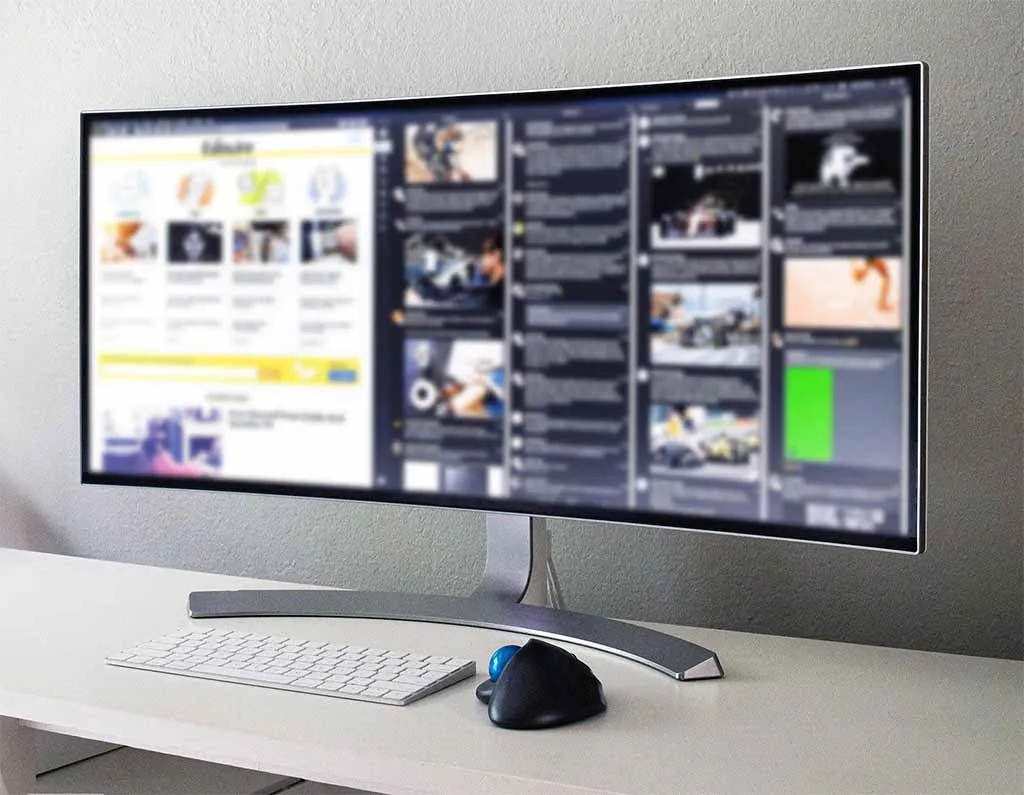
A 34 inch 21:9 ultrawide at 3440 × 1440 gives you roughly the horizontal space of two 24 inch panels with no bezel down the middle. It is excellent for timelines, wide spreadsheets, and code with a browser beside it. It is poor for anything that wants vertical space, and video conferencing software often crops badly on it. The 38 and 40 inch versions add height and cost.
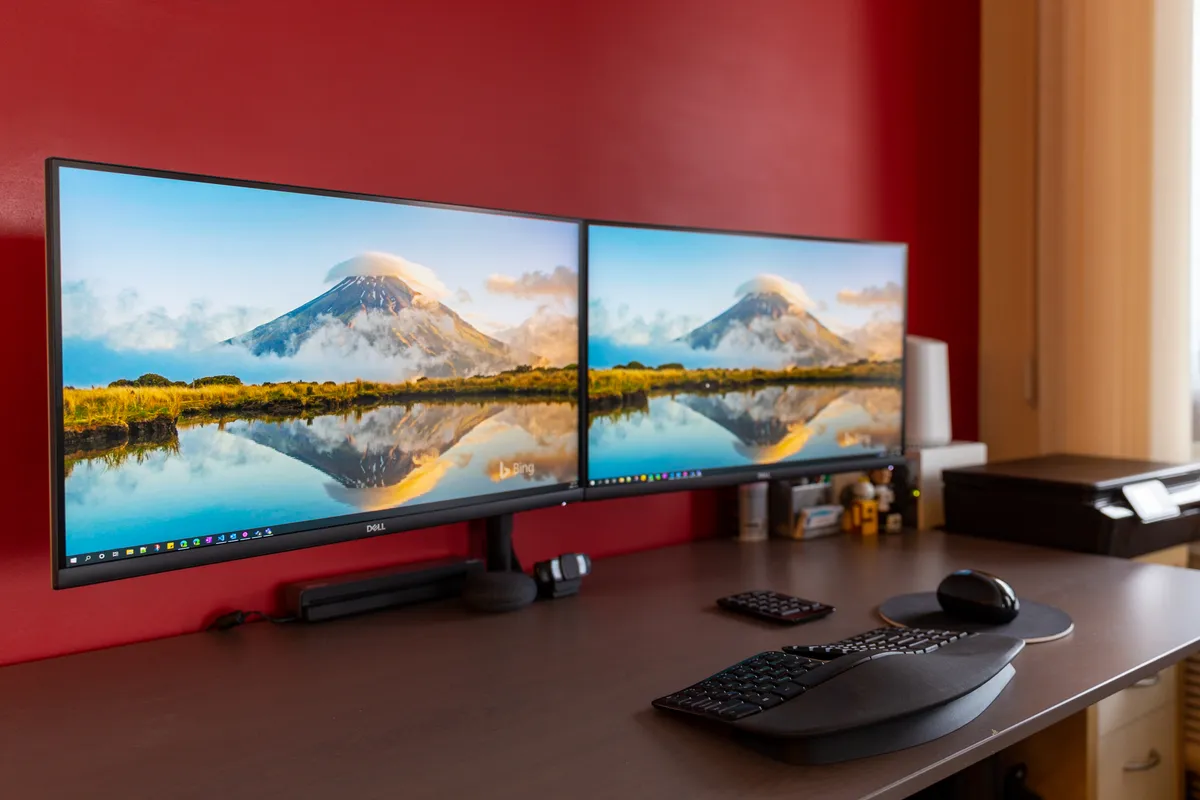
Dual monitors give you a hard boundary between contexts, which many people find easier to manage than one enormous canvas, and let you put a secondary panel in portrait orientation for documents and code. The bezel gap is the price. Two 27 inch 1440p panels remain the most cost-effective productivity setup available.
A single 32 inch 4K panel is the tidiest option, works with every application, needs one cable, and gives enough resolution to run three usable windows side by side. If you want one display and no complications, this is it.
Curvature matters mostly on ultrawides. On a 34 inch 21:9 panel, a 1900R or 1500R curve keeps the far edges roughly equidistant from your eyes, which genuinely reduces the head-turning. On a 27 inch 16:9 panel, curvature does almost nothing useful and complicates straight-line work like drafting and photo editing.
Refresh rate: how much is enough
Going from 60 Hz to 120 Hz is immediately visible in cursor movement, scrolling, and window dragging, even if you never play a game. It is the single cheapest upgrade to how a computer feels. Going from 120 Hz to 240 Hz is a real improvement in competitive shooters and essentially invisible in everything else.
For general work and occasional gaming, 120 to 165 Hz is the right target. For competitive play, 240 Hz or higher on an OLED or fast IPS panel is where the money goes. Whatever you buy, check that variable refresh rate is supported — AMD FreeSync or NVIDIA G-Sync Compatible — and confirm the range, because a panel that only syncs between 48 and 144 Hz will stutter below 48 unless it supports low framerate compensation.
Response time claims deserve scepticism. The advertised "1 ms" is almost always a grey-to-grey figure achieved with overdrive cranked up to a setting that introduces visible overshoot artefacts. Independent measurements of average response across all transitions are the number to look for, and they are usually two to four times the marketing figure.
HDR: mostly a sticker
Most monitors that say HDR cannot do HDR. The entry certification, DisplayHDR 400, requires only 400 nits peak brightness with no local dimming, which means highlights cannot be brighter than the rest of the image and the result usually looks worse than leaving HDR off.
Real HDR needs either an OLED panel or a mini-LED backlight with several hundred independently dimmable zones, plus around 1000 nits of peak brightness. That is DisplayHDR 1000 territory and up, and it costs accordingly. If HDR is not in your budget, buy a good SDR monitor and ignore the badge; a well-calibrated 350 nit IPS panel doing SDR properly beats a cheap panel doing HDR badly.
For colour work, look for the coverage figures instead: around 99 per cent sRGB for web and general use, 95 per cent or more of DCI-P3 for video, and Adobe RGB coverage if you print. A factory calibration report in the box, with a measured Delta E figure below 2, is worth more than any HDR tier.
The stand and the mount
The most common regret with an otherwise good monitor is a stand that only tilts. Screen height determines neck posture, and the correct position puts the top of the panel at or slightly below eye level, roughly an arm's length away. A stand with height, tilt, swivel, and pivot adjustment is worth real money because you set it once and stop thinking about your neck.
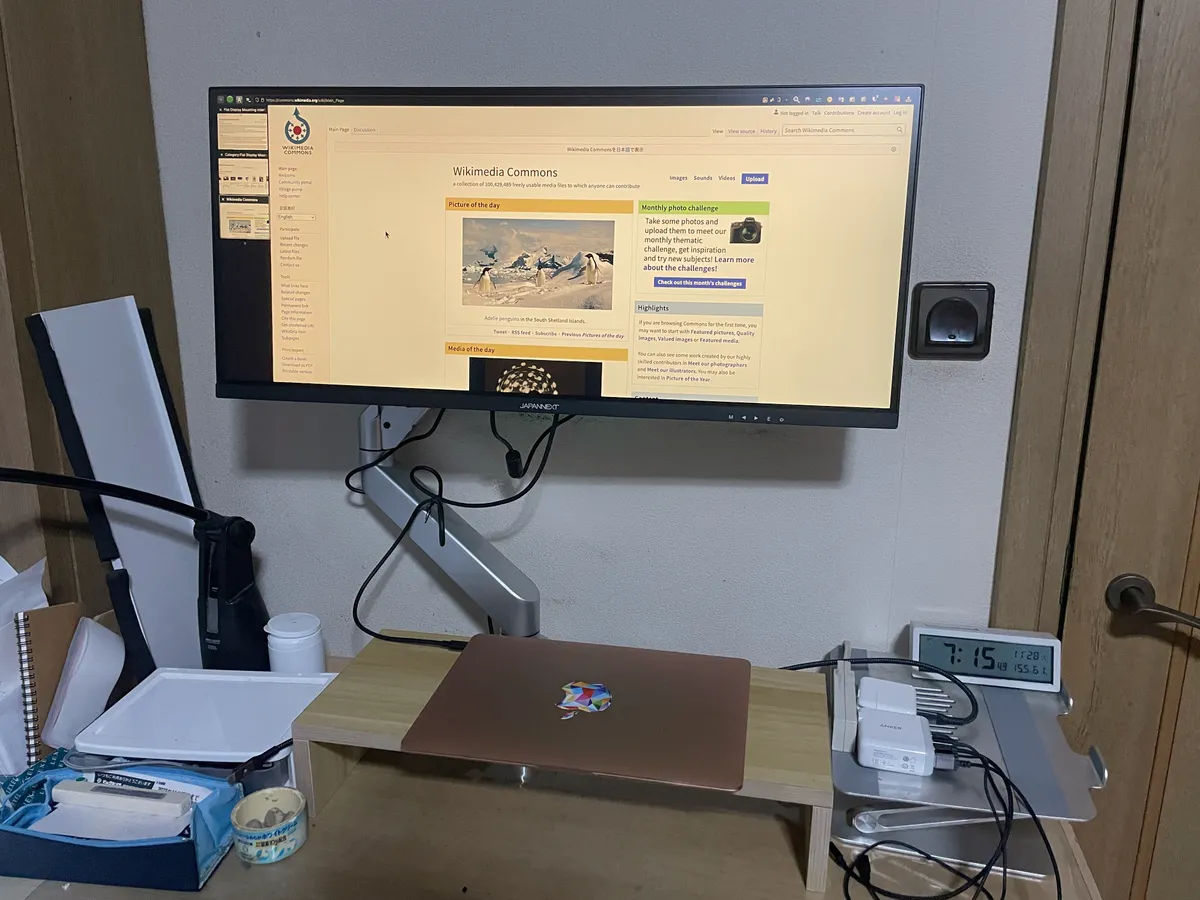
If the stand is poor, check for a VESA mounting pattern — 100 × 100 mm on most panels, 75 × 75 mm on small ones — and budget for a gas-spring arm. An arm reclaims the desk space under the panel, allows genuine depth adjustment, and makes portrait orientation trivial. Check the arm's weight rating against the panel weight without its stand, and check the maximum panel width, because heavy 38 inch ultrawides exceed a lot of cheap arms.
One caveat: some monitors use a proprietary quick-release plate and need an adapter bracket for VESA. Confirm this before buying rather than after. If you are also reworking desk height, the standing desk buying guide covers how monitor arms and sit-stand frames interact.
Ports, and the one-cable question
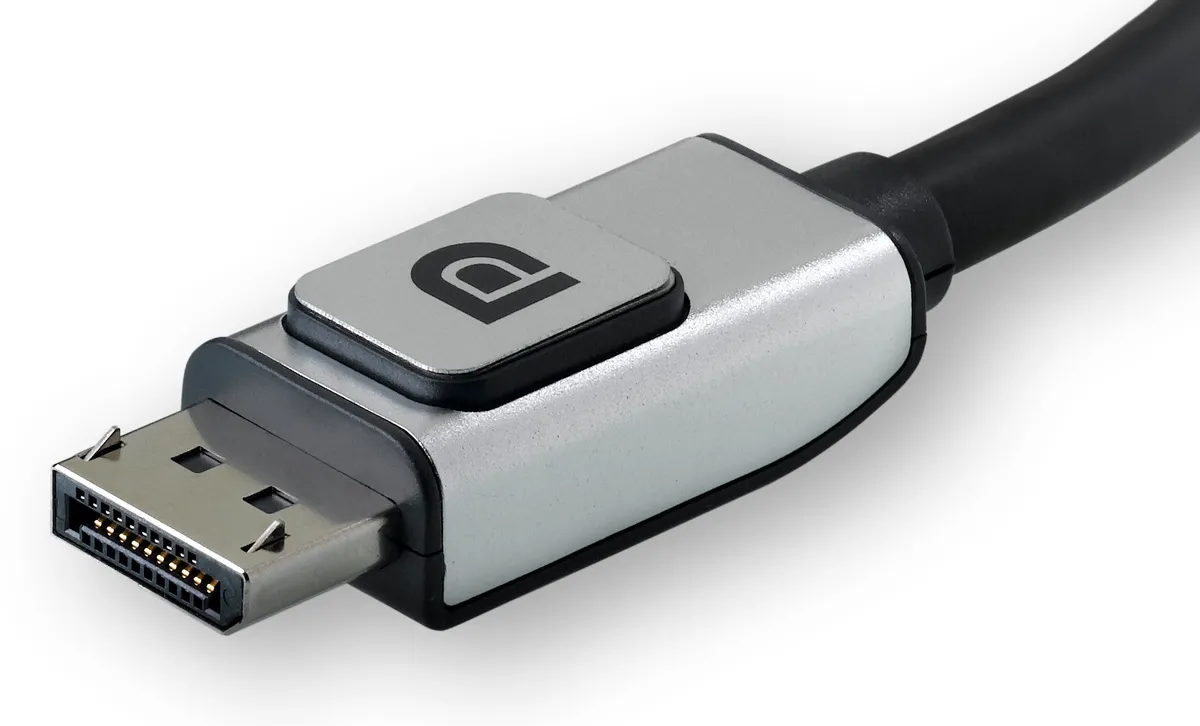
For a desktop PC, you want DisplayPort 1.4 or 2.1 for the primary connection, because it handles high refresh rates at high resolution more reliably than HDMI on the PC side. HDMI 2.1 is necessary if you also connect a games console. Check the version numbers rather than the count: an HDMI 2.0 port cannot do 4K at 120 Hz.
For a laptop, USB-C with DisplayPort Alt Mode and Power Delivery changes the daily experience completely: one cable carries video, USB peripherals, wired networking, and enough power to charge the machine. Check the power figure. Sixty-five watts charges a thin ultrabook and will slowly lose ground on a 16 inch workstation under load; 90 to 100 watts covers most laptops. Also check whether the monitor's built-in USB hub stays powered when the display sleeps, because a hub that drops your keyboard on sleep is a daily irritation.
If your monitor lacks USB-C, a separate dock does the same job — see the Anker 8-in-1 USB-C hub review for what to expect from that approach. Built-in speakers on monitors are universally poor and should not influence a purchase; assume you will use headphones or separate speakers.
Eye comfort, flicker, and coatings
Two things genuinely affect eye fatigue. The first is flicker: cheap panels dim the backlight by pulse-width modulation at a low frequency, which some people perceive as strain even when they cannot see it. Look for "flicker-free" with a DC dimming implementation, or a very high PWM frequency. The second is matching brightness to the room. A panel running at 400 nits in a dim room is exhausting; most indoor work sits comfortably between 120 and 180 nits.
Blue-light filter modes shift the whole image yellow and are mostly a placebo compared with simply reducing brightness in the evening, which your operating system can do on a schedule. Matte coatings kill reflections but slightly scatter light, softening text; glossy coatings look sharper and are unusable opposite a window. Choose based on where the light in your room comes from, and if you can, put the desk so windows are to the side rather than behind you.
Putting a shortlist together
For general office and home work on one screen, a 27 inch 1440p IPS panel at 120 Hz or more with a fully adjustable stand and USB-C power delivery covers nearly everything, and is the best value point in the market. Step to 32 inch 4K if you want more sharpness and window space.
For photo and video editing, prioritise a factory-calibrated IPS panel with high DCI-P3 coverage and a hardware calibration option, and treat refresh rate as irrelevant. For competitive gaming, prioritise a 240 Hz-plus OLED or fast IPS panel at 1440p and accept modest colour coverage. For mixed work and play, a 32 inch 4K 144 Hz panel does both jobs well and is the least compromised single purchase.
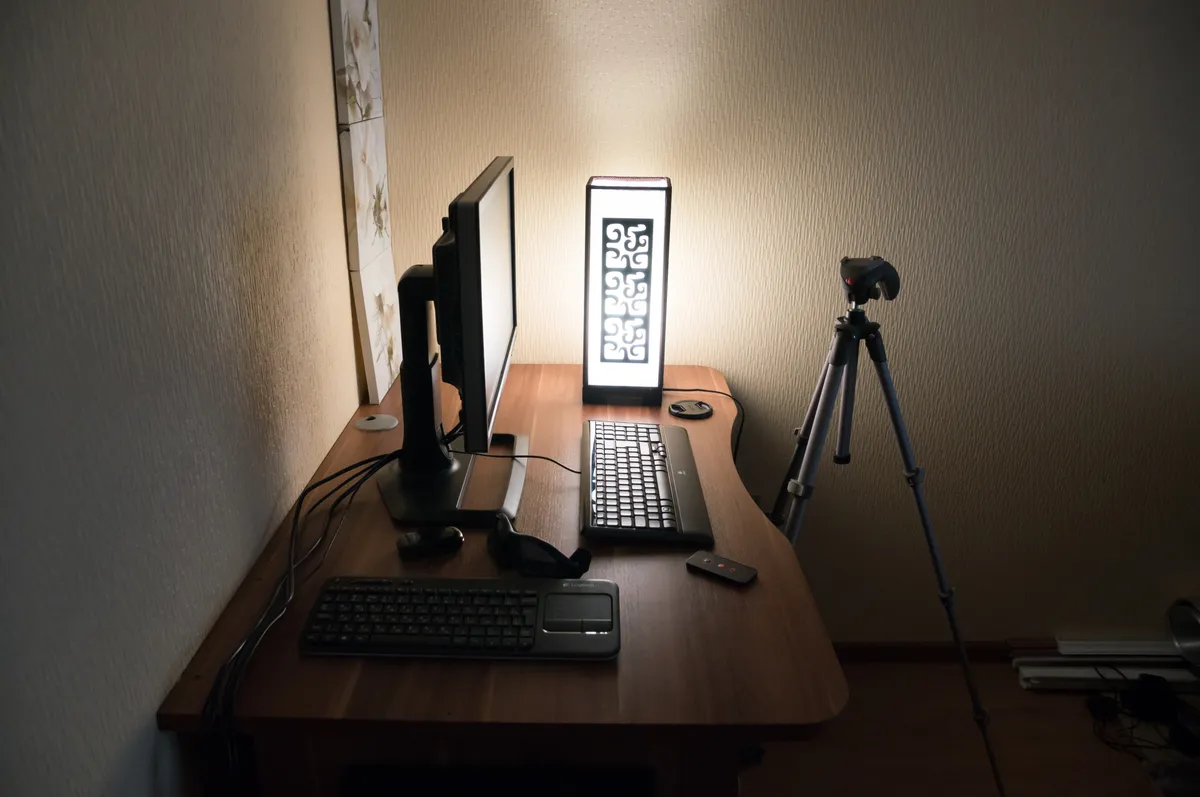
Whatever you choose, the rest of the desk determines how much you enjoy it. Our keyboard and mouse buying guide covers input, the Logitech MX Keys review looks at one of the standard low-profile options, and the laptop buying guide explains which machines can actually drive two external displays.
The short version
Judge sharpness by pixels per inch, not resolution: aim for 24 inch 1080p, 27 inch 1440p, or 32 inch 4K, and skip 27 inch 1080p entirely. Pick IPS unless you specifically want OLED contrast and accept the static-content caveat. Get at least 120 Hz because it costs little and improves everything. Ignore DisplayHDR 400. Insist on a height-adjustable stand or budget for a VESA arm. Check port versions and USB-C wattage against your actual machine. Then set brightness to match your room and stop reading spec sheets.
More coupon shopping advice

Home Security Camera Buying Guide: Local vs. Cloud Storage
A practical, balanced buying guide to home security cameras that weighs local storage against cloud subscriptions, wired versus battery power, camera placement, night vision, smart detection accuracy, and smart home integration.

Beginner Mirrorless Camera Buying Guide
A practical, honest walkthrough of what actually matters when buying your first mirrorless camera, from sensor size and lens mounts to autofocus, video specs, and the real total cost of a beginner-friendly system.

Air Purifier Buying Guide: CADR, ACH, and Filter Costs Explained
A practical walkthrough of the numbers that actually matter when buying an air purifier — CADR and ACH for sizing, true HEPA versus marketing terms, real three-year filter costs, realistic noise levels, and when a purifier won't help at all.