
Laptop Buying Guide: Why RAM and the Screen Matter More Than the Processor
Soldered memory, screen brightness, real battery capacity, and repairability decide how a laptop ages. The processor tier mostly does not.
Laptop shopping is organised around the wrong variable. Retail sites sort by processor, and buyers dutifully compare an i5 against an i7 as though that comparison means something consistent. It does not: an i7 from a thin fanless ultrabook can be slower under sustained load than an i5 in a chassis with proper cooling, because the number describes a market position rather than a performance level.
What actually determines whether a laptop is good to own for four years is a shorter and less glamorous list: how much memory it has and whether that memory is soldered, what the screen is like, how long the battery lasts doing your work rather than a benchmark loop, and whether anything inside can be replaced when it fails. This guide works through those, in the order that matters.
The quick answer
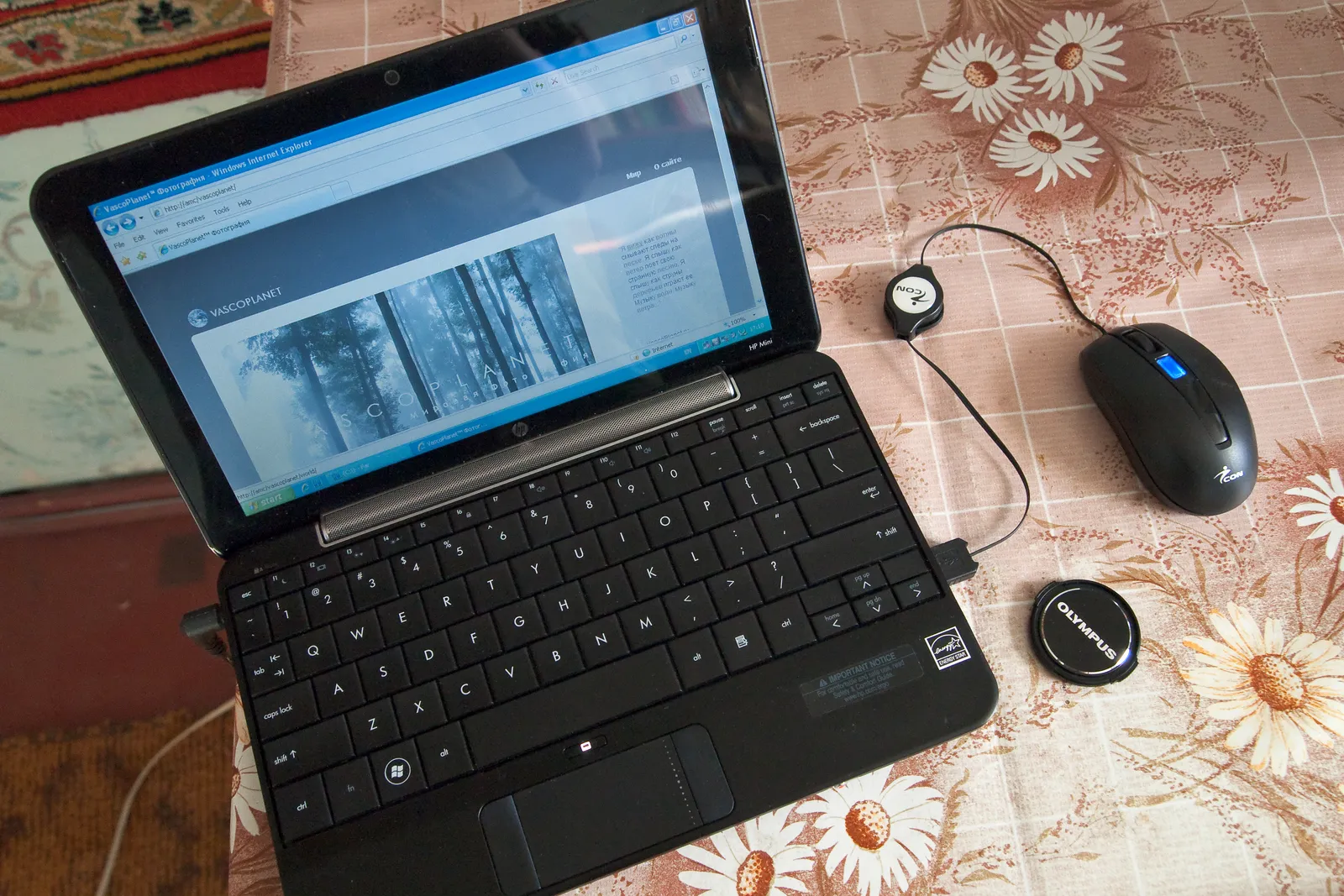
For browsing, documents, email, and video calls: 16GB of memory, a 512GB SSD, and any current mid-range processor. Budget $600-$900. Do not buy 8GB in 2026 — a browser with twenty tabs and a video call already exceeds it, and if the memory is soldered you cannot fix it later.
For software development, photo editing, or heavy spreadsheets: 32GB, 1TB, and a processor with real multi-core throughput. Budget $1,200-$1,800.
For video editing, 3D, or machine learning: a discrete GPU and the cooling to sustain it, which means a thicker chassis and a shorter battery life. Budget $1,800 and up, and expect to plug it in.
For everything, prioritise the screen and the keyboard. They are the two components you interact with every minute, they cannot be upgraded, and they are where budget models cut hardest.
Memory: the specification that decides the lifespan
RAM is where laptops age. A machine with 8GB that felt fine in year one becomes frustrating in year three, not because the hardware degraded but because software grew. Operating systems, browsers, and collaboration apps have all increased their baseline footprint substantially over the past five years, and there is no sign of that reversing.
The critical detail is whether the memory is soldered to the mainboard. On most thin-and-light machines it now is, which means the amount you buy is the amount you have for the life of the device. On machines with SO-DIMM slots you can double it later for around $60. Check the specification sheet for "soldered," "onboard," or "not upgradeable" before ordering — this single line is worth more scrutiny than the entire processor description.
The practical guidance: 16GB is the floor for a machine you intend to keep four years. 32GB is worth it if the memory is soldered and you do anything beyond office work, because you are buying the only chance you will get.
Processors, translated
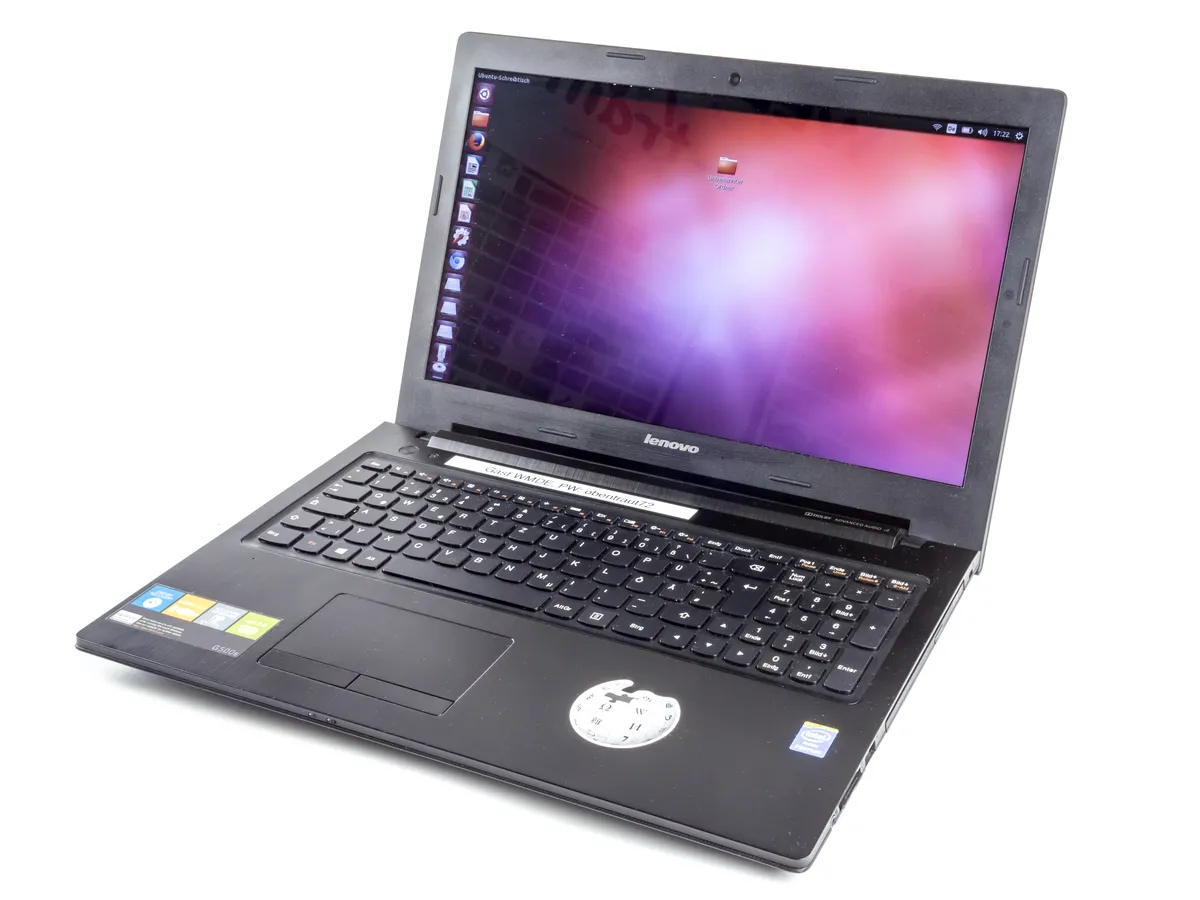
Modern laptop chips split into efficiency-focused and performance-focused lines, and manufacturers use suffixes rather than plain language to signal which is which. Low-wattage chips designed for 15-28W run cool and quiet in thin chassis and are entirely adequate for office work. Higher-wattage chips designed for 45W and up deliver substantially more sustained throughput and need real cooling.
The number that matters more than the model name is sustained power under load. A chip capable of 45W boosts hard for thirty seconds, then throttles to whatever the chassis can dissipate. In a thin fanless design that might be 12W, which means a five-minute export takes far longer than the benchmark suggested. Reviews that run repeated loads rather than single benchmark passes are the ones worth reading.
Arm-based chips — Apple silicon and the newer Windows-on-Arm processors — deserve a specific note. Their performance-per-watt advantage is real and translates directly into battery life. The trade is software compatibility: most mainstream applications now run natively or through translation with little penalty, but specialised professional tools, older plugins, and some VPN and security clients still have gaps. If you depend on niche software, check it explicitly before switching architecture.
The screen you will stare at for four years
Resolution matters less than three other things. Brightness first: below about 300 nits a laptop is unusable near a window and unpleasant outdoors. 400 nits is comfortable; 500-plus handles bright environments. Budget machines routinely ship 250-nit panels and rarely advertise the figure, which is itself informative.
Panel type second. IPS gives consistent colour at an angle. The cheaper TN panels still found at the bottom of the market shift colour badly when you tilt the lid, which is why the screen looks washed out when a colleague leans in. OLED gives genuine blacks and excellent contrast at the cost of higher power draw at high brightness and a small long-term burn-in risk with static interface elements.
Finish third. Matte panels diffuse reflections and are far better in a bright room or on a train. Glossy panels look more vivid in a shop and mirror the window behind you at home. This is a bigger day-to-day factor than most buyers expect.
Aspect ratio deserves a mention: 16:10 and 3:2 panels give noticeably more vertical space than 16:9 for documents and code, at the same diagonal measurement. If you have the choice, take the taller screen.

Battery claims and what they omit
Manufacturer battery figures come from standardised tests — usually looping a local video at moderate brightness with wireless off. Your day involves a browser with thirty tabs, a video call, a bright screen, and a Bluetooth mouse, which is a completely different load. A realistic rule is to take the claim and halve it for mixed work, or take about 60% for light document work.
Battery capacity in watt-hours is the honest number and it is usually buried in the specification sheet. Anything under 50Wh in a 14-inch machine is a compromise; 60-75Wh is generous. Divide capacity by typical draw: a machine pulling 8W doing light work with a 60Wh battery gives roughly seven real hours.
Charging matters too. USB-C Power Delivery charging means one charger for laptop, phone, and tablet, and a power bank can top the laptop up in an emergency. Proprietary barrel connectors mean a second brick in the bag and an expensive replacement when it frays.
Ports, and the dongle arithmetic
Thin laptops have shed ports, and the cost lands in your bag. Before buying, count what you plug in on a normal day: an external monitor, a mouse, a memory card, an Ethernet cable, headphones. Then check whether the laptop has those ports, and if not, whether a single hub covers them.
Two things to verify on USB-C ports specifically. First, whether they support display output — not all do, and a port that only handles data will not drive a monitor. Second, whether they support Thunderbolt or USB4, which matters for high-bandwidth docks and external drives.
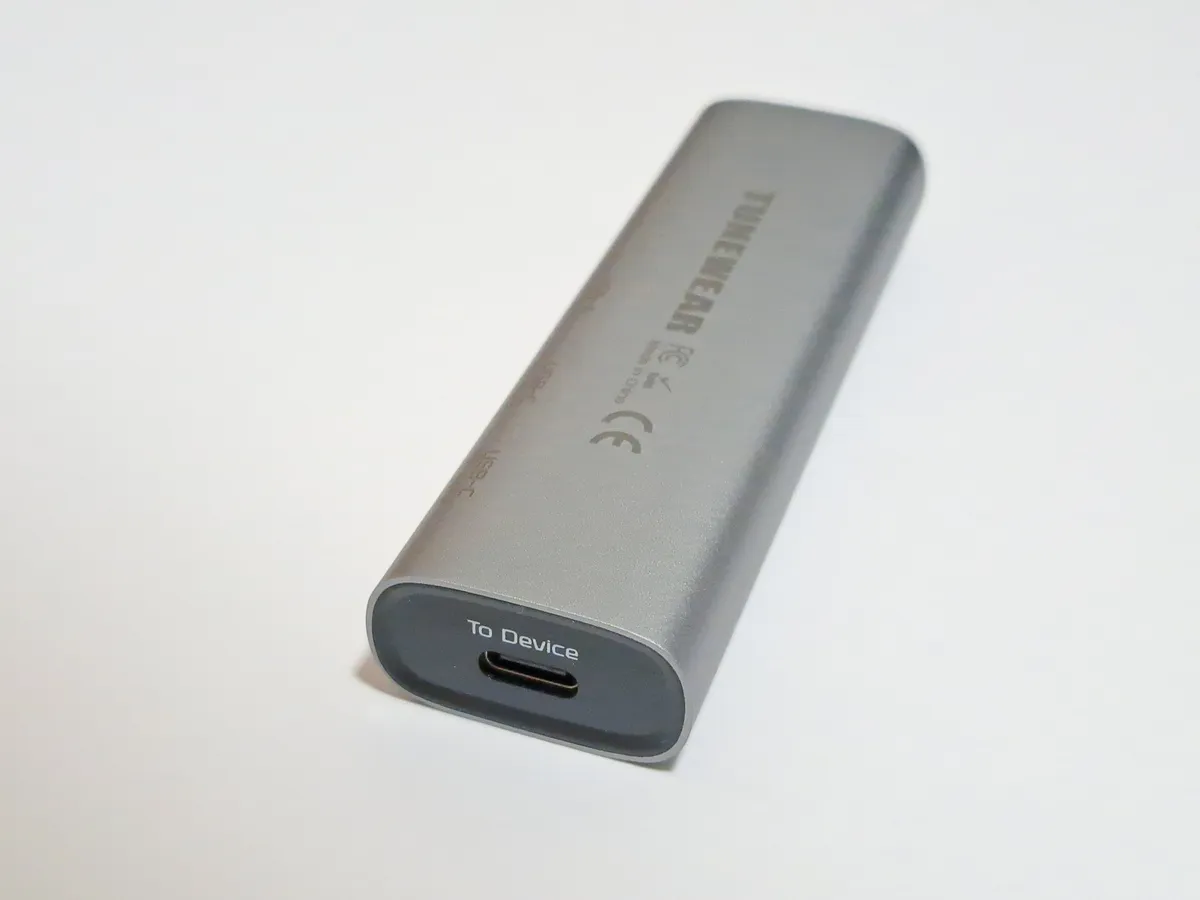
A single-cable dock genuinely improves a desk setup: one connection carries power, display, and peripherals, so undocking is one movement. Our Anker PowerExpand 8-in-1 hub review covers what that arrangement is like over weeks, including where cheap hubs fall down on sustained power delivery.
Repairability, which affects total cost more than price
Two identical-looking laptops can differ enormously in what happens when something breaks. Check three things: whether the battery is user-replaceable or glued in, whether the SSD is a standard M.2 module or soldered, and whether the manufacturer publishes service manuals and sells spare parts.
Batteries degrade to roughly 80% capacity after 500-800 cycles, which for daily use is two to three years. A $70 user-replaceable battery extends a laptop's usable life by years. A glued battery means a service appointment costing $150-$250, or a machine you replace instead.
SSDs are the other predictable upgrade. A 512GB drive that fills up is a $60 fix if it is a standard module and an unfixable problem if it is soldered. Both details are usually findable in a teardown video before you buy.
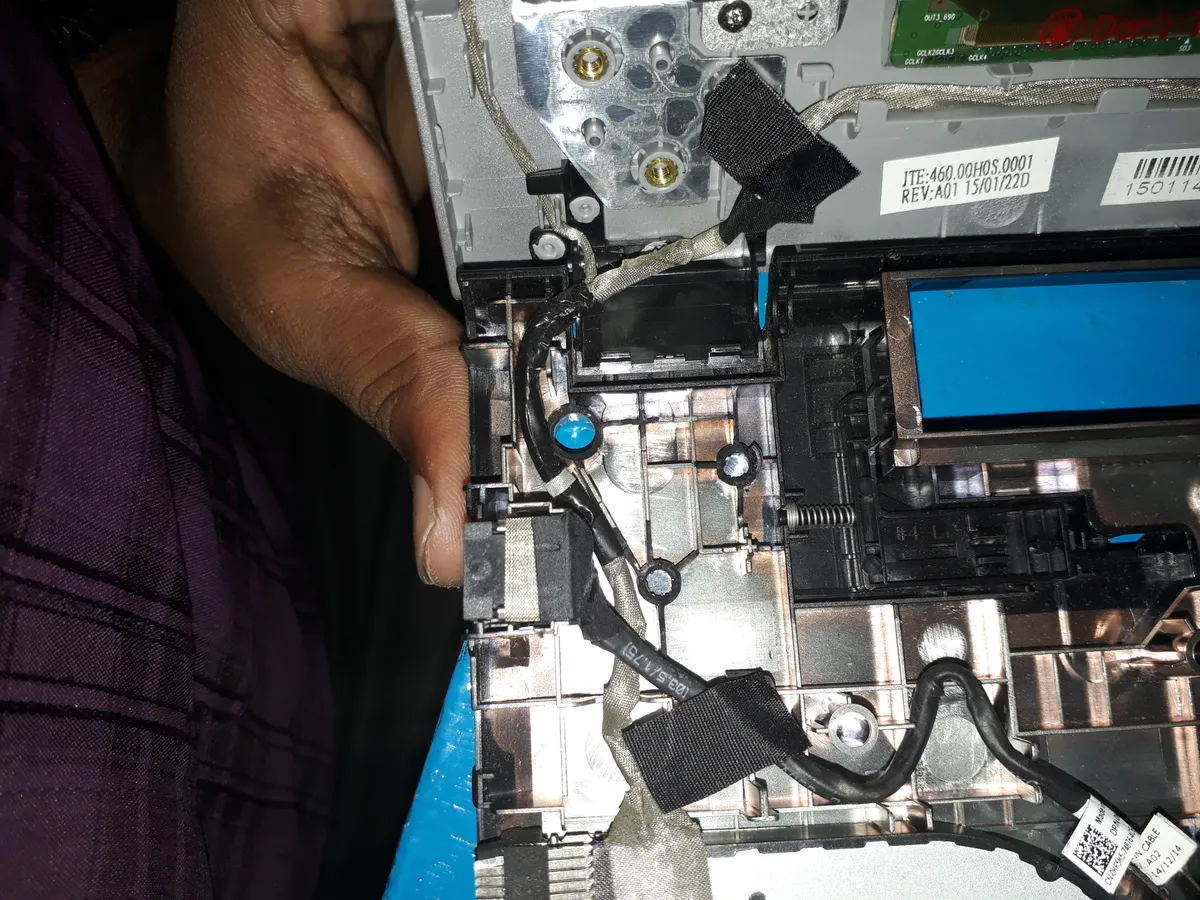
A minority of manufacturers now build around modularity deliberately, publishing part numbers and shipping machines whose mainboards, ports, and screens can be swapped individually. Our Framework Laptop 13 review looks at what that actually means in daily use, including the compromises repairability imposes on thickness and battery.
Where to save and where not to
Save on storage capacity if the SSD is replaceable — buy 512GB and upgrade later for less than the manufacturer's markup. Save on a discrete GPU if you do not render, model, or game; integrated graphics handle multiple 4K monitors and video playback comfortably now. Save on the top processor tier, which typically costs 20% more for perhaps 8% more real-world speed.
Do not save on memory if it is soldered. Do not save on the screen. Do not save on the keyboard and trackpad, which on budget machines can be genuinely unpleasant in a way no specification captures — this is the strongest argument for trying a machine in person before ordering.
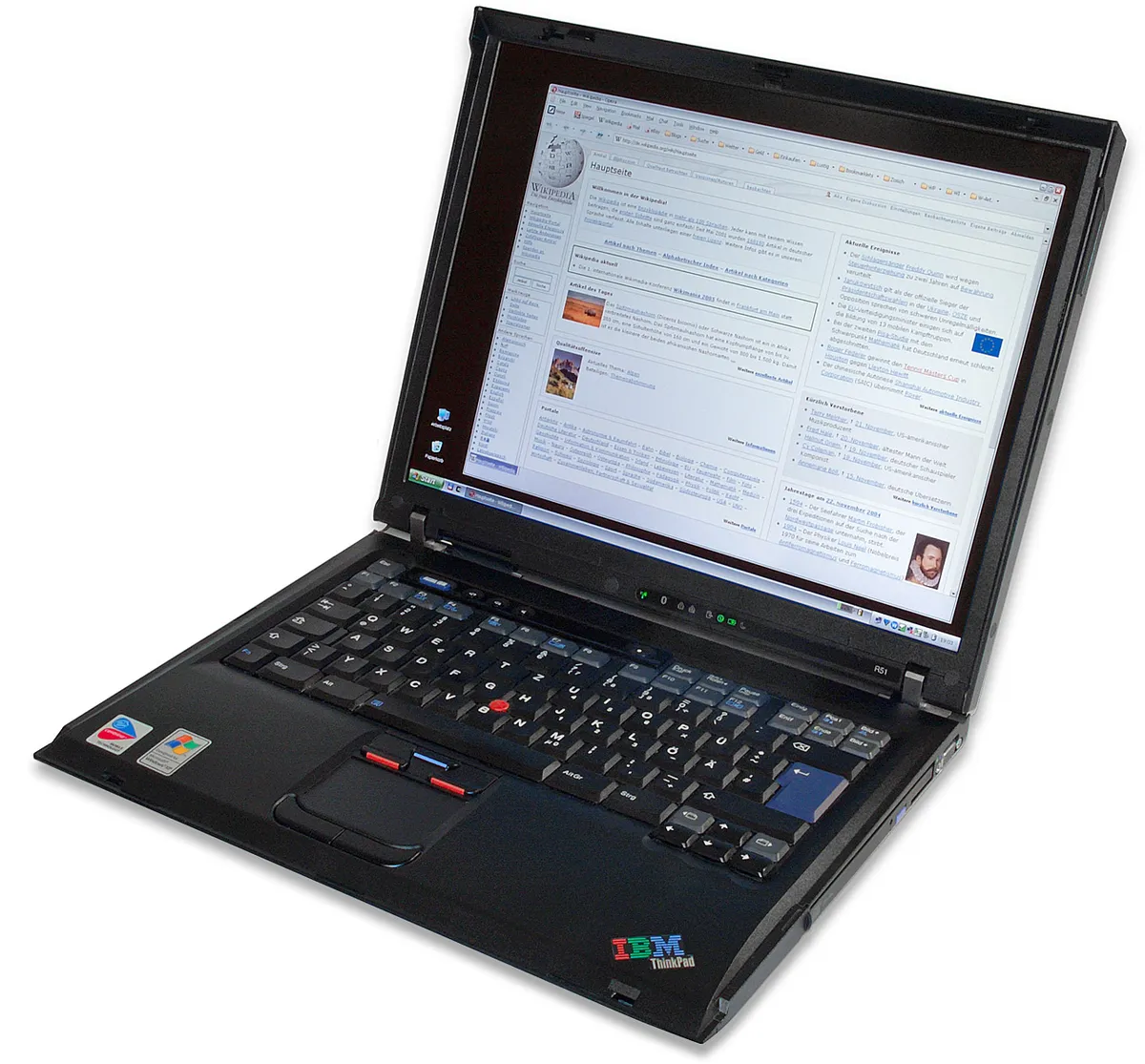
One underrated option: manufacturer-refurbished business laptops. Corporate fleet machines are built to a higher durability standard than consumer models, come off lease after three years, and sell at 40-60% of new price with a warranty. A three-year-old business ultrabook with 16GB and a replaceable battery is frequently a better machine than a new consumer laptop at the same price.
A five-minute buying process
Write down the three heaviest things you do. Check the memory amount and whether it is soldered. Check screen brightness in nits and panel type. Check battery capacity in watt-hours, not the marketing hours. Check that the ports match your desk, or that one hub covers the gap. Check whether the battery and SSD can be replaced.
If all six answers are acceptable, the processor choice within a tier will not change your experience much, and you can safely buy the cheaper one. That is the opposite of how these machines are marketed, and it is the correct order of operations.
More coupon shopping advice

Home Security Camera Buying Guide: Local vs. Cloud Storage
A practical, balanced buying guide to home security cameras that weighs local storage against cloud subscriptions, wired versus battery power, camera placement, night vision, smart detection accuracy, and smart home integration.

Beginner Mirrorless Camera Buying Guide
A practical, honest walkthrough of what actually matters when buying your first mirrorless camera, from sensor size and lens mounts to autofocus, video specs, and the real total cost of a beginner-friendly system.

Air Purifier Buying Guide: CADR, ACH, and Filter Costs Explained
A practical walkthrough of the numbers that actually matter when buying an air purifier — CADR and ACH for sizing, true HEPA versus marketing terms, real three-year filter costs, realistic noise levels, and when a purifier won't help at all.