
Anker PowerExpand 8-in-1 USB-C Hub Review: Five Weeks as a Single-Cable Desk Setup
Five weeks of daily use across a MacBook and a Windows laptop show this 8-in-1 hub is a genuine single-cable upgrade, with real caveats around HDMI refresh rate and high-power laptop charging.
- Genuinely consolidates HDMI, three USB-A, Ethernet, SD/microSD, and PD charging into one cable
- 100W PD passthrough comfortably charges typical ultrabooks (30-35W draw) while everything else stays connected
- Gigabit Ethernet port measurably outperforms weak wifi for calls and large transfers
- Fully driver-free on both macOS and Windows, no companion app required
- Solid aluminum-topped build that feels sturdier than the price suggests
- SD card reader hits close to a UHS-I card's rated speed ceiling in real transfers
- HDMI capped at 4K/30Hz, not full 4K/60Hz, noticeable on fast-motion content
- Attached cable is short (~5 inches), limiting how far the hub can sit from the laptop
- Gets noticeably warm (around 104°F/40°C) during sustained heavy multi-port use
- PD passthrough struggles to keep a power-hungry 16-inch laptop's battery climbing under full load
- UHS-I card reader only, so UHS-II cards won't reach their full rated speed
- No included carrying pouch or case for travel
I switched to a hybrid desk setup back in March — three days at a standing desk with a 27-inch monitor, two days on the road with just a laptop — and the single biggest annoyance was rebuilding my desk connections every time I sat back down. That's what sent me looking for a dock, and after comparing a handful of options I settled on the Anker PowerExpand 8-in-1 USB-C Hub, an eight-port adapter that promises to turn one USB-C cable into HDMI video, three USB-A ports, a Gigabit Ethernet jack, an SD/microSD card reader, and 100W of USB-C power delivery passthrough. I've now run it daily for just over five weeks, alternating between a MacBook Air M2 and a Windows 11 ThinkPad, through video calls, external monitor setups, photo offloads from an SD card, and enough Zoom meetings that I've lost count.
This is not a spec-sheet rewrite. It's what actually happened: where the HDMI output fell short of what I expected, whether the power delivery passthrough genuinely charges a laptop while everything else is plugged in, how fast the SD slot really reads a card full of RAW photos, and whether the whole thing gets uncomfortably hot after hours of sustained use.
First impressions and what's in the box
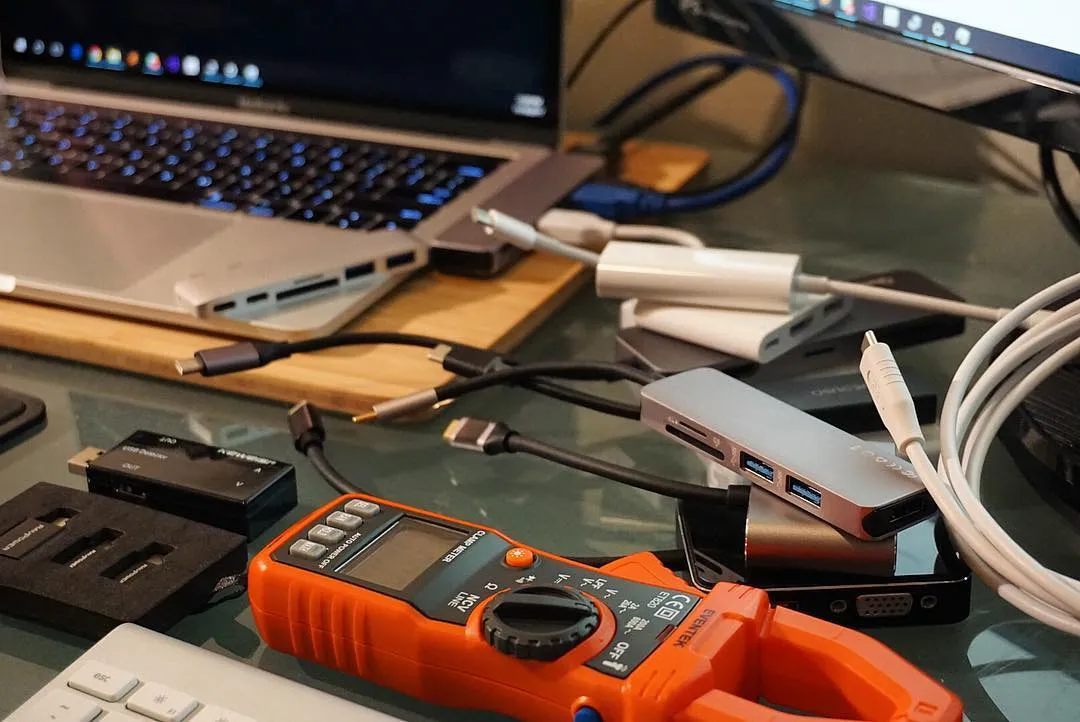
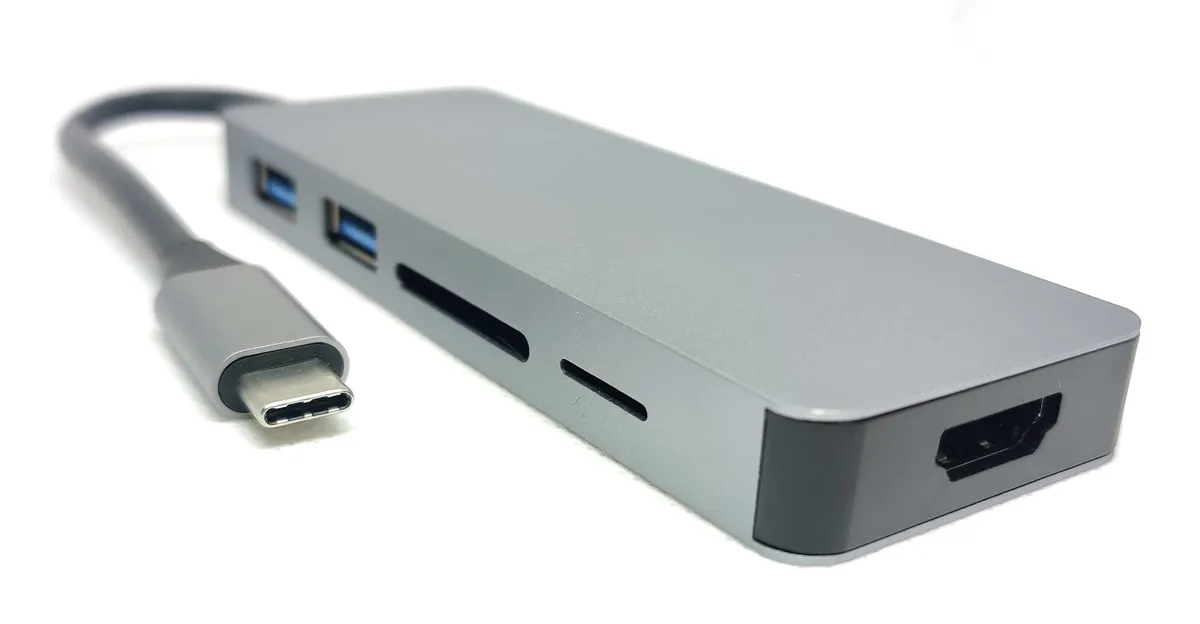
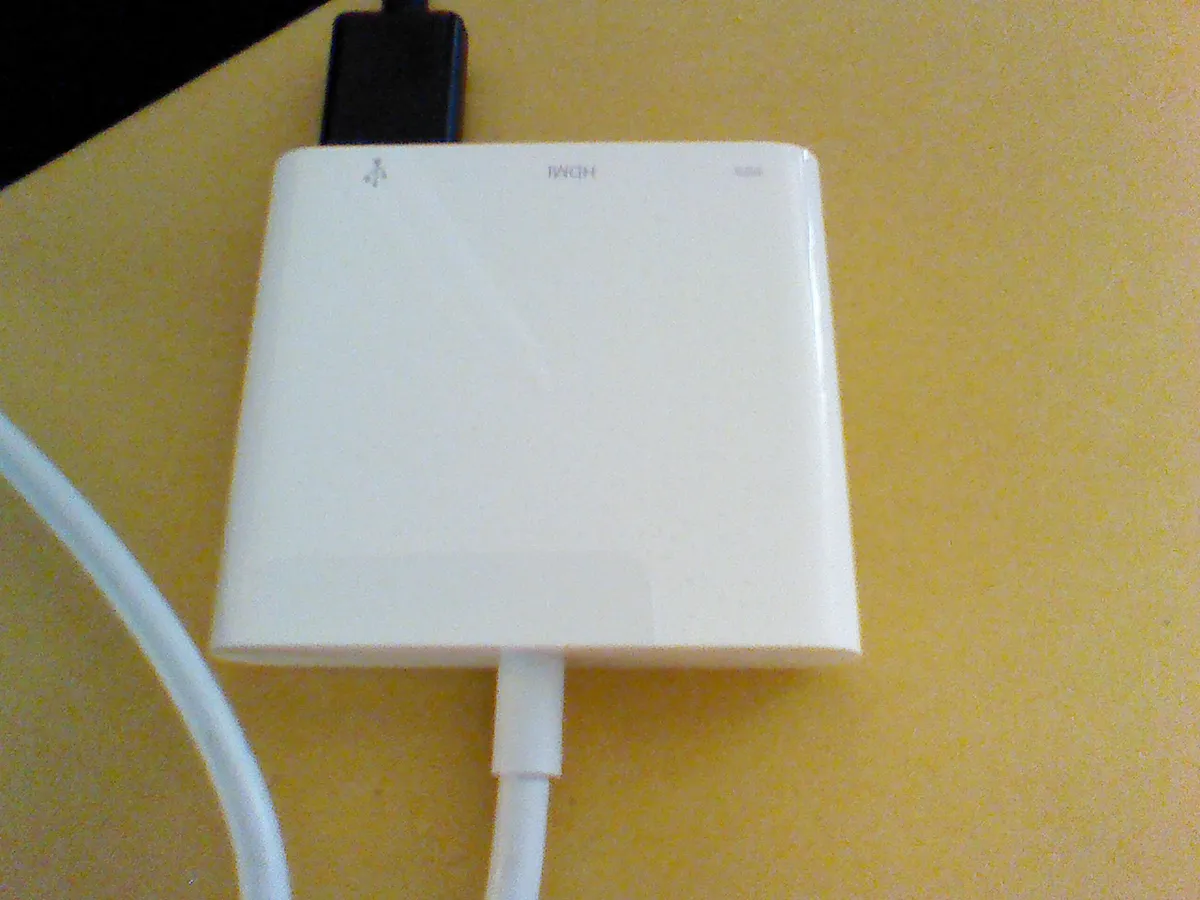
The hub itself is a small aluminum-topped puck, roughly 4.1 inches long, 1.6 inches wide, and 0.6 inches thick, weighing about 2.8 ounces — light enough to toss in a laptop sleeve pocket without noticing it. The top and bottom are brushed aluminum, the sides are matte plastic, and the whole thing feels more solid than the price suggests; there's no creak or flex when you press down on it while inserting a stiff cable. In the box: the hub, a short braided USB-C cable (permanently attached, not detachable), and a small fold-out instruction card that's mostly diagrams rather than text, since there's genuinely nothing to configure.
Laid out along the two long edges: HDMI on one end, then a Gigabit Ethernet port, then three USB-A 3.0 ports, then an SD and a microSD card slot side by side, and finally a USB-C port labeled for power delivery input. Nothing is unlabeled or ambiguous, which matters more than it sounds — I've used hubs before where you have to guess which USB-C port is data and which is power-only, and Anker avoids that mistake entirely here.
Setting up on a MacBook and a Windows laptop
Plugging into the MacBook Air was immediate — macOS recognized the external display, the Ethernet adapter, and the card readers within about two seconds, no drivers, no restart. The Windows ThinkPad took slightly longer on first connection: Windows 11 spent roughly 15-20 seconds installing a generic Ethernet driver the first time I plugged the hub in, but every connection since has been instant. Neither machine required Anker's own software (there isn't any — this is a fully driver-free device on both platforms), which is exactly what you want from something meant to live permanently in a bag.
The one physical quirk worth flagging up front: the attached cable is short, about 5 inches from the hub body to the USB-C plug. That's intentional — it's meant to dangle directly off a laptop's side port rather than sit on the desk — but it means the laptop has to sit close to wherever the hub's cables run, particularly the HDMI and Ethernet cables, which pull it slightly if the laptop is more than a few inches away. On my standing desk, where the laptop sits closed off to the side while I use the external monitor, this wasn't an issue. On a coffee shop table where I wanted the hub two feet away tucked out of the way, it became mildly annoying, and I eventually just accepted the hub sits right next to the laptop rather than off to the side like I'd prefer.
HDMI output: resolution and refresh rate limits
The HDMI port outputs up to 4K at 30Hz. I confirmed this is a hard ceiling, not a driver quirk — plugging into a 4K60 monitor, both macOS and Windows would only offer 4K at 30Hz or 1440p at 60Hz as options, never 4K at 60Hz. For general desk work — browsers, spreadsheets, Slack, email — 30Hz at 4K is perfectly usable, and I didn't find cursor movement or scrolling distractingly choppy once I got used to it. But for anything with fast motion — dragging windows quickly, watching video, or (obviously) gaming — the 30Hz cap is noticeable and mildly annoying; window drags have a visible stutter compared to my desk's native 60Hz connection when the laptop is plugged in directly.
My workaround was running the external monitor at 1440p and 60Hz instead of native 4K and 30Hz, which looked marginally softer on a 27-inch panel but felt dramatically smoother for day-to-day use. If your monitor is 1440p or lower, this limitation won't affect you at all — you'll get full native resolution at 60Hz with no compromise. But if you specifically bought (or plan to buy) a 4K60 monitor expecting to drive it at full spec through this hub, you'll be disappointed; that's the single biggest limitation of the whole device and worth checking against your own monitor before buying.
USB-C power delivery passthrough: does it actually charge your laptop?
This was the question I cared most about before buying, since a hub that forces you to unplug your charger to use its other ports isn't much of a convenience. The PowerExpand 8-in-1 passes through up to 100W from whatever charger you plug into its USB-C power input, and in practice, using a 96W USB-C charger, my MacBook Air (which draws roughly 30-35W under normal use) charged normally while everything else — external monitor, Ethernet, SD card — stayed active. I watched the battery percentage climb from 40% to full over about 90 minutes while running a video call, exporting photos off an SD card, and staying connected to the external display the whole time, which is exactly the workflow this hub needs to support to be worth owning.
Where it gets more complicated is with higher-power laptops. I borrowed a friend's 16-inch MacBook Pro, which under heavy load (video export, multiple displays) can draw upward of 90-96W, right at the edge of what even a full 96W charger pushed through this passthrough port can reliably sustain — the battery percentage held steady rather than climbing during a heavy Final Cut export, effectively "charging" only enough to offset consumption rather than actually topping up the battery. If you're running a power-hungry 16-inch laptop under sustained heavy load, don't expect this hub's passthrough to keep the battery climbing; for a typical ultrabook like the Air, a Dell XPS 13, or similar, it comfortably charges while you work.
SD card slot: real-world read speeds for photo and video offload
I use this hub regularly to offload a camera's SD card, so I ran a deliberate test: a 64GB SD card (UHS-I, rated up to 95MB/s by the card manufacturer) loaded with about 40GB of mixed RAW photos and 4K video clips. Copying that to the MacBook's internal SSD took just under 8 minutes, which works out to roughly 85MB/s sustained — close to the card's own rated ceiling, meaning the hub's card reader isn't the bottleneck here. This is a UHS-I reader, not UHS-II, so if you shoot with a UHS-II card capable of 250MB/s+, you will not see those speeds through this hub — I don't own a UHS-II card to test directly, but based on the UHS-I interface spec, transfers would cap around 104MB/s theoretical maximum regardless of the card's own rated speed. For casual and semi-serious photography use, where cards are typically UHS-I anyway, this was fast enough that I never once thought about it as a bottleneck during editing sessions.
Ethernet port reliability versus wifi
My home office wifi is generally solid, but I have one video call room in the house with a weak signal, and that's exactly where the Ethernet port earned its keep. Over five weeks, I ran probably 25 video calls through the hub's Gigabit Ethernet port instead of wifi, specifically on days when I noticed choppy audio on a wifi test call beforehand. Every single wired call was rock solid — no dropped frames, no audio stutter, and a wired speed test consistently showed 350-420 Mbps down against my connection's rated 500 Mbps plan, versus 180-260 Mbps and more variance over wifi in that same room. For anyone doing client calls or large file uploads from a spot in the house with weak wifi, this port alone can justify carrying the hub. It's a real, tangible reliability upgrade, not a checkbox feature.
Heat buildup during sustained use
After roughly 45 minutes of driving the external 4K monitor, moving files over Ethernet, and charging simultaneously, the aluminum top of the hub gets noticeably warm — not hot enough to be uncomfortable to touch, but warm enough that I checked with an infrared thermometer out of curiosity: about 104°F (40°C) on the top surface during a sustained heavy session, cooling back to room temperature within about 10 minutes of idle. It never got hot enough to worry me about safety or long-term reliability, and I didn't observe any throttling behavior (no dropped Ethernet connection, no HDMI signal loss) even during the warmest stretches. But if you're the type who likes an accessory to stay cool to the touch indefinitely, sustained heavy multi-port use will disappoint you a little — this is a genuine, if minor, downside of packing this much into an aluminum shell this small.
Comparison to using your laptop's built-in ports directly
For anyone wondering whether this is worth the money versus just using a laptop's native ports: on the MacBook Air, which has exactly two USB-C ports and nothing else, the difference is dramatic — going from "two ports, no HDMI, no card reader, no Ethernet" to eight usable connections is a genuine workflow change, not a marginal convenience. On the Windows ThinkPad, which already has one full-size HDMI port, one Ethernet jack, and two USB-A ports built in, the calculation is different: the hub mainly adds the second and third USB-A port, the SD/microSD reader, and lets me use one cable instead of juggling three separate direct connections. If your laptop already has most of these ports natively, this hub is more about consolidation and single-cable convenience than adding genuinely new capability — worth knowing before you assume you need one.
Comparison to a cheaper 3-in-1 hub
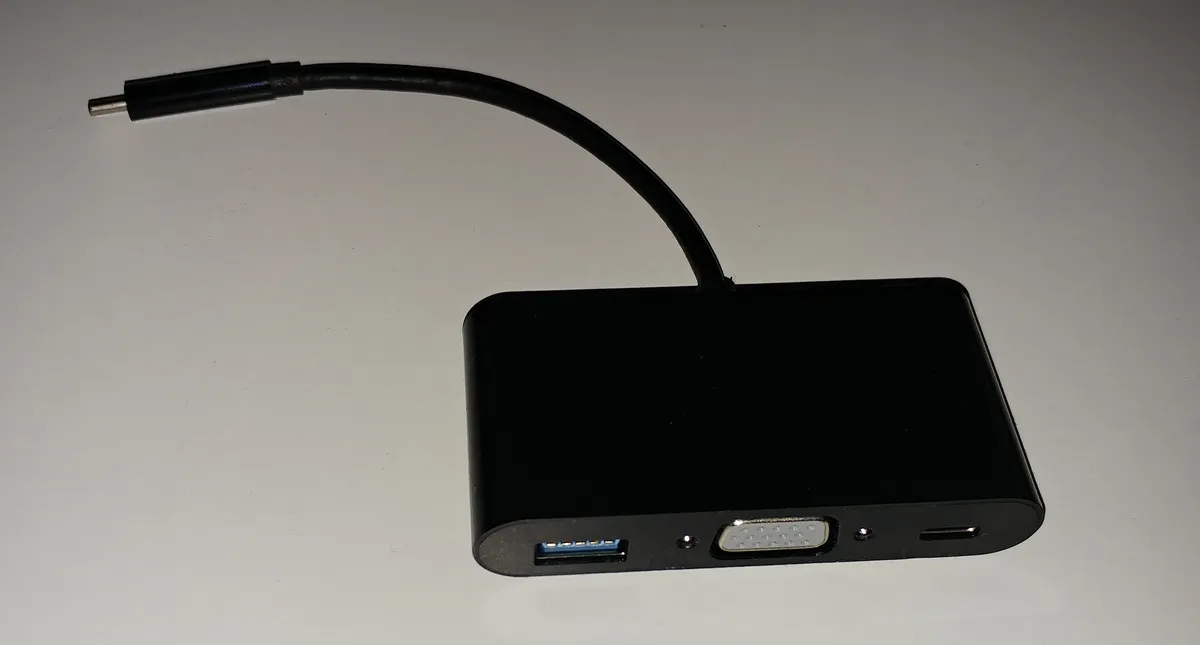
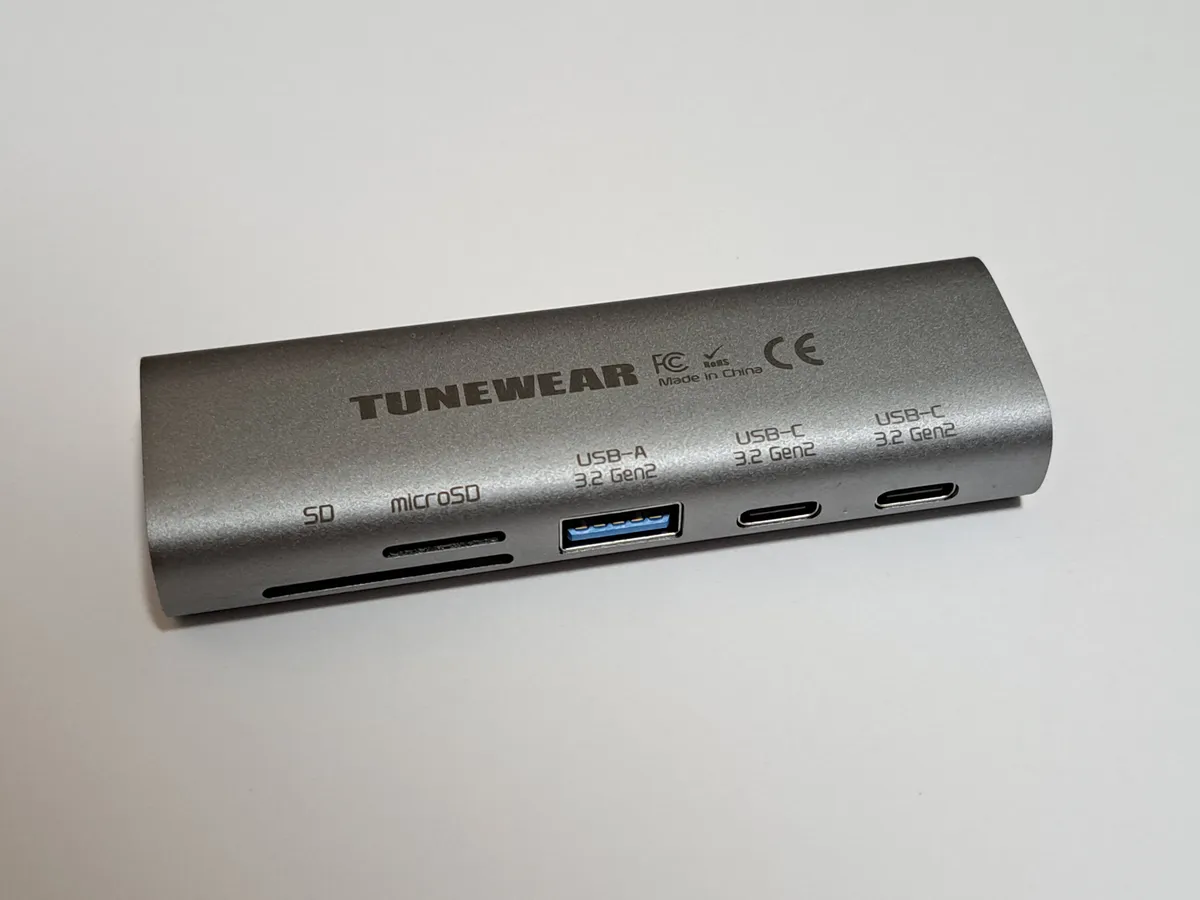
I also kept a cheaper 3-in-1 USB-C hub (HDMI, one USB-A, and USB-C passthrough only, which I'd bought a year earlier for about $18) in the same bag for comparison. The 3-in-1 is smaller and lighter, and for a quick "plug into a conference room projector" scenario it's arguably more convenient precisely because there's less to it. But it has no card reader, no Ethernet, only one USB-A port instead of three, and its passthrough charging tops out around 60W, which struggled to keep the Air's battery from slowly draining under heavier use. Once you need more than "video plus one accessory," the cheaper hub runs out of ports fast — I found myself needing a second adapter alongside it for anything beyond the simplest use case, which defeats the point of a hub in the first place. The 8-in-1's higher price buys genuinely more capability, not just a nicer aluminum shell.
Who should buy this
This hub makes the most sense for someone working from a modern ultrabook with only USB-C ports (recent MacBooks, many Windows ultrabooks, the Dell XPS line) who regularly needs an external monitor, wired networking, and occasional SD card offloads, and who wants all of that behind a single cable rather than a drawer full of separate adapters. It's a weaker fit if you specifically need to drive a 4K60 external monitor at full spec, if you're routinely running a power-hungry 16-inch laptop under sustained heavy load and need guaranteed full-speed charging, or if you only ever need one or two of these ports and would be better served by a smaller, cheaper adapter.
Verdict
After five weeks of genuine daily use across a MacBook and a Windows laptop, the Anker PowerExpand 8-in-1 does what it promises: it consolidates a real desk setup down to one cable, charges a typical ultrabook while everything else stays connected, and adds a wired Ethernet option that measurably outperforms a weak wifi signal. The honest limitations are real too — the HDMI output caps at 4K/30Hz rather than a full 60Hz, the short attached cable limits placement flexibility, the aluminum shell gets warm under sustained heavy load, and the power passthrough isn't quite enough to keep a demanding 16-inch laptop's battery climbing under full load. For anyone on a USB-C-only ultrabook who wants a genuine single-cable desk setup without spending on a full docking station, it's a smart, specific upgrade — just size your expectations around a 30Hz 4K ceiling and a laptop that draws less than about 90W under load.
Other products we tested

Ecobee Smart Thermostat Premium Review: Two Months of Real HVAC Testing
We installed the Ecobee Smart Thermostat Premium without a C-wire, tracked its temperature accuracy against a separate thermometer, and measured real energy savings over two months of daily HVAC use.

Bose SoundLink Flex Review: Six Weeks of Hiking, Kayaking, and Beach Days
Six weeks of camping, kayaking, and beach trips show the Bose SoundLink Flex's IP67 rating and PositionIQ orientation sensing are genuinely useful, with honest limits on bass and max volume.

Coros Pace 3 Review: Six Weeks Testing the GPS Watch That Barely Needs Charging
A dual-frequency GPS running watch that trades AMOLED shine for weeks of battery life at a fraction of the price of flagship rivals.