
Home Office Keyboard and Mouse Buying Guide: Switches, Layouts, and Hand Size
What actually matters when picking a keyboard and mouse for eight-hour workdays: switch noise, layout width, mouse sizing, and wireless trade-offs.
Keyboard and mouse shopping has an unusual failure mode: the products are cheap enough that people buy on impulse, but they are used for six or eight hours a day, so a bad choice quietly costs you comfort every single working day for years. A $40 mistake in a pair of shoes gets returned. A $40 mistake on a desk gets tolerated indefinitely.
This guide is about the home-office case specifically — long typing sessions, shared living space, video calls, and a desk that probably also serves as a dining table on weekends. Gaming priorities like 8,000Hz polling and sub-1ms actuation are irrelevant here and actively work against you in some cases.
The quick answer
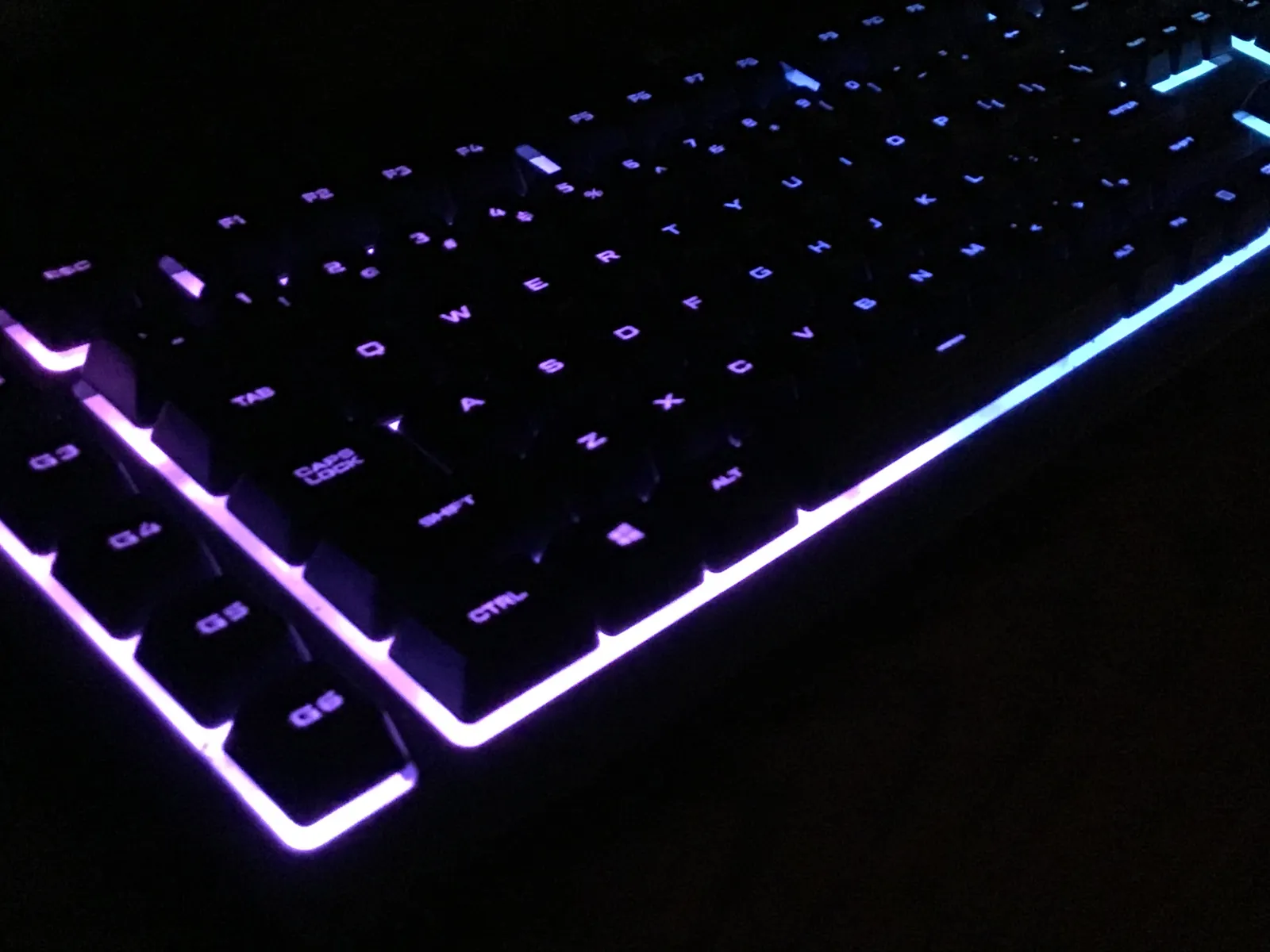
If you share a room with anyone during working hours, buy a low-profile scissor-switch or a mechanical keyboard with linear silent switches. Tactile clicky switches are genuinely disruptive on a call, and no amount of "you get used to it" applies to the other person.
If your wrist or forearm aches by Thursday, the mouse is a more likely culprit than the keyboard, and the fix is usually size rather than shape. Most people use a mouse that is too small for their hand, which forces a claw grip and loads the forearm.
If you switch between a laptop and a desktop, or between work and personal machines, prioritise multi-device pairing over everything else. Being able to move both devices between computers with one keypress removes more daily friction than any switch or sensor upgrade.
Keyboard mechanism: three real categories
Membrane keyboards use a rubber dome pressing a contact sheet. They are cheap, quiet, mushy, and they degrade — the domes soften unevenly over a couple of years, so some keys start needing a firmer press. They are acceptable for light use and genuinely bad for eight-hour typing.
Scissor switches, the mechanism in most laptop keyboards and slim desktop boards, use a plastic X-brace to stabilise a shallow key travel of roughly 1.5-2mm. Stability is the point: the key registers the same whether you hit the centre or the edge. They are quiet, low-profile, and pleasant for fast typists who do not want to lift their hands far. Their limit is a thin, slightly abrupt bottom-out feel.
Mechanical switches use an individual spring-loaded mechanism per key with 3.5-4mm of travel. The advantages are durability rated in tens of millions of presses, replaceable switches, and a much wider feel range. The disadvantages are height, price, and — depending on the switch — noise.

Switch types, translated out of enthusiast jargon
Linear switches move straight down with no bump and no click. They are the quietest mechanical option and the easiest to type fast on once your fingers learn the actuation point. Actuation force around 45g is the common comfortable middle; 35g options exist and cause typos for heavy-handed typists.
Tactile switches add a small bump at the actuation point. You can feel the key register, which reduces bottoming-out force over a long day and, for a lot of people, reduces finger fatigue. Noise is modest — mostly the sound of the keycap hitting the plate, not the switch itself.
Clicky switches add an audible click mechanism on top of the tactile bump. They are satisfying and they are loud in a way that carries through an open microphone and through a wall. In a shared home office they are a conflict waiting to happen.
Two practical notes. Silent variants of linear and tactile switches add rubber dampening at both ends of travel; they cut perceived noise substantially for a small loss of crispness, and they are the right default for anyone taking calls. And a hot-swappable board — one where switches pull out without soldering — means one keyboard can be re-tuned rather than replaced, which is a real long-term saving if you are unsure what you like.
Layout: how much keyboard do you actually need
Full-size boards include the number pad and run roughly 44cm wide. If you enter numeric data daily, keep it. If you do not, that number pad is pushing your mouse hand 10cm further right than necessary, which over a year is a meaningful shoulder-position problem.
Tenkeyless (TKL) drops the number pad and keeps everything else, including function row and arrows. For most office work this is the sweet spot: nothing you use is missing, and your mouse comes back toward your body.
75% layouts compress the arrow keys and navigation cluster into the main block. 65% removes the function row, which means Escape and F-keys move to a layer accessed with a modifier. This is fine for prose, irritating for spreadsheets and IDEs where F2 and F5 are muscle memory. 60% removes arrows too, and is a hobbyist choice rather than a productivity one.
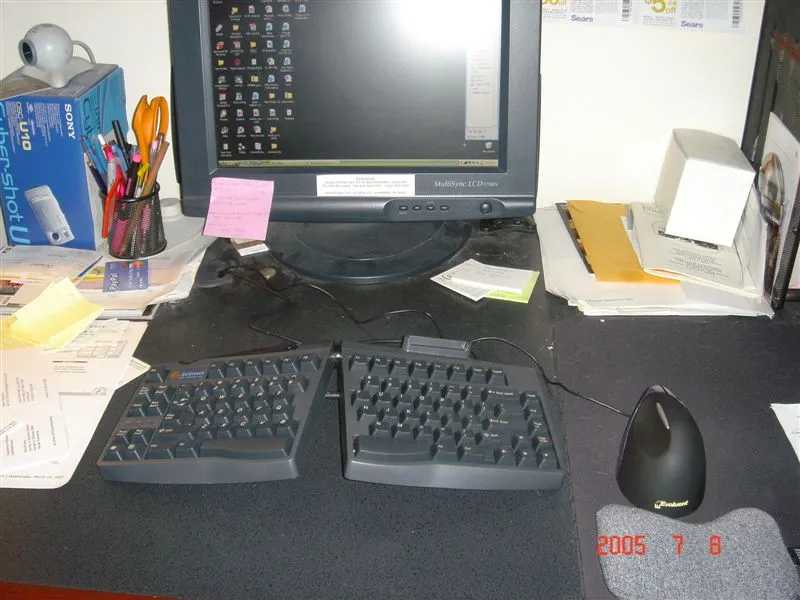
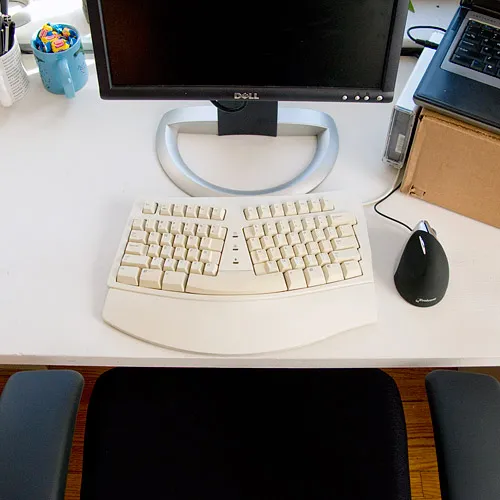
Split and contoured ergonomic keyboards deserve a mention because they solve a specific problem: forearm pronation, the inward rotation required to lay your palms flat on a conventional board. If you have shoulder or forearm discomfort that persists after fixing your desk height, a split board is one of the few interventions with a clear mechanical rationale. The cost is a two to four week typing-speed dip while your hands relearn the middle columns.
Mouse sizing, which almost nobody checks
Measure from the base of your palm to the tip of your middle finger. Under 17cm is a small hand, 17-19cm medium, over 19cm large. Then check the mouse length. A 12.5cm mouse under a 20cm hand forces the fingers to curl and the palm to hover — a claw grip — which keeps the forearm extensors under continuous low-level tension. That is the mechanism behind most "mouse elbow."
Three grip styles follow from size and preference. Palm grip rests the whole hand on the shell and suits large mice and long sessions; it is the lowest-tension option and the right default for office work. Claw grip arches the fingers for faster small movements. Fingertip grip touches only the fingertips and is precise, fast, and tiring.
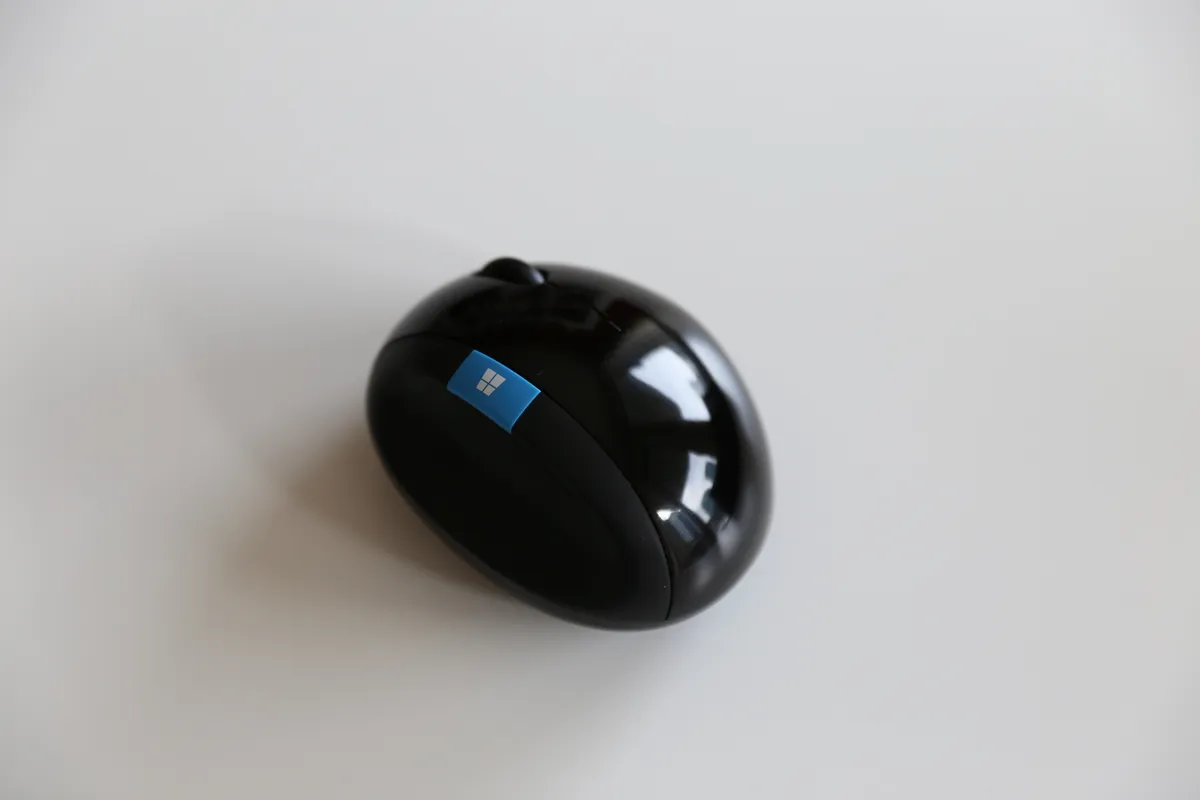
Weight matters less than the marketing suggests for office use. Ultralight 60g mice exist for competitive gaming, where thousands of rapid flicks per session make grams add up. For document work, a 100-130g mouse with a smooth glide feels more controlled and less twitchy. Do not pay a premium for lightness you will not use.
Vertical mice: who they actually help
A vertical mouse rotates the hand roughly 55-90 degrees so the forearm sits in a handshake position rather than pronated flat. The claimed benefit is reduced strain on the forearm and wrist, and for people with existing discomfort the subjective improvement is often substantial.
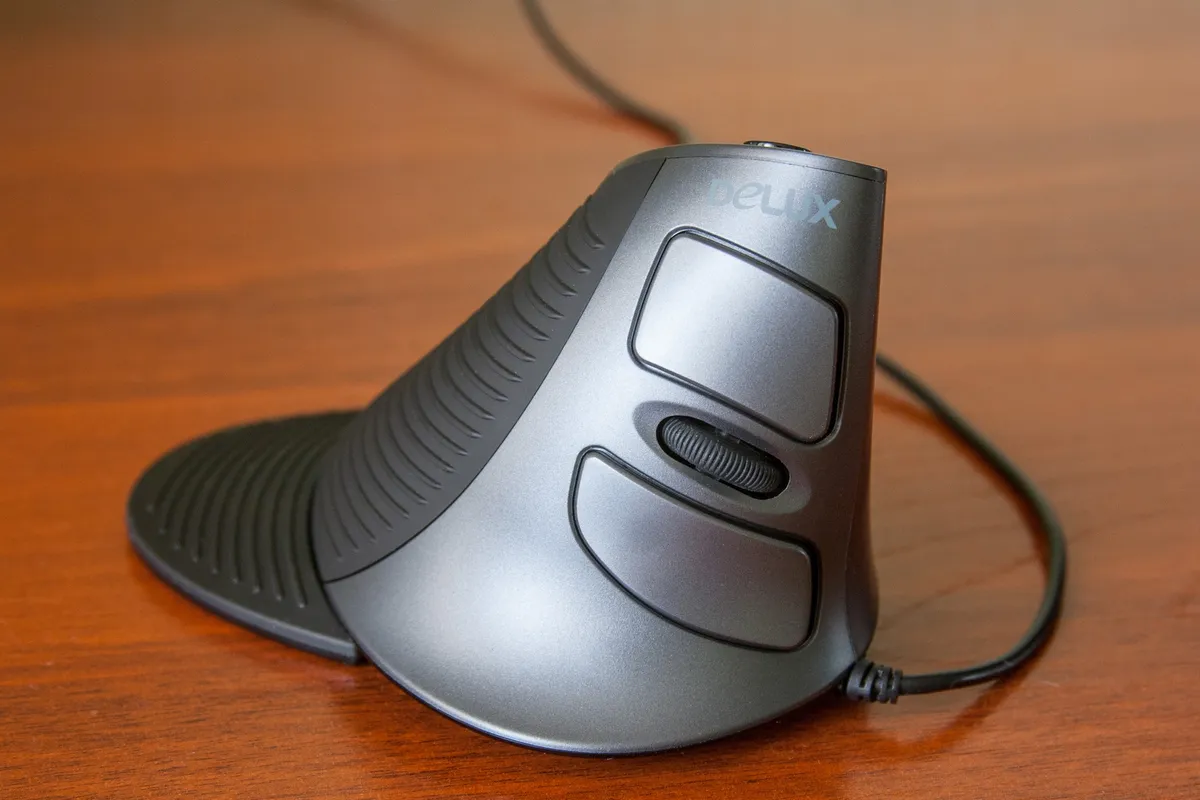
The honest caveats: precision drops for the first week or two because the movement now comes more from the shoulder than the wrist, which is the point but takes adjustment. Fine work like photo retouching or CAD suffers more than general office work. And a vertical mouse does not fix a desk that is too high — if your elbow angle is under 90 degrees, sort that first, because no peripheral compensates for a bad desk height. Our standing desk buying guide covers the height arithmetic in detail.
Wireless, and the two questions that matter
Latency is a non-issue for office work. Modern 2.4GHz dongles run at 1ms and Bluetooth around 7-10ms; neither is perceptible while writing an email. Ignore this specification entirely unless you game competitively.
What does matter is connection type and battery format. A 2.4GHz USB dongle is more reliable in RF-congested flats and works before the operating system boots, which matters for BIOS access. Bluetooth frees the USB port and pairs with tablets and phones. The best office peripherals offer both, plus multi-device switching across two or three paired machines.
Battery format is a real ownership decision. Rechargeable internal cells mean no consumables but a battery that degrades and, in most designs, cannot be replaced — so the peripheral has an expiry date around year four or five. AA/AAA-powered devices run 12-24 months on a cell and last indefinitely, at the cost of slightly more weight and a bulge in the shell. For a keyboard you intend to keep for a decade, replaceable cells are the more durable choice. We tested one multi-device board over months of daily switching in our Logitech MX Keys review, and the companion pointer in our MX Master 3S review.
The mistakes worth avoiding
Buying RGB lighting you will disable in week two, and paying a 25% premium for it. Buying a wrist rest to fix pain caused by a desk that is 5cm too high — the rest anchors your wrist and can make static loading worse. Buying a clicky mechanical board without ever hearing one, then discovering your partner can hear it two rooms away.
Also worth naming: buying a "productivity" mouse for its programmable buttons and never programming them. Extra side buttons only help if you sit down and map them to things you genuinely do dozens of times a day — back/forward in a browser, copy and paste, mute on a call. If you will not spend the ten minutes configuring, buy a simpler mouse and save $50.
A sensible order of operations
First, fix the desk and chair height so your elbows sit at roughly 90 degrees with shoulders relaxed. Peripherals cannot compensate for geometry. Second, size the mouse to your hand and match it to a palm grip if you work long hours. Third, choose the keyboard layout that keeps your mouse close to your body — usually TKL. Fourth, choose the switch by noise tolerance in your actual room, not by online recommendation. Fifth, add multi-device switching if you use more than one computer.
Total realistic spend for a setup that will last five years and not hurt: $120-$220 for a good scissor or silent-mechanical keyboard, $60-$110 for a correctly-sized mouse. Above roughly $350 combined you are buying refinement and materials rather than function. Below about $80 combined you are buying something that will be replaced within eighteen months, which is not a saving.
More coupon shopping advice

Home Security Camera Buying Guide: Local vs. Cloud Storage
A practical, balanced buying guide to home security cameras that weighs local storage against cloud subscriptions, wired versus battery power, camera placement, night vision, smart detection accuracy, and smart home integration.

Beginner Mirrorless Camera Buying Guide
A practical, honest walkthrough of what actually matters when buying your first mirrorless camera, from sensor size and lens mounts to autofocus, video specs, and the real total cost of a beginner-friendly system.

Air Purifier Buying Guide: CADR, ACH, and Filter Costs Explained
A practical walkthrough of the numbers that actually matter when buying an air purifier — CADR and ACH for sizing, true HEPA versus marketing terms, real three-year filter costs, realistic noise levels, and when a purifier won't help at all.