
Logitech MX Master 3S Review: The Mouse That Made Us Quiet Down
The MX Master 3S keeps everything that made the 3 great and fixes the one thing people actually complained about: the click noise.
- Clicks are noticeably quieter than the standard MX Master 3
- MagSpeed scroll wheel is the best in the business for fast and precise scrolling
- 8K DPI Darkfield sensor tracks reliably even on glass desks
- Effortless three-device switching via Easy-Switch
- Excellent battery life, rated up to 70 days per charge
- Comfortable ergonomic shape for long desk sessions
- Right-hand-only shape excludes left-handed users
- Large body may feel oversized for smaller hands
- Logi Options+ software occasionally needs a manual relaunch
- Marginal upgrade over the standard 3 if click noise isn't a concern for you
- Not designed for gaming or fast-flick use cases
There's a specific kind of product review that's hard to write honestly: the incremental upgrade to something that was already very good. The MX Master 3S doesn't reinvent Logitech's flagship productivity mouse, and Logitech isn't pretending otherwise — the headline changes are a quieter click mechanism and a bump to an 8K DPI sensor, on a body that's otherwise identical to the MX Master 3 it replaces. We used it as our daily driver for seven weeks across a work laptop, a personal desktop, and an iPad for good measure, switching between all three with the Easy-Switch button, to see whether those two changes matter enough to justify buying this over a cheaper used 3, or whether they're marketing bullet points nobody will notice.
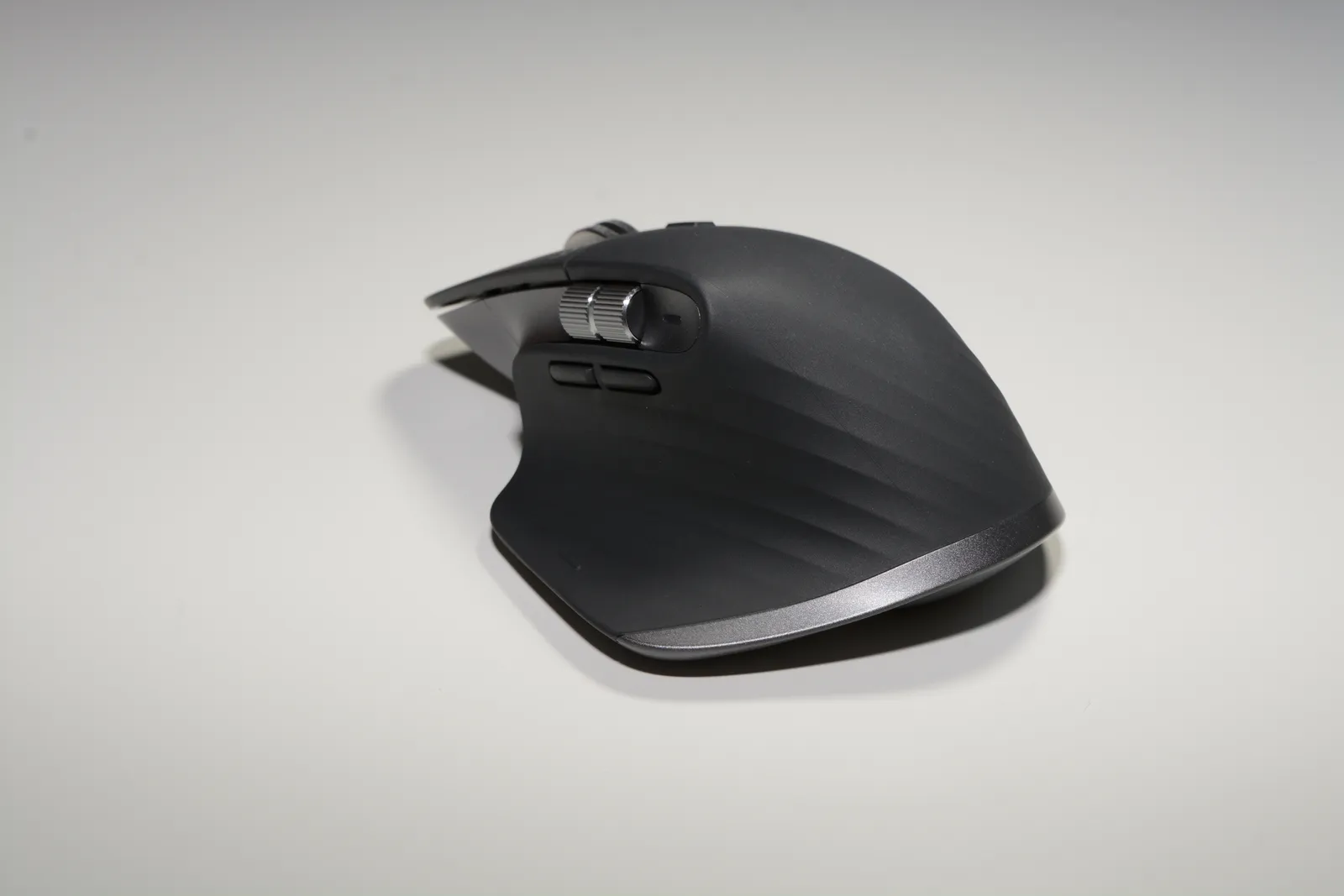
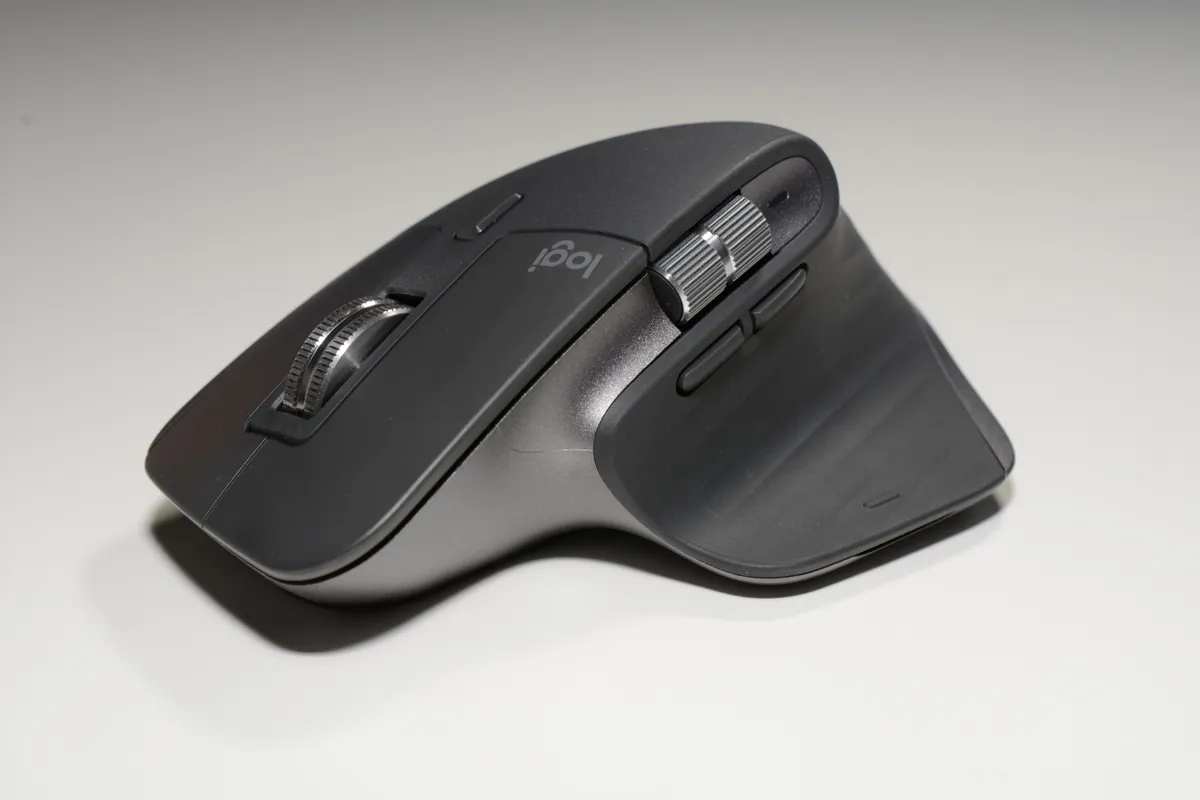
Physically, if you've held an MX Master before, you know exactly what to expect: a sculpted, asymmetric right-hand-only body with a thumb rest, a horizontal thumb wheel, and Logitech's signature MagSpeed electromagnetic scroll wheel that free-spins for fast scrolling through long documents or locks into ratcheted clicks for precise line-by-line scrolling. At 141 grams it has real heft compared to a lightweight gaming mouse, which some people dislike but which we found genuinely comfortable for eight-hour desk days — it sits in the hand rather than gets pushed around by it.
The quiet clicks are the real headline
Logitech says the 3S's clicks are up to 90% quieter than the standard 3's, and while we can't verify that exact figure, the subjective difference is real and noticeable within the first ten minutes of use. The previous MX Master's clicks had an audible, slightly sharp snap that was fine in a private office but genuinely embarrassing on a video call or in a shared coworking space. The 3S's left and right clicks are a duller, softer thud — still tactile enough to feel confident and deliberate, but no longer the kind of sound that makes someone on the other end of a call ask "what was that?" If you've ever worked in an open office or shared apartment and felt self-conscious about mouse-click noise, this alone might be worth the upgrade over a used standard 3.
The sensor bump and everyday precision
The move from the 3's 4,000 DPI sensor to the 3S's 8,000 DPI Darkfield sensor sounds like a bigger deal on paper than it is in daily productivity use — most people, including us, never touch anything close to 8K DPI for normal desk work, since anything above roughly 1,600-2,000 feels uncomfortably twitchy for precise clicking. Where the higher-resolution sensor does matter is tracking consistency on tricky surfaces: we tested it on a glass-topped desk (a notoriously difficult surface for most optical mice) and it tracked reliably without the skipping or jumping we've experienced with cheaper mice on the same surface. If you work on glass, marble, or another glossy surface, this sensor upgrade is genuinely meaningful rather than a spec-sheet vanity number.
MagSpeed scrolling: still the best part of this mouse
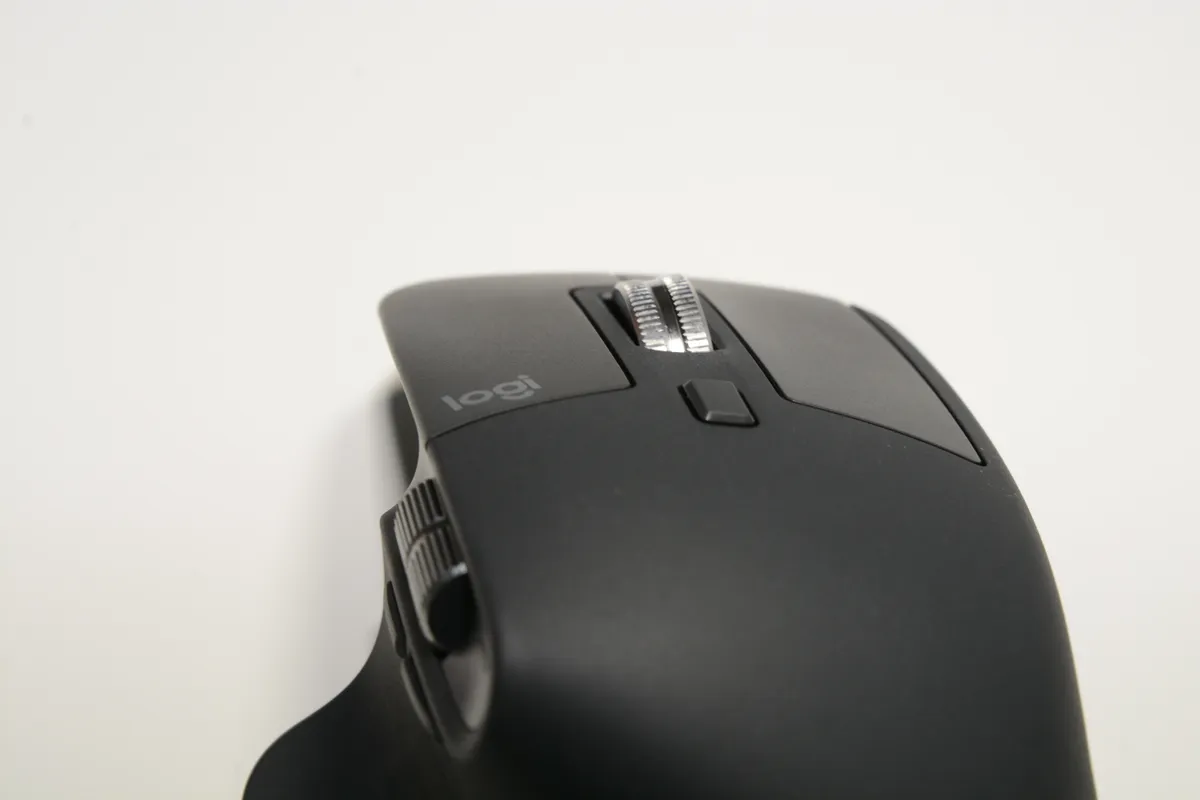
The main scroll wheel remains the single best reason to own an MX Master over almost anything else on the market. In ratcheted mode it clicks through discrete lines with satisfying precision for line-by-line work in spreadsheets or code; give it a firm flick and the electromagnetic clutch disengages, letting it spin freely for several seconds to blast through a long document or webpage. Logitech's SmartShift feature can auto-switch between the two modes based on scroll speed, or you can lock it to one mode permanently in the Options+ software. We spent most of the seven weeks in auto mode and rarely noticed it making the wrong call, which after years of mice with a single fixed scroll behavior still feels like a small revelation every time we use a lesser mouse.
Easy-Switch across three devices
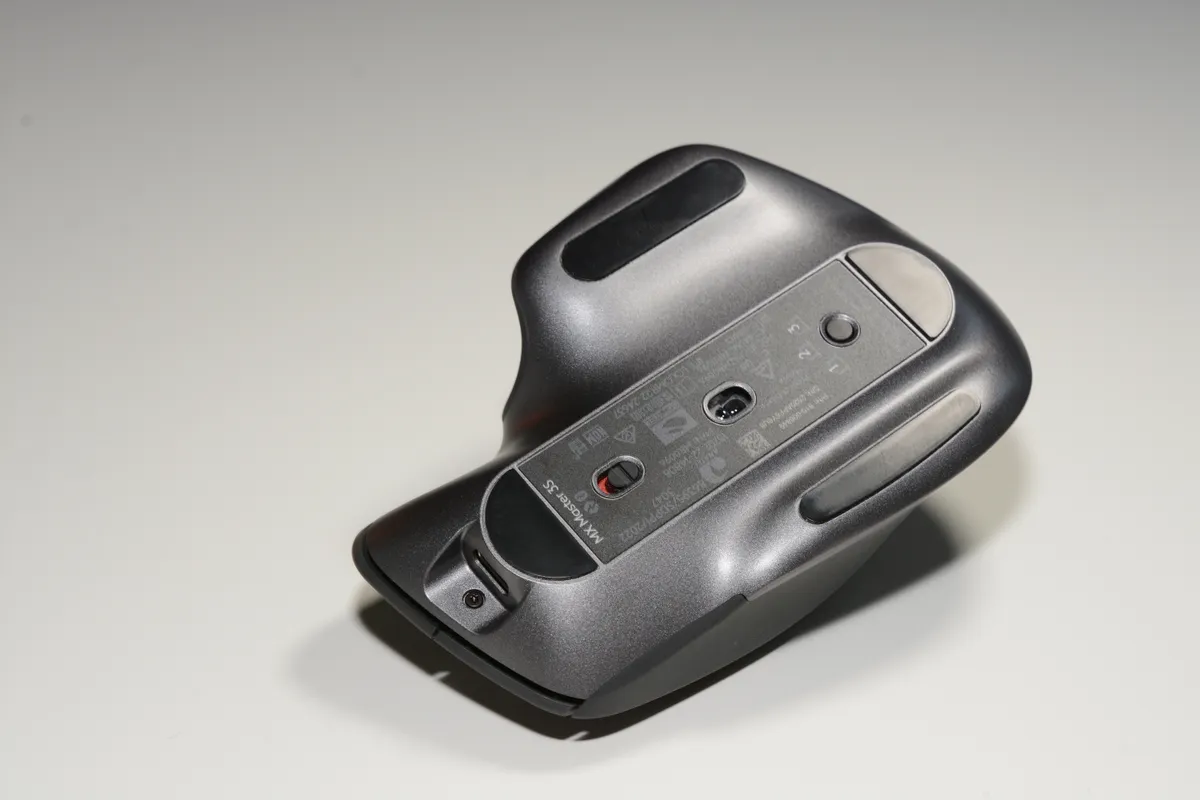
The 3S pairs with up to three devices via Bluetooth Low Energy or Logi's Bolt USB receiver, and a small button on the underside cycles between them. We had it paired to a work laptop, a personal desktop, and an iPad simultaneously, and switching between them took under two seconds with no re-pairing dance required — genuinely useful if you regularly move between machines rather than owning a mouse per device. The one hiccup: waking a machine from full sleep sometimes required an extra click or two before the cursor responded, a minor but occasionally annoying quirk that seems tied to Bluetooth wake timing rather than anything mouse-specific.
Battery life and charging
Logitech rates the 3S at up to 70 days per charge with the backlight-free design (there's no RGB or backlighting to drain power here), and after seven weeks of eight-plus-hour daily use we were still comfortably above 50% according to the Options+ battery indicator — the claim held up well enough that we never once had to reach for the included USB-C cable mid-workday, which is more than we can say for most Bluetooth peripherals we've tested. A quick one-minute charge is rated to provide about three hours of use in a pinch, which we tested once after deliberately running the battery down and found accurate enough to trust.
Logi Options+ software and customization
All seven programmable buttons and the horizontal thumb wheel are configurable per-application through Logi Options+, letting you set up different button behaviors for, say, a video editor versus a browser versus a spreadsheet app. The software occasionally nagged for updates and once failed to recognize a profile switch until we manually relaunched it, minor software friction that's common across peripheral companion apps rather than a Logitech-specific problem, but worth knowing going in if you expect flawless background operation.
Working across Windows, macOS, and iPadOS
We split time between a Windows desktop, a MacBook, and an iPad over the seven weeks, and the 3S behaved consistently across all three, with the caveat that a couple of the more advanced Logi Options+ gestures (app-specific button remapping in particular) are more fully featured on Windows and macOS than in the more limited iPadOS companion app. Basic functions — clicking, scrolling, Easy-Switch, gesture button — worked identically everywhere, which matters if, like us, your work laptop and personal machine run different operating systems and you don't want two different mice cluttering your desk.
Comparison to the standard MX Master 3 and cheaper mice
If you can find a standard MX Master 3 significantly discounted or secondhand, the honest case for paying full price for the 3S comes down to two things: whether click noise genuinely bothers you or the people around you, and whether you work on a glossy desk surface where the better sensor actually matters. If neither applies, the 3 remains an excellent mouse and the 3S's improvements are marginal for your use case. Against budget wireless mice in the $20-40 range, the gap is much larger — the ergonomics, scroll wheel quality, and multi-device switching on the MX Master 3S are simply in a different category from anything at that price point.
Long-session comfort and hand fatigue
We deliberately tracked how our hands felt after long single sessions — several six-hour writing and spreadsheet stretches without much of a break — since hand fatigue is where cheaper mice tend to fall apart first. The sculpted thumb rest and the mouse's overall height kept our palm properly supported rather than flattened against the desk, which is the main cause of wrist strain with flatter, lower-profile mice. The only fatigue we noticed came from the horizontal thumb wheel's slightly stiff detents during heavy back-and-forth browser tab switching, a minor complaint next to the otherwise noticeably lower hand fatigue compared to the compact wireless mice most of us had been using before this test.
Who should actually buy this
This is squarely a mouse for people who sit at a desk for a living: writers, analysts, developers, and anyone who scrolls through long documents or spreadsheets daily will feel the MagSpeed wheel's benefit immediately. It's a poor fit for gaming (the shape and weight aren't built for fast flick movements) and a needless expense for someone who only uses a computer casually.
Traveling with it
We also took the 3S on two work trips during the test period, tossing it in a laptop bag without a dedicated case. It survived both trips without any scratches or issues, and the USB-C charging cable doubling as the same cable most of our other gear already uses meant one less dedicated charger to pack. The only travel-specific annoyance was that the mouse doesn't power off completely on its own; there's a physical switch on the underside you have to remember to flip, or it'll slowly drain in a bag over a long trip, something a fully automatic sleep mode would solve more elegantly.
The verdict
Seven weeks in, the MX Master 3S replaced two other mice on our desks without any of us missing them. The quieter clicks are a genuinely welcome, immediately noticeable improvement, the sensor bump is a real (if situational) upgrade, and everything that already made the MX Master line excellent — the scroll wheel, the ergonomics, the multi-device switching — remains intact. For anyone who spends real hours a day with a mouse in hand, this is still the one to buy.
Other products we tested

Ecobee Smart Thermostat Premium Review: Two Months of Real HVAC Testing
We installed the Ecobee Smart Thermostat Premium without a C-wire, tracked its temperature accuracy against a separate thermometer, and measured real energy savings over two months of daily HVAC use.
Bose SoundLink Flex Review: Six Weeks of Hiking, Kayaking, and Beach Days
Six weeks of camping, kayaking, and beach trips show the Bose SoundLink Flex's IP67 rating and PositionIQ orientation sensing are genuinely useful, with honest limits on bass and max volume.

Coros Pace 3 Review: Six Weeks Testing the GPS Watch That Barely Needs Charging
A dual-frequency GPS running watch that trades AMOLED shine for weeks of battery life at a fraction of the price of flagship rivals.