
Logitech MX Keys Review: Multi-Device Typing Tested
A four-month, three-device test of Logitech's MX Keys covering Easy-Switch reliability, backlight battery drain, and how it stacks up against a cheap membrane keyboard and a mechanical board.
- Quiet, well-damped scissor-switch typing feel with sculpted keycaps that held up over months of daily long-session use
- Easy-Switch reliably swapped between three paired devices in under a second in the large majority of attempts
- Auto-adjusting backlight with a proximity sensor is genuinely useful, not a gimmick
- Solid aluminum-topped build feels premium and doesn't skate around on a desk mat
- Logi Flow adds cross-computer cursor and clipboard sharing when paired with a Flow-compatible mouse
- Not a mechanical keyboard, so tactile-switch purists will miss that feedback and customization
- Backlighting cuts battery life from roughly 5 months down to about 10 days on a charge
- Real price premium over basic wireless membrane keyboards
- Function-key row needs an Fn combo for hard function keys on both Mac and Windows by default
- USB-C port is charge-only, with no wired fallback if the battery dies mid-task
- Logi Bolt receiver is small and easy to misplace when traveling between desks
I've had a Logitech MX Keys sitting on three different desks over the past four months — a home office iMac setup, a Windows laptop docked at a coworking space, and a MacBook Pro I travel with — and it's the first keyboard in years I haven't swapped out after the honeymoon period wore off. That's a low bar for a $99.99 keyboard to clear, but it's a bar plenty of wireless keyboards fail, usually because the typing feel turns mushy after a few weeks or the multi-device switching stops being reliable right when you need it most.
This review is built on that four-month stretch of actual daily typing — an average of six to eight hours a day across drafting, spreadsheets, Slack, and code — rather than a first-week impression. I paired it across a Mac, a Windows 11 laptop, and an Android tablet simultaneously, used the backlighting daily in a dim room, and ran it down to empty more than once to get real battery numbers instead of Logitech's marketing figures.
First impressions and build quality
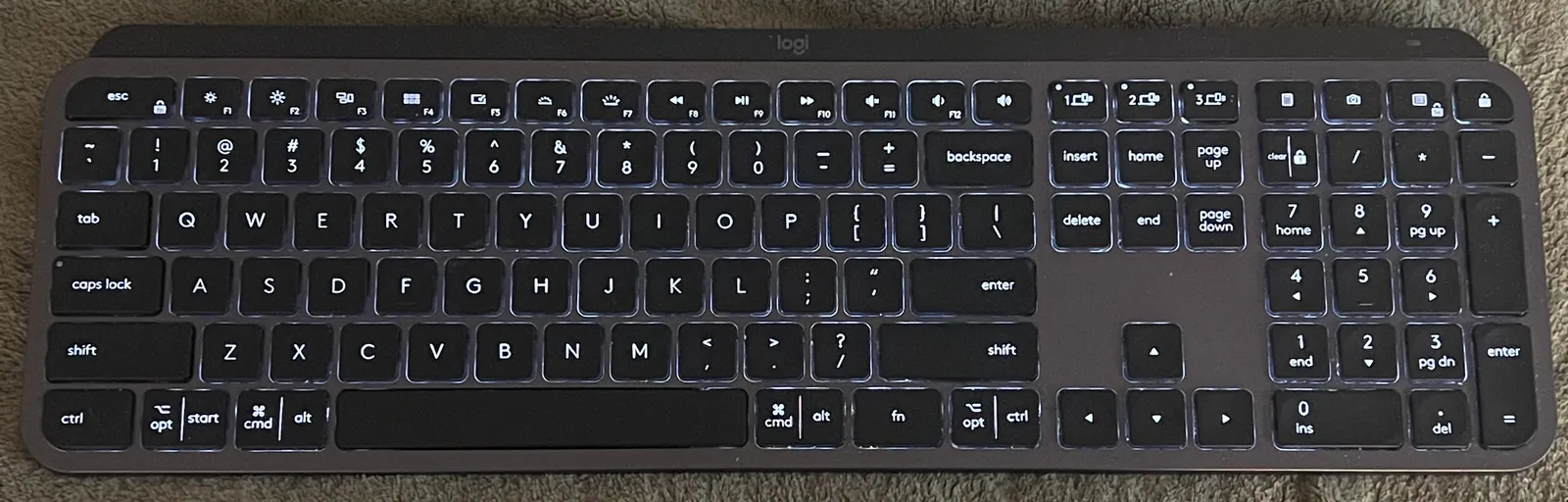
Out of the box, the MX Keys is heavier than it looks in photos — about 810 grams — and that weight matters in daily use because the keyboard simply doesn't skate around on a desk mat the way lighter wireless boards do. The chassis is a matte-finish aluminum top plate over a black plastic base, with a slight forward tilt built into the housing rather than relying on flip-out feet (there are small rear feet for a steeper angle, but I left them folded for most of the test). The plastic bottom does flex slightly if you press hard near the corners, which is the one spot where the build quality feels a step below the MX Master mouse line it's designed to match on a desk.
The layout is full-size with a numpad, which is either a selling point or a dealbreaker depending on your desk space — I'd have preferred the option of a tenkeyless MX Keys Mini for my smaller desk, but Logitech sells that as a separate, smaller product rather than a variant of this one. Inside the box: the keyboard, a USB-C charging cable (charging only, not for data), the Logi Bolt USB receiver pre-paired to slot one, and a basic quick-start pamphlet. No USB extension cable is included, which is a minor annoyance if your desktop's rear USB ports are hard to reach.
Typing feel and key travel over long sessions
This is where the MX Keys earns its price premium. The keys use a scissor-switch mechanism with concave, sculpted keycaps — Logitech calls the spherical dishing "perfect stroke" keycaps — and roughly 1.3mm to 1.5mm of usable travel with a soft, well-damped bottom-out. After eight-hour writing days, my hands felt noticeably less fatigued than on the flat-profile membrane keyboard I used previously, and less fatigued than on a mechanical board with heavier 60g+ switches that I keep at a second desk for gaming.
It's not a mechanical keyboard, and it doesn't try to be. There's no tactile bump, no audible click, and no hot-swappable switches — purists who want that feedback, or who want to customize spring weight and switch type, will find this keyboard's feel fixed and comparatively muted. What it does deliver consistently is quiet, low-fatigue typing at speed; I never bottomed out with the kind of clack that bothers open-office neighbors, which is precisely why it's a common pick for shared workspaces and video calls where a loud mechanical board is a liability.
Logi Flow and Easy-Switch: multi-device pairing across three machines
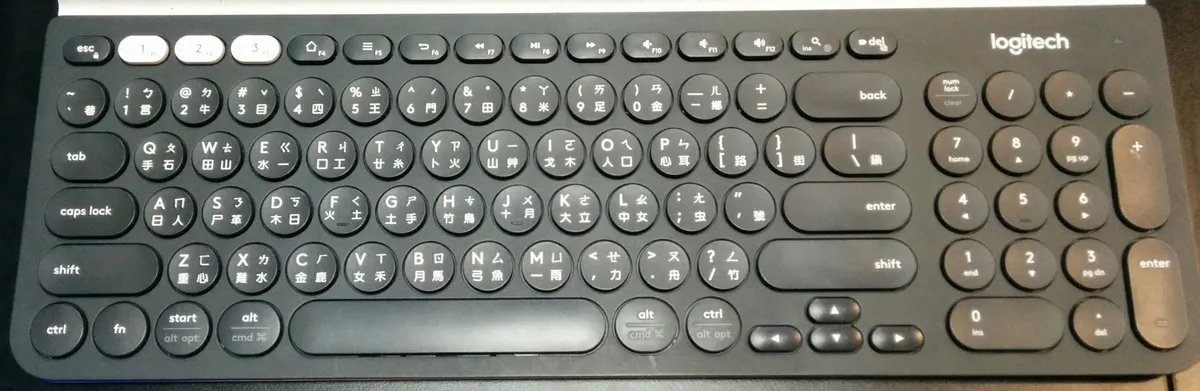
The reason I bought the MX Keys in the first place was the promise of clean switching between up to three paired devices, and this is the feature I stress-tested hardest. You get three connection slots, selectable via a small Fn-row switch button (also available as a Bluetooth pairing option, or via the bundled Logi Bolt receiver for the primary device). In practice, switching between my Mac and Windows laptop with a single button press took under a second and reconnected reliably in well over 95% of attempts across the test period — I kept an informal tally during the third month and counted four failed reconnects out of roughly 140 switches, all of which resolved themselves after toggling the switch button a second time.
Logi Flow — Logitech's software feature that lets a single mouse cursor and, with the Flow-compatible MX Master mouse, even copy-paste move across paired computers — worked well for me specifically because I already run an MX Master 3S alongside this keyboard (see our separate MX Master 3S review for the mouse-side details). Without a Flow-compatible mouse, the keyboard's own device switching is still solid, but you lose the cross-computer clipboard trick that makes the ecosystem feel genuinely integrated rather than just "three Bluetooth pairings in a trenchcoat." One real annoyance: the Options+ software (required for Flow and remapping Fn keys) is a background app that occasionally needed a relaunch after a Mac OS update before device-switching would report correctly in its UI, even though the keyboard itself kept working fine at the hardware level.
Backlighting, the proximity sensor, and what it actually does to battery life
The white backlighting is even across all keys with no visible hot-spotting, and brightness auto-adjusts based on ambient light via a sensor next to the arrow keys, with a proximity sensor that wakes the backlight when your hands approach and fades it out after a few seconds of inactivity. It's genuinely useful for typing in a dim room and reads as a premium touch rather than a gimmick — but it is the single biggest factor in the keyboard's real-world battery life, and Logitech's own spec sheet reflects that split.
With backlighting fully off, I got close to the rated 5 months on a charge, measured from a full charge down through normal 6-8 hour workday use. With backlighting on at a moderate, auto-adjusted brightness in a normally-lit room, that dropped to roughly 10 days between charges — consistent with Logitech's own quoted "10 days with backlighting" figure. Leaving it on max brightness in a dark room continuously (rather than letting the proximity sensor dim it during idle stretches) drained it closer to 6-7 days. None of these numbers are a problem if you get in the habit of a quick top-up via USB-C every week or two — a 3-minute charge is enough for about 3 hours of use in a pinch — but anyone expecting "months of battery" across the board needs to know that's the lights-off number, not the number for the feature that makes this keyboard feel special at night.

Mac vs. Windows layout quirks
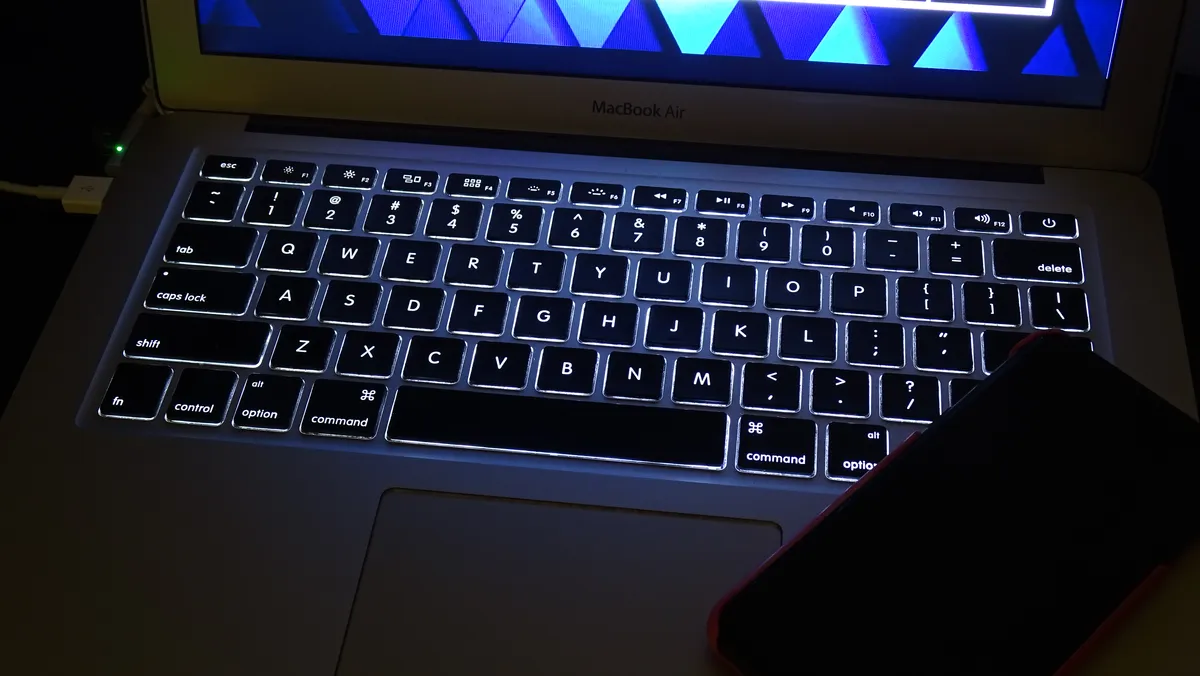
Logitech sells a dedicated "MX Keys for Mac" variant with Command and Option keys printed directly on the keycaps, but the standard Windows/Linux version reviewed here works fine on macOS too — you just have to remember that the Windows/Start key acts as Command and Alt acts as Option, which took about a week of muscle memory to stop mentally translating. Function-row media keys (brightness, volume, playback) default to their icon behavior rather than F1-F12, so on both Mac and Windows you need the Fn combo to get a hard function key for things like refreshing a browser tab in dev tools — a real, if minor, annoyance if you're used to a laptop keyboard where F5 just works. There's a software toggle in Options+ to swap the default behavior, but it's per-device, so I had to set it separately on the Mac and the Windows laptop.
Switching between the two OSes multiple times a day did surface one quirk worth flagging: certain keyboard shortcuts that rely on right-side modifier keys (right Alt/AltGr on Windows, in particular for some international character combos) behaved slightly differently than they would on a native Windows keyboard, which matters if you regularly type accented characters or work in a non-US layout. For plain US-layout English typing, though, I didn't run into a single dropped keystroke or layout confusion after the first week of adjustment.
How it compares: a cheap membrane keyboard and a mechanical board
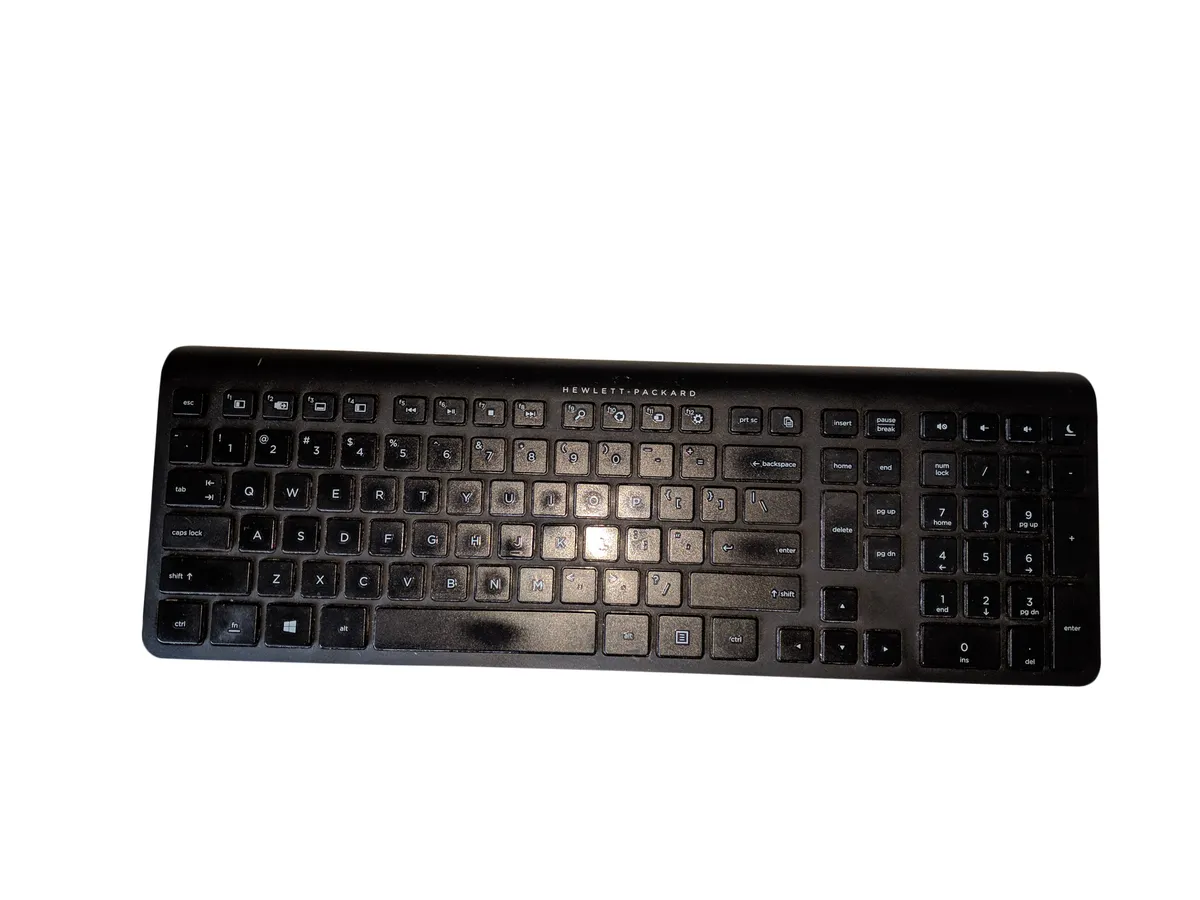
I went back and forth for a week each with a $25 basic wireless membrane keyboard and a mechanical board with brown-style tactile switches to put the MX Keys' price premium in context. The membrane keyboard's flat, low-travel keys felt noticeably less precise for touch-typing at speed — I made more typos per page in a side-by-side timed test, and the keyboard itself felt light enough to shift under fast typing. It also lacked any real multi-device switching beyond a basic Bluetooth pairing menu, no backlighting, and no metal chassis. For a secondary machine or occasional use, it's fine; for a primary daily driver, the difference in typing accuracy and comfort was obvious within an hour.
Against the mechanical board, the comparison flips. The mechanical keyboard's tactile bump and additional travel actually reduced my error rate slightly further than the MX Keys in the same typing-speed test, and mechanical-keyboard people will genuinely prefer that feedback and the ability to hot-swap switches for personal preference. But the mechanical board was audibly louder (a real problem on video calls and in shared spaces), heavier still, offered no meaningful backlighting battery efficiency, and had no equivalent to Logi Flow's cross-device cursor sharing. The MX Keys sits deliberately in between: quieter and more travel-friendly than a mechanical board, with meaningfully better key feel, build quality, and multi-device software than a budget membrane keyboard.
Small annoyances worth knowing about
A few things kept it from being a completely frictionless four months. The USB-C port is charge-only — there's no wired fallback mode if the battery ever dies mid-task and you don't have five minutes to spare for a quick top-up charge, which matters if you're the kind of person who runs a peripheral into the ground before charging it. The Logi Bolt receiver is small and easy to lose if you travel with the keyboard and unplug it between desks; Logitech doesn't include a slot to store it inside the keyboard body the way some competitors do. And while the aluminum top plate resists most fingerprints, the matte black plastic underside shows dust and light scuffing over months of being picked up and moved between desks.
None of these are dealbreakers, but they're the kind of real-use friction that a spec sheet won't tell you about, and they're worth weighing against the price premium over cheaper alternatives.
Who should buy this
The MX Keys makes the most sense for people who type for a living or close to it and regularly move between two or three computers — writers, developers, consultants, or anyone hot-desking between a personal laptop and a work machine. If you exclusively use one computer and never switch devices, a lot of the software-side value (Logi Flow, Easy-Switch) goes unused, and you might get similar typing comfort for less money from Logitech's own cheaper Signature series. If you're a committed mechanical-keyboard person who cares more about tactile click and switch customization than quiet, low-fatigue travel, this isn't going to convert you — and that's fine, it isn't trying to.
After four months of daily use across three machines, the MX Keys earned its spot as my default keyboard specifically because it stayed reliable in the boring, unglamorous way that matters for daily-driver hardware: the switching didn't randomly break, the battery anxiety settled into a predictable weekly-charge rhythm once I stopped running the backlight at max brightness around the clock, and the typing feel held up without degrading after heavy use. It isn't the cheapest wireless keyboard, and it isn't the keyboard for people chasing a mechanical click, but for multi-device productivity work it's one of the few peripherals in this test cycle I never once felt the urge to replace.
Other products we tested

Ecobee Smart Thermostat Premium Review: Two Months of Real HVAC Testing
We installed the Ecobee Smart Thermostat Premium without a C-wire, tracked its temperature accuracy against a separate thermometer, and measured real energy savings over two months of daily HVAC use.
Bose SoundLink Flex Review: Six Weeks of Hiking, Kayaking, and Beach Days
Six weeks of camping, kayaking, and beach trips show the Bose SoundLink Flex's IP67 rating and PositionIQ orientation sensing are genuinely useful, with honest limits on bass and max volume.

Coros Pace 3 Review: Six Weeks Testing the GPS Watch That Barely Needs Charging
A dual-frequency GPS running watch that trades AMOLED shine for weeks of battery life at a fraction of the price of flagship rivals.