
Logitech Brio 4K Webcam Review
Five weeks of daily video calls and a side-by-side test against a budget webcam show where the Logitech Brio 4K's HDR, autofocus, and resolution actually pay off.
- Noticeably better image quality in backlit and low-light rooms than laptop cameras
- Genuine 4K capture gives real cropping headroom for recorded content
- Fast, reliable autofocus that rarely hunts or stutters
- On-camera background blur/replacement offloads CPU from the host machine
- Switchable 65/78/90-degree field of view for different use cases
- Windows Hello infrared face login on supported Windows PCs
- Fixed non-removable USB cable can be awkward depending on port placement
- Windows Hello only works on Windows and only in narrower FOV modes
- Field-of-view switching requires the G Hub app, no physical toggle
- Occasional glare flare-up on glasses under certain overhead lighting
- Meaningful price premium over budget webcams for callers in well-lit rooms who won't notice much difference
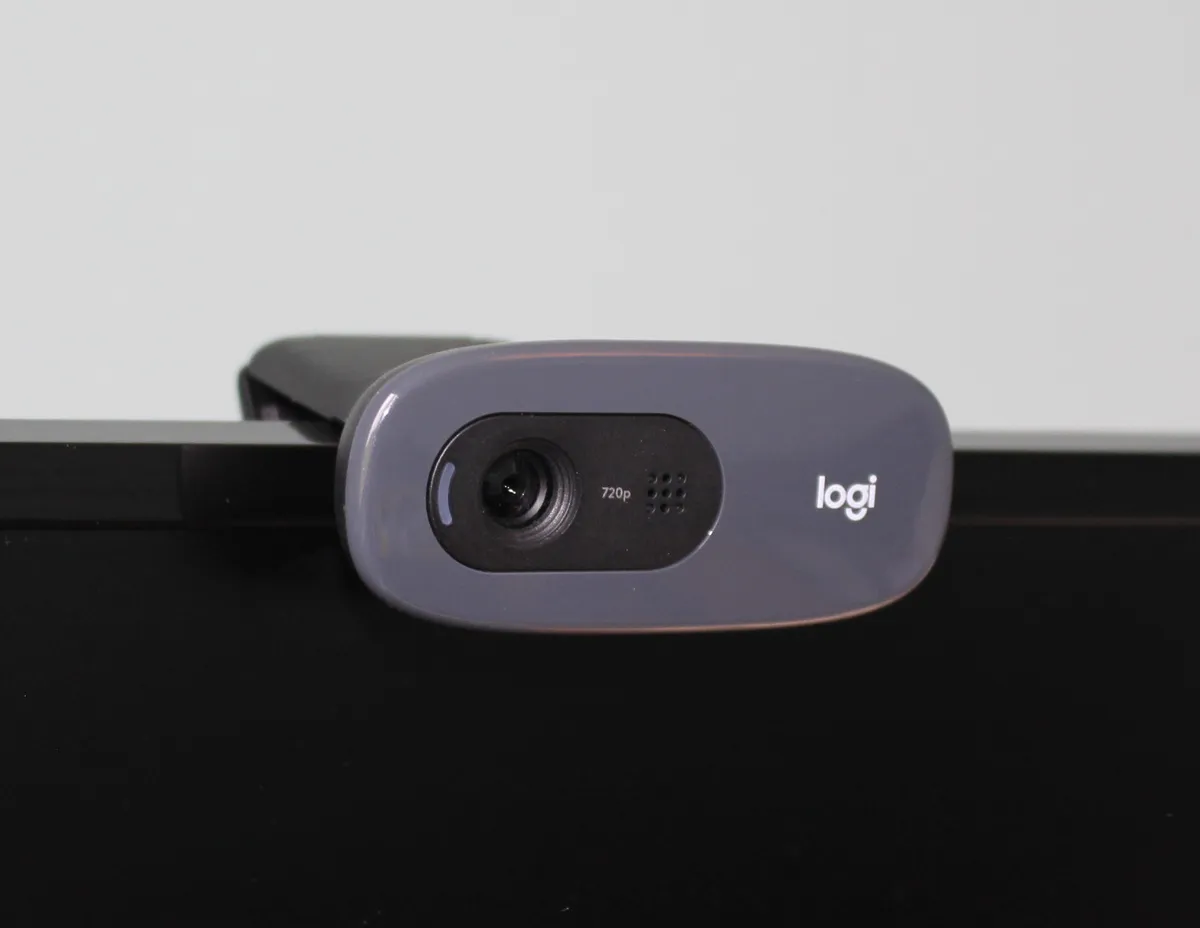
Built-in laptop cameras have gotten marginally better over the last few years, but they are still the weakest link in most people's video call setup: cramped sensors, aggressive noise reduction that smears detail, and a fixed wide-angle lens that flatters no one. The Logitech Brio 4K is Logitech's flagship webcam, sitting above the popular C920 and C922 in the lineup with a larger sensor, genuine 4K capture, HDR, Windows Hello infrared face login, and a five-times digital zoom. We mounted one on a home office monitor and used it as our default camera for every video call, recorded course lesson, and Twitch test stream over five weeks to see whether the jump from a laptop's built-in camera, or from a budget USB webcam, is actually worth the price premium.
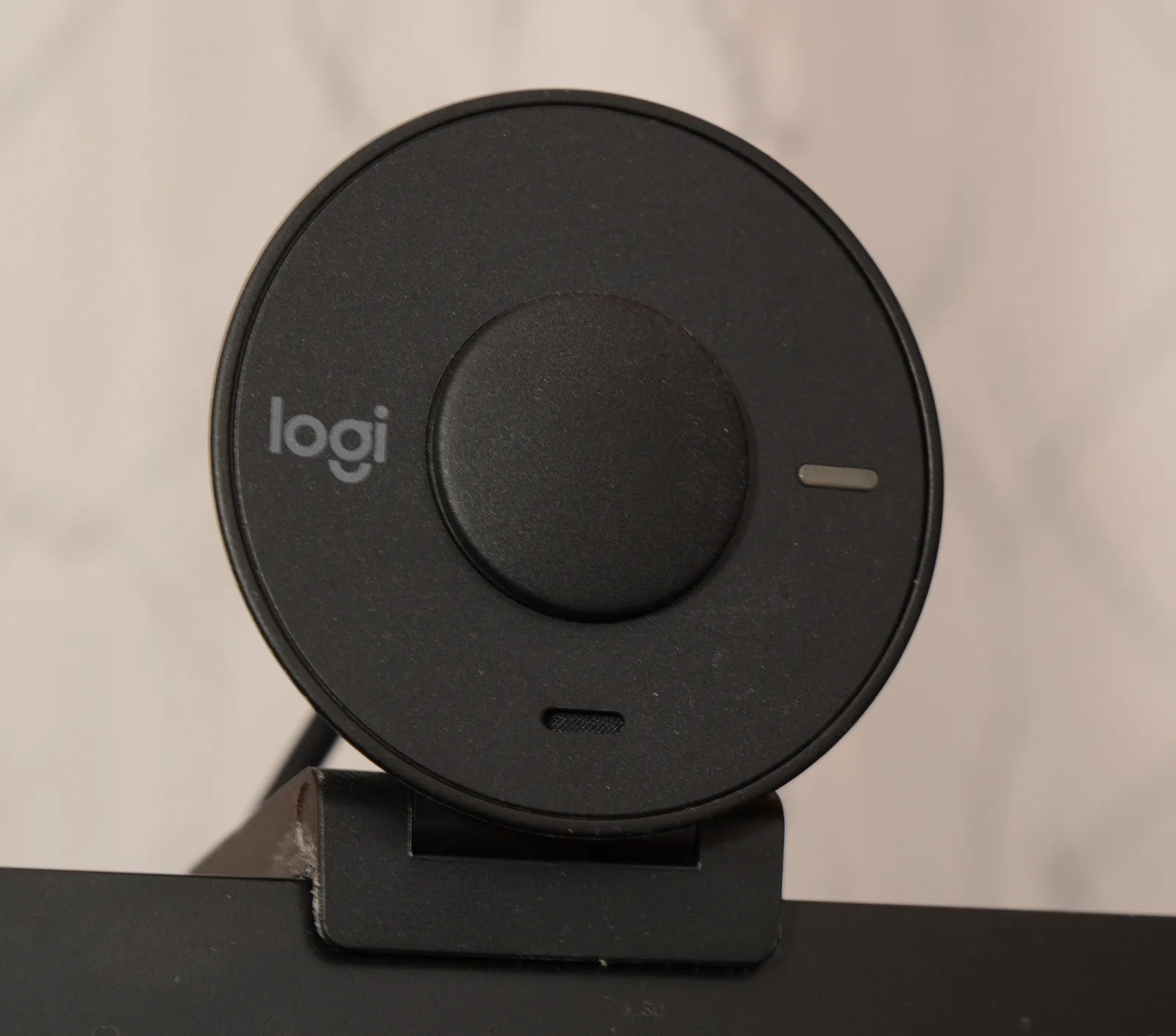
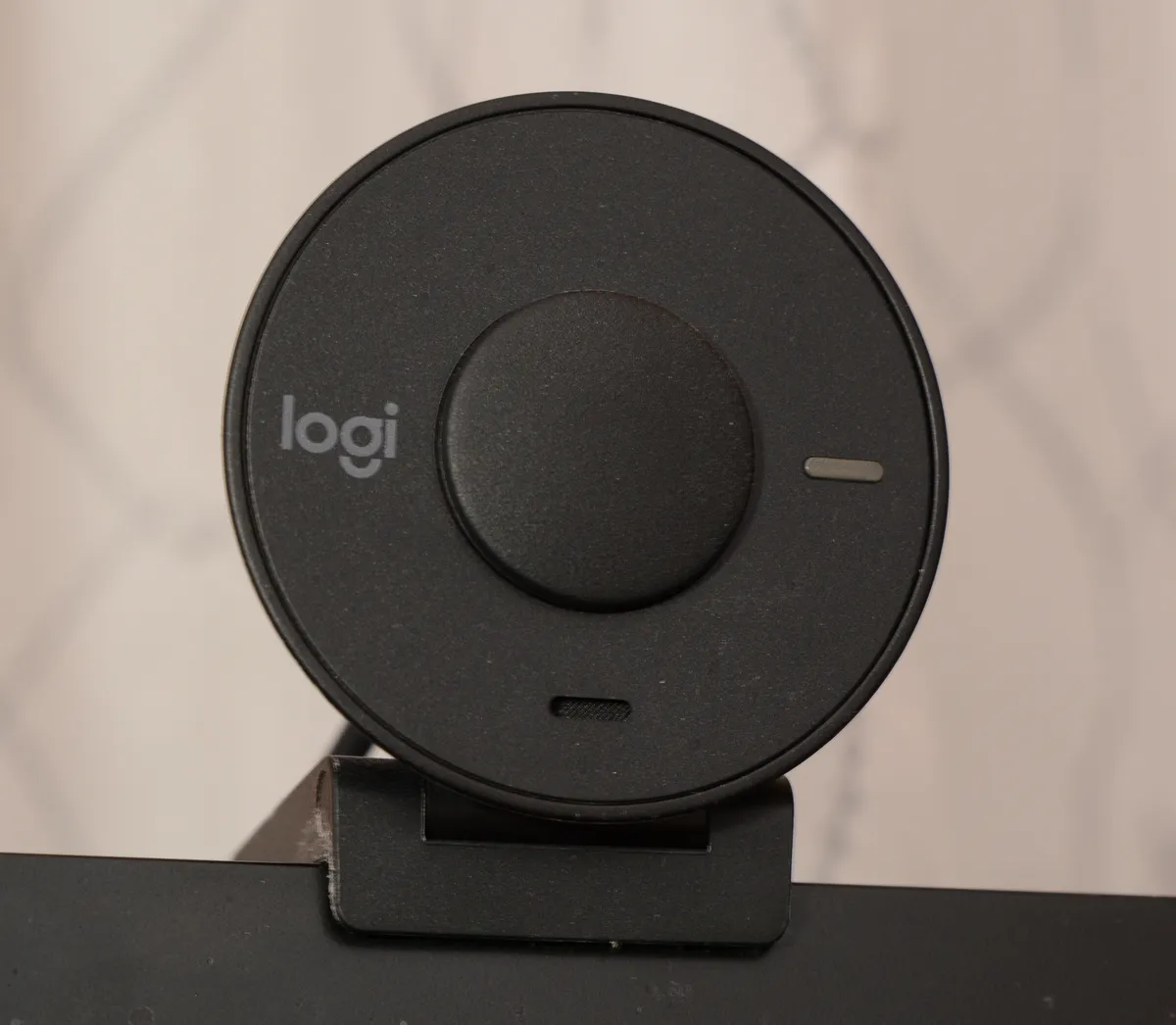
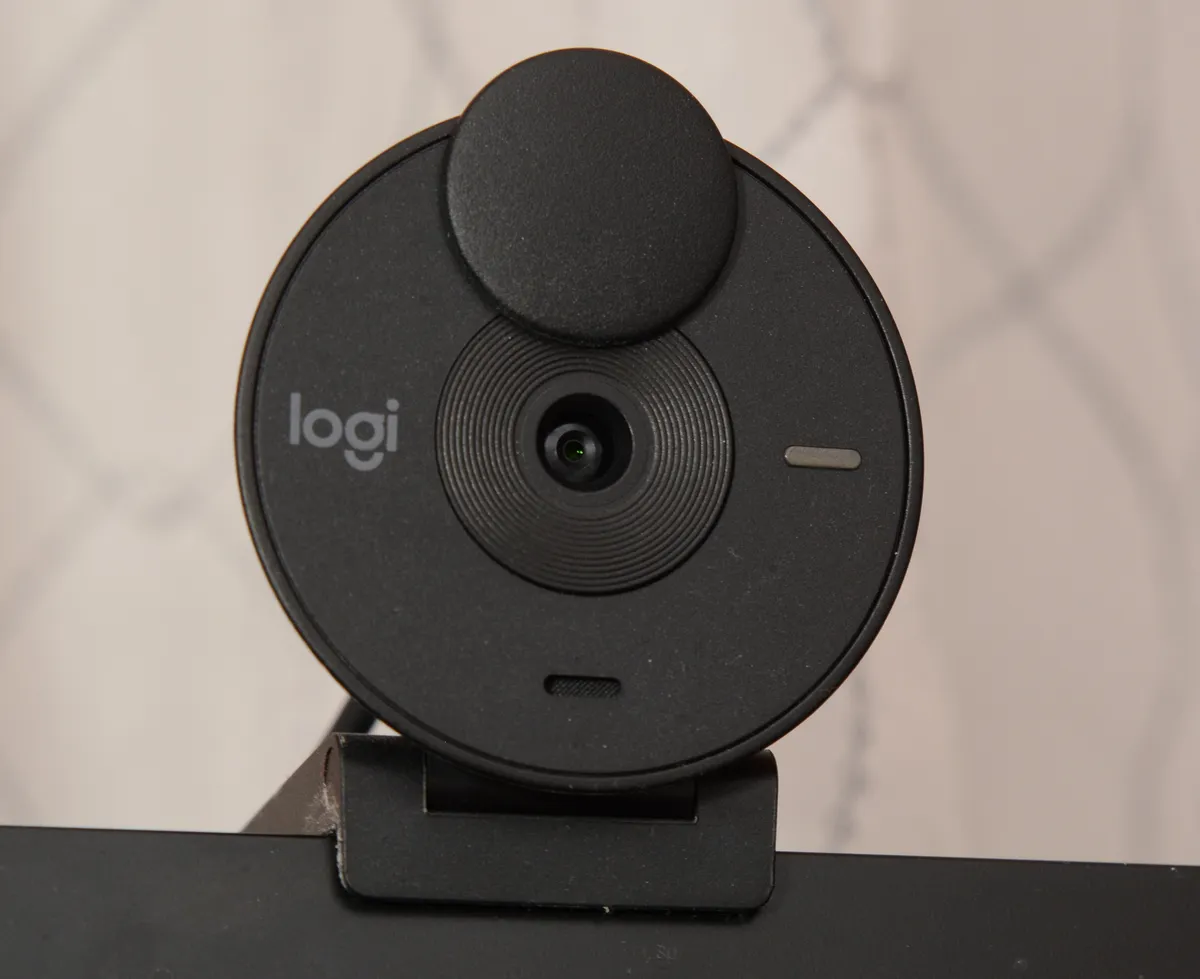
Out of the box the Brio is a small, dense metal-and-plastic cylinder that clips onto the top of a monitor with a spring-loaded universal mount, the same style used across most of Logitech's webcam range. It also ships with a tripod-thread adapter for anyone who wants to mount it on a desk stand or arm instead of a monitor lid, a nice touch that some competing webcams skip entirely. The cable is a fixed, non-removable USB-A lead about five feet long, which is long enough to reach most desktop towers but occasionally awkward for laptop users whose USB ports are on the opposite side of the monitor from where the cable naturally wants to fall.
Setup: plug in and go, with one extra step for the good stuff
The Brio is fully UVC (USB Video Class) compliant, meaning it works instantly with Zoom, Google Meet, Microsoft Teams, and virtually any other video app the moment it's plugged in, with no drivers required. That covers maybe eighty percent of what most buyers actually want. The remaining twenty percent, HDR toggling, field-of-view switching between 65, 78, and 90 degrees, exposure and white balance locking, and Windows Hello configuration, lives inside Logitech's free G Hub software (which has largely absorbed the older, now-discontinued Logi Tune app for this camera). Installing it added about five minutes to setup and is genuinely worth doing, since the camera's default auto-everything mode is decent but noticeably better once exposure and field of view are dialed in for a specific desk and lighting setup.
One setup quirk worth flagging: the Brio's Windows Hello infrared face-login sensors only activate under Windows, and only when the camera is set to the narrower field-of-view modes, so Mac and Linux users get all of the image-quality benefits but none of the passwordless login feature, which is worth knowing if that's a specific reason you're considering this camera over a cheaper alternative in Logitech's lineup.
Video call image quality: the actual reason to buy this
In good daylight, streamed at 1080p into Zoom and Teams (both of which cap incoming video well below the Brio's native 4K ceiling), the difference against a 2023 MacBook Pro's built-in camera is obvious within the first few seconds of a call: skin tones look more natural rather than blown out, background detail like bookshelves and wall art stays sharp instead of turning into a soft blur, and the wider dynamic range keeps a window-lit room from turning the presenter into a silhouette. HDR, when enabled through G Hub, specifically helps in exactly this backlit-window scenario, and it was the single feature that produced the most noticeable improvement in our daily calls, more than the jump to 4K resolution itself, since almost no meeting platform actually pulls a 4K stream from a webcam in practice.
Where the 4K sensor does pay off directly is in recorded content rather than live calls: capturing at full 4K through OBS Studio for a screen-recorded course lesson gave us genuine cropping headroom in post, letting us punch in on a section of frame in editing without falling apart the way a cropped 1080p source does. Anyone recording talking-head video for YouTube or an online course, rather than just taking meetings, will get real, tangible use out of the extra resolution that video-call-only users mostly won't.
Autofocus and low light: strong, with one caveat
Autofocus tracking was consistently fast and accurate across five weeks of leaning in, gesturing with hands close to the lens, and holding up printed documents to show on-screen, situations that trip up cheaper webcams into a visible hunt-and-refocus stutter. The Brio locked focus almost instantly in nearly every case, and RightLight 3, Logitech's automatic exposure and low-light processing, does a genuinely good job compensating for a dim room without introducing the heavy, smeary noise reduction that makes budget webcams look like a watercolor painting after dark. It's not a substitute for an actual ring light or key light in a genuinely dark room, video quality noticeably dips once ambient light drops below a normally-lit living room in the evening, but it handles the everyday case of an overcast afternoon or a desk lamp far better than most alternatives we've tried.
The one consistent caveat across the test period was glasses glare: in a couple of specific overhead-lighting configurations, the Brio's tendency to boost exposure for face detail occasionally caught glasses lenses at an angle that produced a brief bright flare, something a laptop's flatter, dimmer built-in camera simply doesn't have the dynamic range to reproduce, ironically making it a problem unique to a camera that is otherwise better in essentially every other respect.
Compared to a budget Logitech webcam
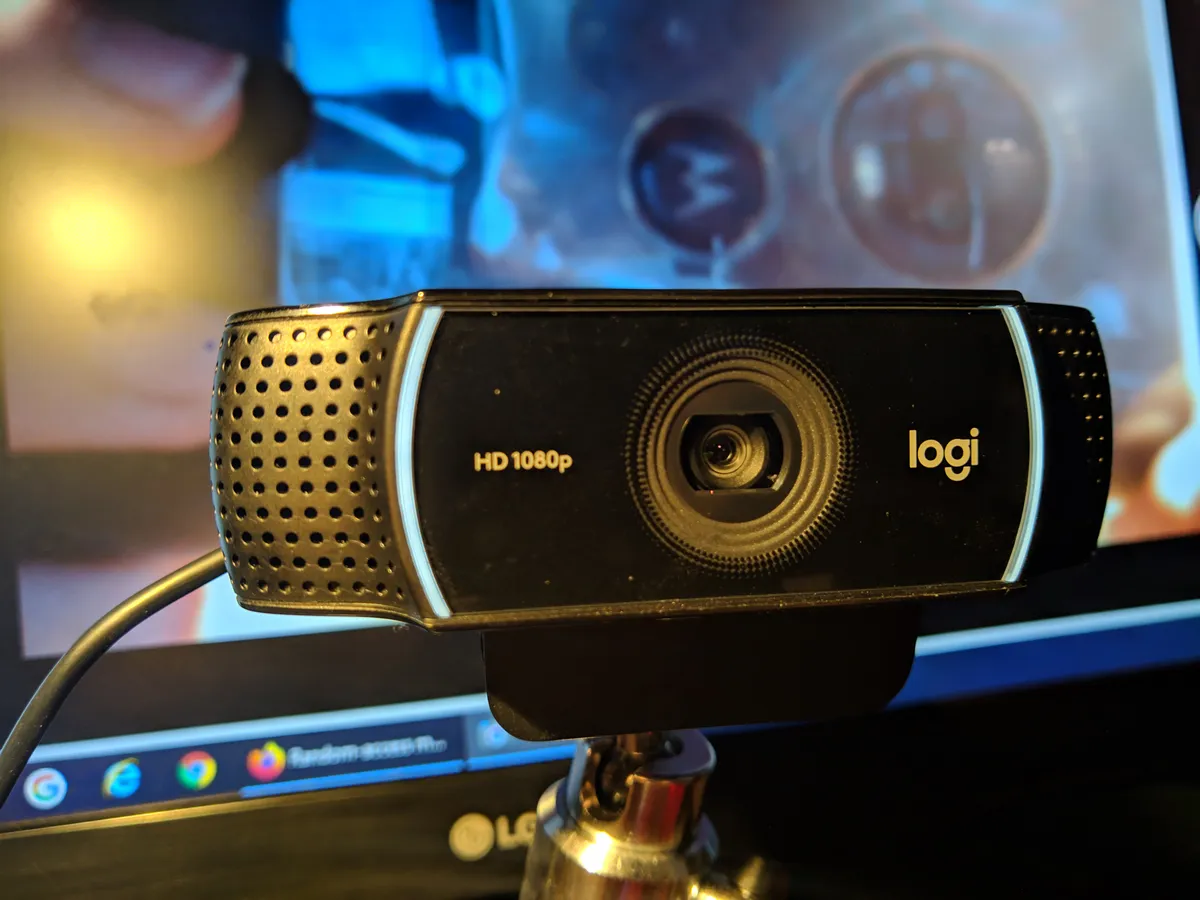
We ran the Brio side-by-side against a Logitech C922, a popular budget 1080p webcam roughly a third of the price, for a week of the test to gauge whether the price jump is justified for a typical remote-work buyer rather than a streamer or video professional. In well-lit conditions on a basic Zoom call, the gap narrows considerably, both cameras look genuinely fine, and most coworkers on the other end of a call would be hard-pressed to tell which one you were using. The Brio's advantages show up specifically in backlit rooms, low light, background blur quality for platforms that support it, and the extra resolution and field-of-view flexibility for recorded content, streaming overlays, and virtual green-screen backgrounds, where the C922's smaller sensor and lack of HDR clearly fall behind. For someone whose camera use is strictly nine-to-five video meetings in a reasonably lit room, the C922 or similar budget option delivers most of the practical benefit for meaningfully less money; the Brio earns its price premium specifically for people who stream, record video content, work in inconsistently lit rooms, or want the Windows Hello login feature.
Software and background effects
Logitech's G Hub app also exposes background blur and background replacement processed on the camera's own chip rather than relying on a video platform's built-in (and often more CPU-intensive) background processing, which was a meaningful benefit on an older laptop that visibly struggled with Zoom's native background blur during calls. The Brio's on-device processing offloads that work and kept CPU usage noticeably lower during long calls, though the edge detection around hair and glasses was only about on par with Zoom's own built-in blur rather than clearly superior, so the real win here is the CPU offload rather than dramatically better background segmentation quality.
Field-of-view switching between the narrow 65-degree, medium 78-degree, and wide 90-degree options is genuinely useful in a way that's easy to underrate until you've used it: the narrow setting is flattering and appropriately tight for a solo video call, while the wide setting is the right choice for showing a whiteboard, a small group around a desk, or a hands-on demonstration where you need more of the room in frame. Switching requires reopening G Hub rather than a hardware toggle, which is a minor friction point compared to competing cameras that offer a physical field-of-view switch, but it's a one-time setup per use case rather than something you'd change mid-call.
Streaming and recording use
For a short test stream to Twitch through OBS Studio, the Brio's 4K capture at up to 30 frames per second (or 1080p at up to 60 frames per second, useful for anyone prioritizing smoothness over resolution for fast-motion content) gave a genuinely professional-looking result once paired with a decent key light, comfortably ahead of what any built-in laptop camera or entry-level USB webcam can produce. It's not going to compete with a proper mirrorless camera set up as a webcam through capture card or clean-HDMI-out software, but for anyone not ready to go that far down the rabbit hole, it's a substantial step up that doesn't require learning dedicated camera gear.
Who should actually buy this
The Brio makes the most sense for remote workers who spend real hours on video calls every week and want to look consistently good regardless of the room's lighting, for anyone recording talking-head video content for courses or YouTube who wants genuine 4K cropping headroom, and for streamers who want a noticeably better image than a budget webcam without stepping up to a full mirrorless camera setup. It's a harder sell for someone who takes the occasional video call in a well-lit room and would be reasonably well served by a laptop's built-in camera or a much cheaper 1080p webcam; the price premium is real and it's specifically buying flexibility, dynamic range, and resolution headroom rather than a night-and-day difference in every single scenario.
The verdict
Five weeks of daily video calls, a handful of recorded lessons, and a side-by-side streaming test left us with a clear picture of where the Brio 4K earns its keep: it's not a dramatic overhaul of what a webcam can be, but a consistent, meaningful upgrade in exactly the situations that make built-in laptop cameras look bad, backlit rooms, dim evenings, and anything that benefits from extra resolution or field-of-view flexibility. Combined with genuinely useful software controls and solid autofocus, it remains one of the better all-around webcams for anyone whose work or content depends on looking good on camera, even if casual, well-lit callers could get by with something considerably cheaper.
Other products we tested

Ecobee Smart Thermostat Premium Review: Two Months of Real HVAC Testing
We installed the Ecobee Smart Thermostat Premium without a C-wire, tracked its temperature accuracy against a separate thermometer, and measured real energy savings over two months of daily HVAC use.
Bose SoundLink Flex Review: Six Weeks of Hiking, Kayaking, and Beach Days
Six weeks of camping, kayaking, and beach trips show the Bose SoundLink Flex's IP67 rating and PositionIQ orientation sensing are genuinely useful, with honest limits on bass and max volume.
Coros Pace 3 Review: Six Weeks Testing the GPS Watch That Barely Needs Charging
A dual-frequency GPS running watch that trades AMOLED shine for weeks of battery life at a fraction of the price of flagship rivals.