
LeapFrog LeapPad Academy Review: A Real Toddler's Four-Month Torture Test
We used a LeapFrog LeapPad Academy as our four-year-old's only tablet for four months of daily drops, car trips, and screen time to see if a purpose-built kids' tablet actually beats locking down a real one.
- Built-in rugged bumper survives real drops onto hardwood and tile with zero cracks
- Parent dashboard gives genuinely granular time limits and subject-level progress reports
- Fully closed app ecosystem means zero risk of ads, in-app purchase traps, or unvetted content
- Simple setup a grandparent could manage unsupervised
- No general web browser to police, unlike a "locked-down" real tablet
- Screen resolution (1024x600) is noticeably softer than any current mainstream tablet
- LeapFrog's own app store is thin and apps cost more per title than mainstream app stores
- Battery life is mediocre, especially during game-heavy use (3.5-4 hours vs advertised 5)
- Touchscreen occasionally drops fast swipes or precise tracing input
- Kids age out of the content library in roughly two to three years
- Charging takes over two and a half hours, too slow for a quick top-up before an outing
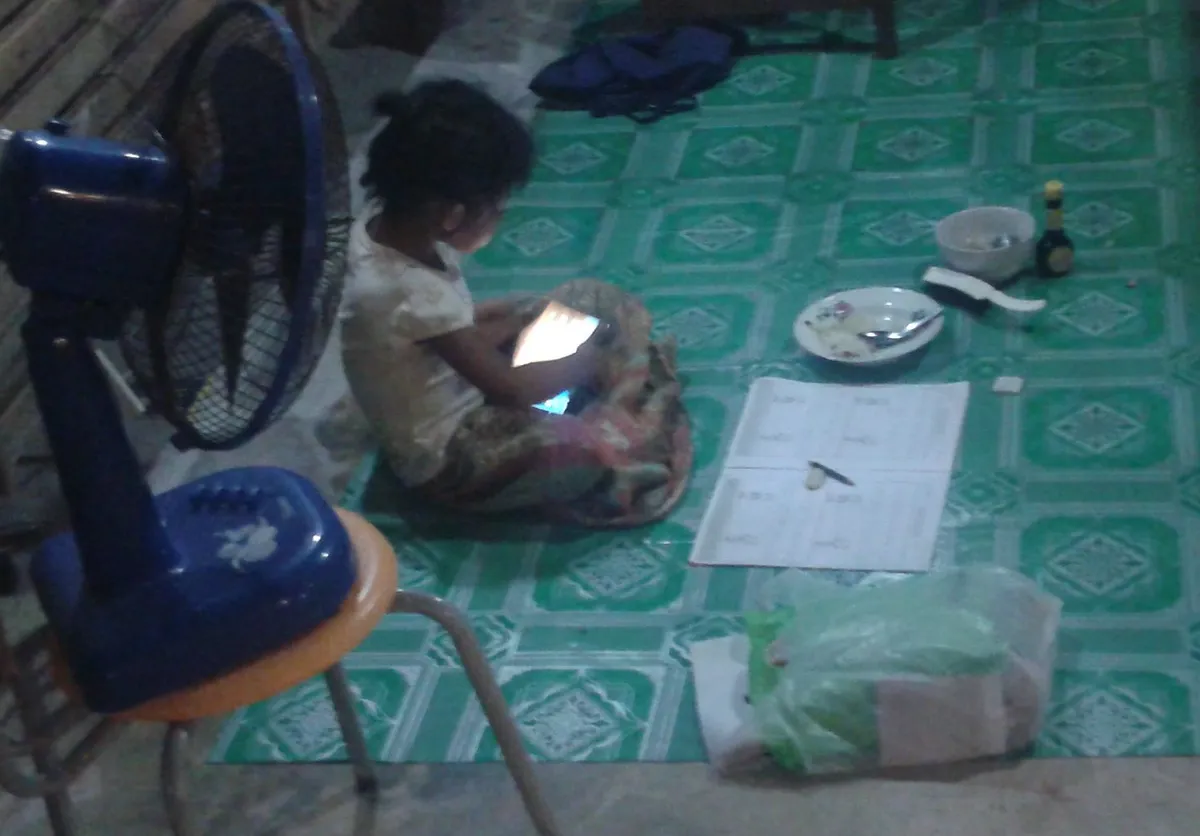
Our test household settled this one the boring, practical way: instead of handing our four-year-old an old iPhone or a hand-me-down iPad with a screen-time app bolted on, we bought a LeapFrog LeapPad Academy outright and used it as her only tablet for four months. No borrowed device, no "just for this review" novelty — it lived in the same basket as her books and crayons, got dropped more times than we bothered counting, and came to daycare pickup and two long car trips. The goal wasn't to see whether a kids' tablet can teach letters (every kids' tablet claims that). It was to find out whether a $120 purpose-built device is actually a better call than just locking down a real tablet with parental controls, which is the comparison every parent quietly makes before buying either one.

First impressions and what's in the box
The LeapPad Academy ships as a single unit — there's no separate case to buy, because the chunky, brightly colored bumper is molded into the tablet's shell from the factory. In the box: the tablet itself, a USB charging cable, a small quick-start card, and a stylus that clips into a slot on the side (ours survived exactly nine days before it vanished into the void that swallows all small plastic objects in a house with a toddler; a replacement stylus works fine but is one more thing to lose). The unit is noticeably thicker and heavier than a comparable-sized iPad, almost entirely because of the built-in rubberized bumper, and the trade-off is obvious and intentional: this is a tablet designed to survive being a toy first and an electronic device second.
Powering it on for the first time walks a parent through account setup, and this is where the LeapPad Academy immediately signals it's not trying to be a shrunken iPad. There's no general web browser, no app store full of unrelated apps, and no way for a four-year-old to accidentally end up somewhere unintended. Everything lives inside LeapFrog's own learning platform and a curated set of pre-loaded apps and games, with additional titles purchasable through LeapFrog's own store. That closed-garden approach is the single biggest thing to understand before buying one, and it colors almost everything else in this review, for better and for worse.
Screen quality: honest about the compromise
The 7-inch display is the first place the price difference between this and a real tablet becomes obvious. It's a 1024x600 resolution panel, which sounds fine on paper until you actually put it next to an iPad screen doing the same task — text has visible pixelation at normal reading distance, and the color reproduction leans slightly washed out compared to the punchier, denser displays on mainstream tablets a third the size premium. Video playback (LeapFrog's included shows and a small library of licensed kids' content) is watchable but noticeably softer than what the same child sees on the living room iPad. Our daughter never once complained about it, because four-year-olds are not screen-resolution critics, but as the reviewer holding both devices side by side, the gap is real and worth setting expectations around before you buy.

Touch responsiveness is the other place you feel the budget hardware. The capacitive touchscreen handles simple taps and drags reliably, but fast swiping or anything requiring precision (tracing letters accurately, for instance) occasionally drops input or registers a tap a beat late. It's not broken, it's just clearly a step below the touch sensors in a current-generation iPad or Fire tablet. If your mental image of "kids tablet" is "small iPad with parental controls," recalibrate — this is closer to a dedicated learning appliance that happens to look like a tablet, and the screen and touch layer reflect that positioning throughout.
The walled garden: LeapFrog's app store versus a real one
This is where the ongoing cost conversation gets real. LeapFrog's own app store (called the LeapFrog Learning Store on-device) has a fraction of the catalog of the Apple App Store or Google Play — think low hundreds of curated titles rather than millions of apps — and individual app pricing runs noticeably higher per title than equivalent mainstream apps, typically $4.99 to $9.99 for a single game or activity pack, with very little free content beyond what ships pre-loaded. Compare that to a locked-down iPad using Apple's own Screen Time restrictions plus a handful of free or one-dollar educational apps, and the LeapPad Academy loses badly on pure value-per-dollar of content. What you're buying instead is curation and safety: every single app in that store has been vetted specifically for young kids, with no risk of an app sneaking in aggressive ads, dark-pattern in-app purchases, or age-inappropriate content, which is not nothing when the alternative is manually auditing every app your kid might download on a general-purpose app store.
Parental controls and content curation depth
The parent-side dashboard, accessible through a separate LeapFrog Academy companion app on a parent's own phone, is genuinely more granular than we expected. You can set daily time limits per category (games versus videos versus reading), review exactly which apps and shows your child has used and for how long, and get weekly progress reports broken down by subject area — reading, math, and so on — with specific skill callouts (letter recognition, phonics blending) rather than a vague "learning happened" summary. We found the reporting detail useful in a way that generic screen-time apps on a real tablet don't match, because LeapFrog's own content is built with specific curriculum tags baked in, so the reports know what your kid actually practiced, not just which app icon was open.

What it can't do is grow with your child past a certain point. The entire platform is aimed at roughly ages 3 to 9, and by the upper end of that range the content noticeably thins out — our test unit's pre-loaded library felt right-sized for a four- and five-year-old but a realistic parent of a seven- or eight-year-old will likely find themselves needing to buy several extra app packs just to keep the device interesting, which erodes the value case further. This is a device with a shelf life built into its design, not a tablet your kid keeps using into their tweens; budget for outgrowing it in two to three years, not five.
Durability: the actual reason to buy this over a real tablet
Four months of daily use by a four-year-old is not a controlled lab test, but it's a more honest durability benchmark than a spec sheet. The LeapPad Academy went off the arm of a couch onto hardwood floor at least a dozen times that we noticed (certainly more that we didn't), took one memorable fall down four carpeted stairs, and was regularly dropped flat-screen-down onto tile in the kitchen during breakfast-table use. Zero cracks, zero screen damage, and the only visible wear is light scuffing on the corners of the rubber bumper and a thin scratch across the back shell from being dragged across pavement outside. We would not make the same durability claim about a real iPad without an aftermarket case, and even with a case, a corner-first drop onto tile is the kind of hit that cracks glass. The built-in bumper design earns its keep here in a way that's hard to overstate if you have a genuinely rough toddler rather than a careful one.
The trade-off for that durability is, again, the screen and touch quality discussed earlier — LeapFrog clearly chose thicker glass and a lower-spec panel over the thin, high-resolution glass in a premium tablet, and that's very likely part of why it survives drops a real tablet wouldn't. It's a legible, sensible engineering trade for a device aimed at kids who are still learning not to fling things across the room.
Battery life and charging
LeapFrog advertises up to roughly 5 hours of continuous use, and our real-world testing landed close to that on video and reading apps, but noticeably lower — closer to 3.5 to 4 hours — during game-heavy sessions with more active processing and screen brightness cranked up. That's mediocre compared to a modern iPad's all-day battery life, and in practice it meant the tablet needed a midday top-up on any day with more than an hour or two of actual use, which for a device marketed partly on long car trips felt like a real limitation. Charging from empty takes a little over two and a half hours via the included cable, which is slow enough that "quick top-up before we leave" isn't really an option — you either charge it overnight or you plan around a genuinely depleted battery mid-outing.

LeapPad Academy versus a locked-down real tablet
We ran a genuine side-by-side comparison for about two weeks: our daughter alternated days between the LeapPad Academy and a hand-me-down iPad set up with Screen Time restrictions, Apple's Kids category, and a small curated folder of free educational apps. The real tablet won decisively on screen quality, app variety, and total value for money — free and cheap apps stretch much further than LeapFrog's paid catalog, and video content looked and felt better on the sharper screen. The LeapPad Academy won on peace of mind: there was no moment during the test where we worried she'd tap her way into something we hadn't vetted, no ad she could accidentally trigger, and no risk of an update changing an app's content policy overnight the way it can on a general app store. It also won cleanly on durability — we did not attempt a stairs drop test with the family iPad, for obvious reasons. If you are a highly engaged parent willing to manually configure and monitor a real tablet's restrictions, the real tablet is the better value. If you want a device you can hand over with near-zero setup anxiety and not worry about drops, the purpose-built kids' tablet earns its premium.
Who should buy this
The LeapPad Academy is the right call for parents of kids roughly ages 3 to 7 who want a genuinely worry-free device — no browser to police, no ad-laden free apps to vet, and a bumper that survives real drops without a case. It's a strong first tablet, a strong gift, and a smart pick for car trips and waiting rooms where a parent can't supervise screen use closely. It's a weaker choice for families who already have a spare tablet they're willing to lock down carefully, since a configured real tablet delivers more content per dollar and a meaningfully better screen. It's also not a long-term investment — plan on your child outgrowing the content library within two to three years, at which point a real tablet with proper parental controls becomes the more sensible next step anyway.
The verdict
After four months of genuine daily use, including drops we're slightly embarrassed to admit we let happen, the LeapPad Academy did exactly what it promised: it survived being a toddler's primary tablet without a single hardware failure, and it never once put us in a position of wondering what our daughter had stumbled into online. That peace of mind is real and worth paying for. But it's not a screen-quality bargain, the app store is thin and pricier per title than any mainstream alternative, battery life needs mid-day top-ups, and the whole platform has a built-in expiration date as your child ages out of its content library. If worry-free durability and airtight content curation are what you're after for a young child, this is one of the better purpose-built options on the market. If you're comfortable configuring parental controls yourself and want more bang for your buck, a locked-down real tablet will out-perform it in almost every other category.
Other products we tested

Ecobee Smart Thermostat Premium Review: Two Months of Real HVAC Testing
We installed the Ecobee Smart Thermostat Premium without a C-wire, tracked its temperature accuracy against a separate thermometer, and measured real energy savings over two months of daily HVAC use.

Bose SoundLink Flex Review: Six Weeks of Hiking, Kayaking, and Beach Days
Six weeks of camping, kayaking, and beach trips show the Bose SoundLink Flex's IP67 rating and PositionIQ orientation sensing are genuinely useful, with honest limits on bass and max volume.

Coros Pace 3 Review: Six Weeks Testing the GPS Watch That Barely Needs Charging
A dual-frequency GPS running watch that trades AMOLED shine for weeks of battery life at a fraction of the price of flagship rivals.