
Cricut Explore 3 Review: Six Weeks of Real Craft Projects
A hands-on six-week test of the Cricut Explore 3 across vinyl, iron-on, and cardstock projects, weighing its matless cutting upgrade against the real learning curve and ongoing costs.
- Matless Smart Materials cutting saves real time on repeat projects
- Clean, precise cuts on cardstock and vinyl
- Simple Bluetooth pairing and quick physical setup
- Handles 100+ material types with automatic pressure presets
- Compact footprint for a home craft space
- Design Space software has a steep learning curve for first-time users
- Cricut Access subscription needed for most premium templates and fonts
- Ongoing costs for blades, mats, and vinyl add up quickly
- No display screen; fully dependent on a connected app
- Small fine-detail text under 8pt can lose crispness
The Cricut Explore 3 sits in an odd spot in the crafting world: it is simultaneously one of the most approachable pieces of "maker" hardware you can buy and a machine that a surprising number of new owners abandon in a closet within a month because they never get past the intimidation of the software. We bought one specifically to test that gap, setting it up cold with no prior Cricut experience, and spent six weeks running it through card-making, iron-on t-shirt transfers, vinyl decals, and a couple of home-organization labeling projects to see whether the "cut anything" promise holds up once you're past the unboxing.
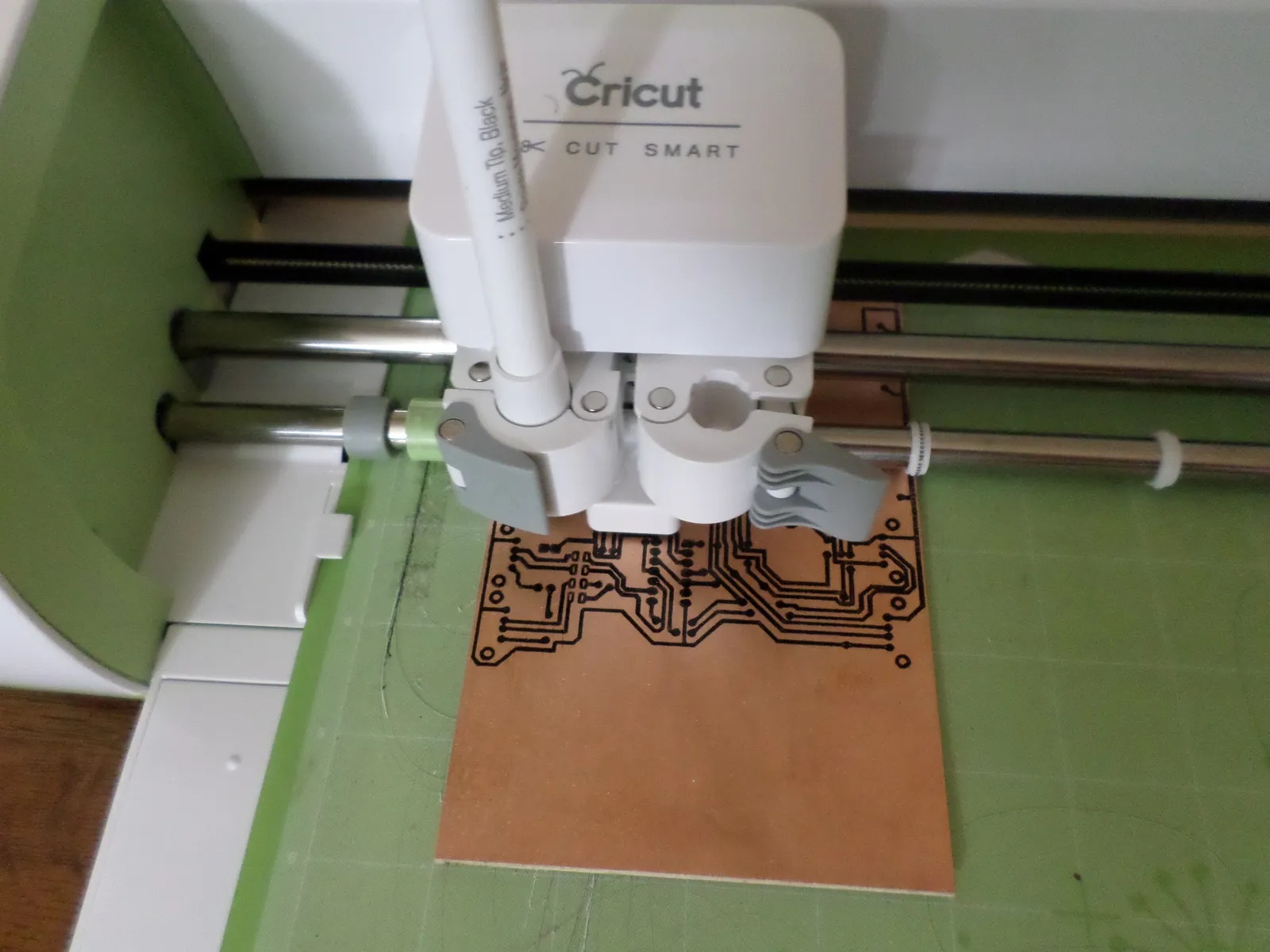
Out of the box, the Explore 3 is a squat, surprisingly heavy machine, built around a wide horizontal slot that accepts a cutting mat or, new to this generation, Cricut's Smart Materials that can feed directly without a mat at all for certain vinyl and iron-on rolls. The build quality feels closer to an office printer than a hobbyist gadget, with a solid plastic shell, a storage tray built into the top for tools, and a single USB-C style power connection plus Bluetooth for wireless cutting from a phone, tablet, or computer. There's no display panel; every decision about what to cut and how happens in Cricut's Design Space software, which is both the machine's biggest strength and its steepest learning curve.
Setup and the Design Space learning curve
Getting the machine physically connected took about five minutes: install the app, pair over Bluetooth, run the guided calibration that cuts a test pattern to check blade depth and mat alignment. The software itself, Design Space, is a browser-based and app-based design tool that handles everything from importing your own SVG files to browsing Cricut's paid image and font library, called Cricut Access, which runs a separate monthly subscription on top of the hardware cost. This is the detail that catches new buyers off guard: while you can absolutely use the Explore 3 entirely with your own free designs and fonts, a meaningful chunk of the appeal that gets shown in marketing material, the huge project library and premium fonts, sits behind that subscription.
We spent the better part of our first weekend just learning Design Space's canvas: how layers work, how "Attach" keeps multiple cut lines aligned to a single mat, how "Slice" and "Weld" combine shapes for more complex designs. None of it is difficult individually, but the cumulative vocabulary is real, and we understood immediately why so many first-time buyers get overwhelmed in the first hour and never come back. Cricut's own tutorial series inside the app is decent, and YouTube fills most remaining gaps, but budget a genuine few hours of dedicated learning time before you'll feel like you're cutting things instead of fighting the software.
Materials: what actually worked well
Cricut rates the Explore 3 for over 100 material types, and we tested a representative slice: adhesive vinyl for wall decals and mug wraps, iron-on (HTV) for t-shirts, cardstock for greeting cards, and a roll of Cricut's Smart Vinyl fed matless directly from the built-in roll holder. The matless Smart Materials cutting is the single biggest practical upgrade this generation brought over older Explore models, and it genuinely changes the workflow for long or repetitive projects: no more repositioning a sticky mat every few inches, just feed the roll and let the machine pull material through continuously. For a project cutting a dozen identical name labels, this cut our physical babysitting time roughly in half compared to mat-based cutting on a friend's older Cricut Maker.
Cardstock cutting for greeting cards was where the machine felt most immediately rewarding, since intricate cut-out designs that would take considerable time and a steady hand with a craft knife came out clean in under a minute, with fine detail in small lettering and thin bridges holding together far better than we expected. Iron-on vinyl required more trial and error: the "mirror before cutting" step is easy to forget the first time (we ruined one shirt design by cutting it unmirrored, which is a rite of passage for basically every new Cricut owner), and dialing in the right pressure and heat press time for a clean, durable transfer took two failed attempts before our third shirt came out properly adhered and washable.
Blade performance and the pressure question
The Explore 3 uses Cricut's standard fine-point blade for most materials, along with support for deep-cut and other specialty blades sold separately for thicker media like leather or chipboard. Cut quality with the fine-point blade on vinyl and cardstock was consistently clean, with no visible tearing or dragging on straight edges, though very intricate small text under about 8 points started to lose crispness on cardstock, a limitation of the blade geometry more than the machine itself. The automatic material sensing, where Design Space suggests pressure and blade settings based on the material you select from its list, worked accurately for every standard material we tried, though custom or off-brand materials outside Cricut's own catalog required manual test cuts to dial in pressure by hand.
Speed, compared to older Cricut models
Cricut advertises the Explore 3 as cutting up to twice as fast as the previous Explore Air 2, and while we didn't have an Air 2 on hand for a stopwatch comparison, cut speed never felt like a bottleneck in our testing, even on larger 12-by-24-inch cardstock sheets that took under two minutes for a moderately detailed design. The real time cost in any Cricut project isn't the cutting itself but the design and material prep around it: importing or building the SVG, mirroring iron-on designs, weeding excess vinyl away from the cut design after the machine finishes, which is a manual, occasionally tedious hand process regardless of how fast the blade moves.
Weeding, transferring, and the parts of the process Cricut doesn't automate
Weeding, the process of peeling away the negative space around a vinyl or iron-on cut so only your design remains, is entirely manual and became the actual bottleneck in our workflow once we got comfortable with the software and cutting settings. A weeding tool (sold separately, though a basic hook tool ships in the machine's included accessory kit) is close to mandatory for anything with small interior cutouts like lettering with closed counters in letters like "a," "o," or "e." Transfer tape for vinyl decals, also a separate purchase, is what lets you lift a weeded design as one piece and apply it to its final surface without misaligning individual letters, and we'd consider both a weeding hook and a roll of transfer tape essential add-on purchases rather than optional extras, something Cricut's starter bundle marketing doesn't always make obvious.
Ongoing costs: the part buyers underestimate
The Explore 3 itself is reasonably priced for what it does, but the ecosystem around it adds up: blades wear out and need periodic replacement, mats need replacing every few dozen uses as their stickiness degrades, and Cricut Access at its lowest tier is a recurring monthly cost if you want the expanded image and font library rather than sourcing your own free SVGs online. We tracked roughly $60 in blades, mats, vinyl, and iron-on material across our six weeks of moderate use, on top of the machine's purchase price, which is worth budgeting for realistically rather than assuming the box price is the whole cost of entry.
Six weeks of actual projects
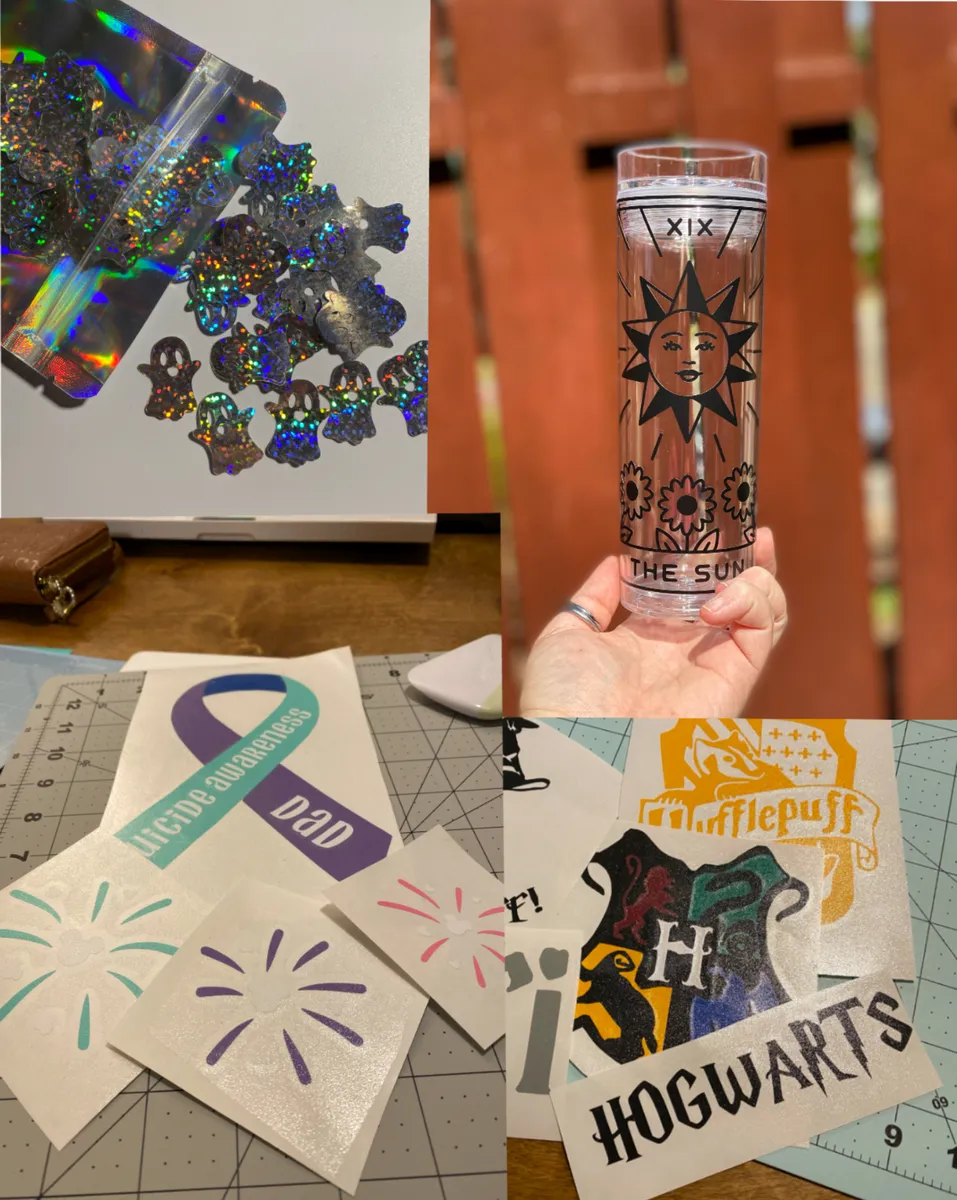
Beyond the individual material tests, we used the Explore 3 for a genuine mix of practical projects: labeled pantry jars with a matching cardstock label set, cut a batch of birthday party decorations, made two iron-on t-shirts for a family event, and produced a set of custom vinyl decals for water bottles as gifts. The projects that felt most "worth owning a Cricut for" were the ones combining multiple cuts into a cohesive finished product, like the labeled jars, where the precision and repeatability of machine cutting clearly beat hand-cutting the same design a dozen times with scissors or a craft knife. One-off single cuts, by contrast, sometimes felt like more setup effort than they saved compared to just cutting the shape by hand.
Who should actually buy this
The Explore 3 makes the most sense for people planning recurring craft output rather than a single one-time project: small Etsy sellers making decals or shirts, parents who'll use it repeatedly for kids' school and party projects, or hobbyists moving up from hand-cutting who want cleaner, faster, more repeatable results. Someone who wants to cut exactly one banner for one birthday party is better served borrowing a friend's machine or paying a local print shop, since the software learning curve and the accessory costs only pay off with repeated use. If you do buy in, plan on the software ramp-up taking real time and budget for blades, mats, and possibly the Access subscription as ongoing costs beyond the initial purchase.
The verdict
Six weeks in, the Cricut Explore 3 earned a permanent spot on our craft shelf rather than joining the pile of gadgets used once and forgotten, specifically because the matless Smart Materials cutting and consistently clean blade performance removed most of the friction that made our one prior experience with an older Cricut feel like a chore. Design Space is still a genuine learning curve, and the ongoing material and subscription costs deserve honest consideration before buying, but for anyone with recurring craft projects in mind, this is a machine that delivers on the "cut almost anything cleanly and repeatably" promise once you push through the first weekend of setup frustration.
Other products we tested

Ecobee Smart Thermostat Premium Review: Two Months of Real HVAC Testing
We installed the Ecobee Smart Thermostat Premium without a C-wire, tracked its temperature accuracy against a separate thermometer, and measured real energy savings over two months of daily HVAC use.
Bose SoundLink Flex Review: Six Weeks of Hiking, Kayaking, and Beach Days
Six weeks of camping, kayaking, and beach trips show the Bose SoundLink Flex's IP67 rating and PositionIQ orientation sensing are genuinely useful, with honest limits on bass and max volume.

Coros Pace 3 Review: Six Weeks Testing the GPS Watch That Barely Needs Charging
A dual-frequency GPS running watch that trades AMOLED shine for weeks of battery life at a fraction of the price of flagship rivals.