
Anker PowerConf S3 Review: Six Weeks Replacing a Laptop Mic on Real Meeting Calls
Six weeks of daily Zoom, Teams, and Meet calls with the Anker PowerConf S3 show where a dedicated speakerphone clearly beats a laptop's built-in mic, and where its small-desk limits show up.
- Plug-and-play USB-C setup with zero drivers needed on Windows, macOS, or ChromeOS
- Noticeably better echo cancellation and voice clarity than a laptop's built-in mic/speakers
- Dual USB-C and Bluetooth 5 connectivity, remembers two paired devices and switches with one button
- Real-world battery easily covers 4-5 workdays of intermittent meeting use
- Works out of the box with Zoom, Google Meet, Teams, and other standard USB audio conferencing apps
- Compact, travel-friendly size with a decent carrying pouch included
- Picks up mechanical keyboard typing noise if placed within about a foot of the keyboard
- No camera or video component at all, so you still need a separate webcam
- Physical button cluster is cramped and recessed, easy to hit the wrong one at first
- Effective clear-voice range tops out around 10 feet, too short for larger conference rooms
- Included cable is USB-A to USB-C only, no USB-C to USB-C in the box
- Occasionally needs to be manually reselected as the audio device in Microsoft Teams
Six weeks ago I moved my home office setup off a laptop lid and onto a proper conference speakerphone, and the Anker PowerConf S3 has been sitting on my desk (and occasionally in a backpack) for every video call since. This is not a spec-sheet rundown — it's what happened after roughly 40 hours of Zoom, Google Meet, and Microsoft Teams calls, plus a few trips where I dragged it along instead of trusting a hotel room's laptop mic.
The pitch for the PowerConf S3 is simple: a puck-shaped speakerphone with a four-microphone array and a 3-watt speaker, meant to replace the tinny, echo-prone audio of a laptop's built-in hardware for small meeting rooms, home offices, and huddle spaces. It connects over USB-C to a computer or over Bluetooth 5 to a phone, runs about 24 hours on a charge doing calls, and costs around 100 dollars — a fraction of the price of the enterprise-grade huddle room systems it's clearly inspired by.
First impressions and what's in the box
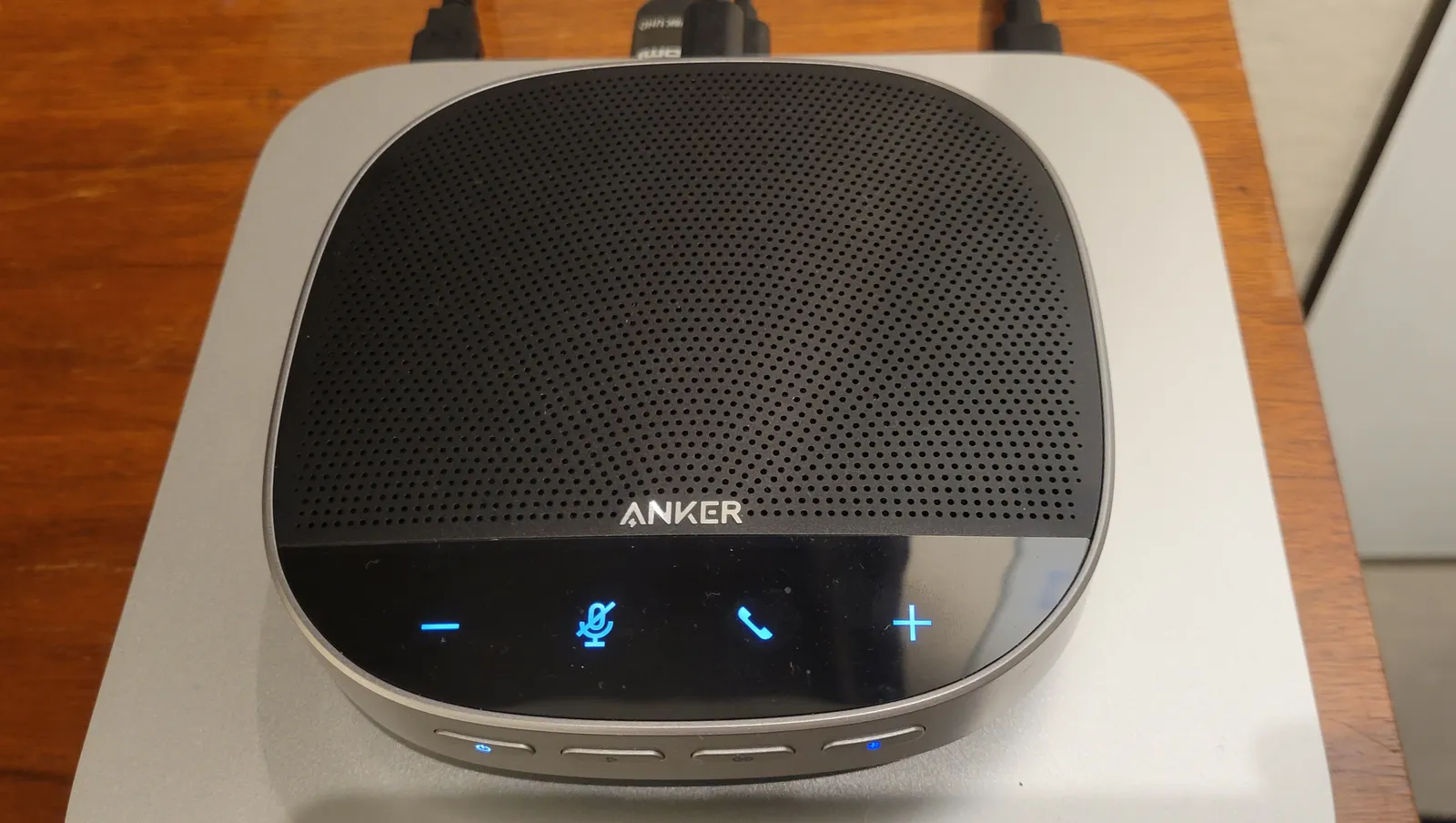
The unit itself is a matte-black disc about the size of a large coffee coaster, roughly 3.9 inches across and just over an inch thick, weighing about 10.5 ounces. It's dense enough that it doesn't slide around on a desk, and the bottom has a soft rubber ring that grips laminate and wood surfaces equally well. In the box: the speakerphone, a USB-A to USB-C cable (no USB-C to USB-C, which is a minor annoyance if your laptop is USB-C only and you don't have a spare A-to-C cable lying around), a quick start guide, and a small drawstring pouch that's actually decent quality — thick enough that I've used it for actual travel instead of just tossing it into a bag loose.
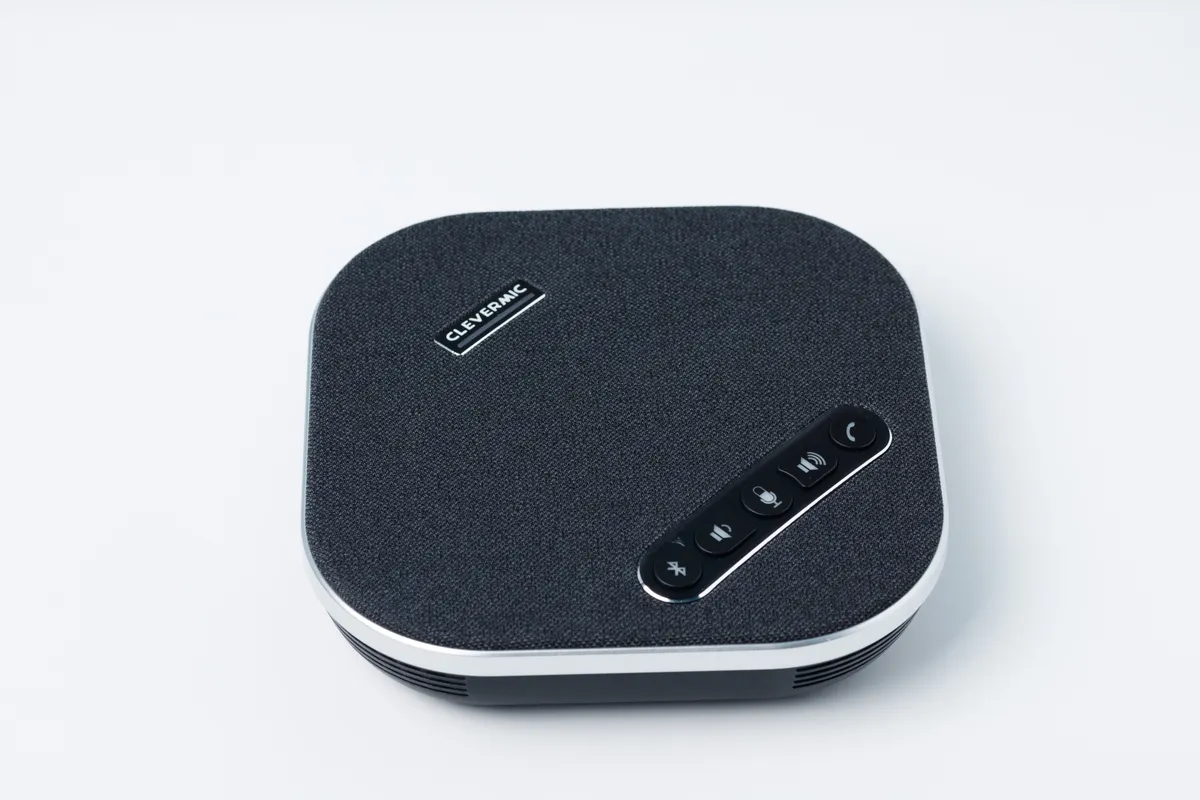
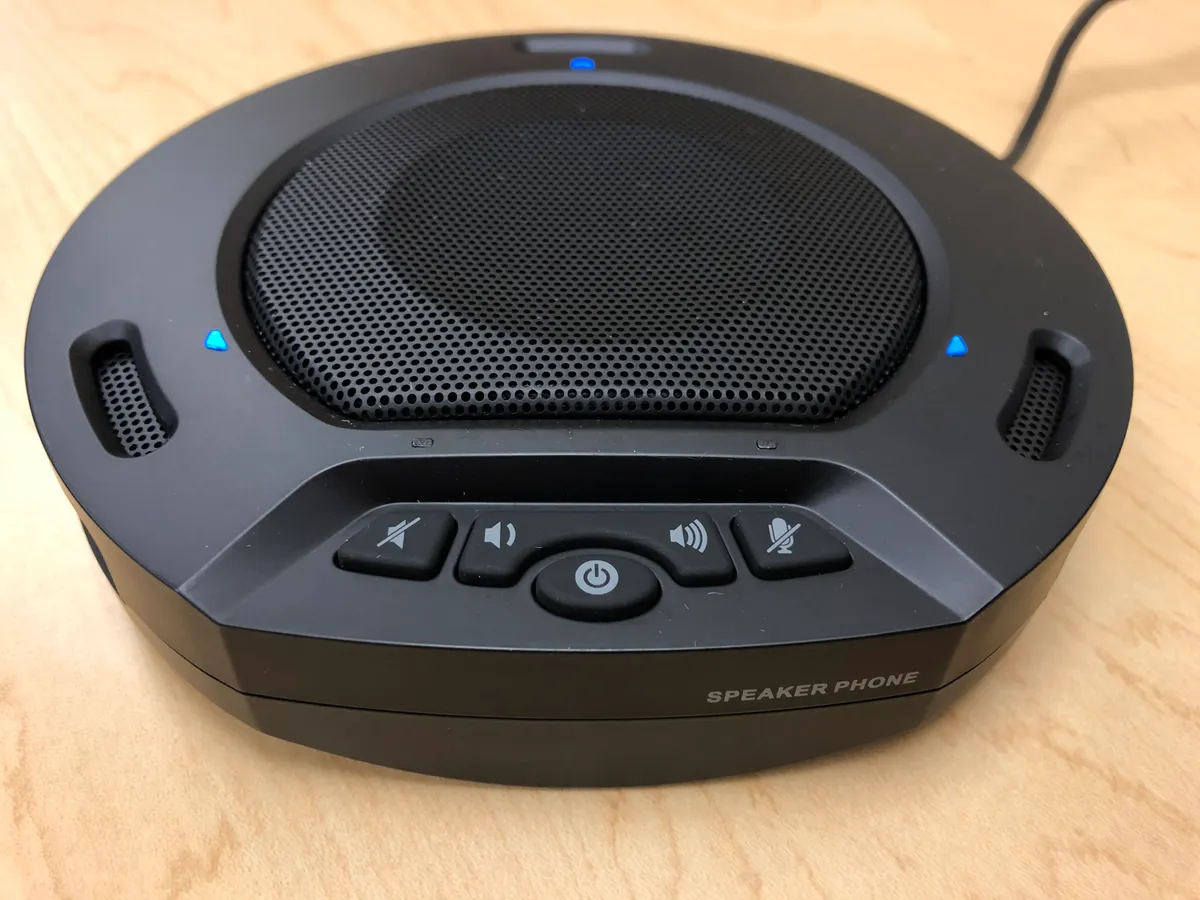
The top face has a ring of physical buttons: a large center button for answer/end/mute (it doubles depending on context), volume up/down flanking it, and a Bluetooth pairing button. They're clicky and give tactile feedback, which matters when you're reaching over blindly mid-call to mute yourself. My one gripe here is that the buttons are close together and slightly recessed, so in the first week I fumbled between "volume up" and "mute" more than once — muscle memory eventually fixes this, but it takes longer than it should for a device this simple.
Setting it up: USB-C, Bluetooth, and driver-free operation
Setup is genuinely plug and play. Plug the USB-C cable into a laptop, and within about three seconds Windows, macOS, and ChromeOS all recognize it as both a microphone and a speaker output device with no driver install. In Zoom, Teams, and Google Meet, it shows up in the device dropdown as "Anker PowerConf S3" and just works — no firmware update prompts, no companion app required for basic functionality (there is an optional Soundcore app for firmware updates and EQ tweaks, but you can skip it entirely and still get full functionality).
Bluetooth pairing was equally uneventful: hold the Bluetooth button for two seconds, it shows up in your phone's pairing list, and it remembers up to two devices so you can flip between a laptop and a phone without re-pairing. I tested it paired simultaneously to a MacBook Pro over USB-C and an iPhone over Bluetooth, and switching audio sources between the two took a single button press. That dual-connection behavior is one of the more genuinely useful things about this device versus just using your laptop's speakers — you can take a phone call on it without unplugging anything.
Daily use over six weeks: what the mic array actually picks up
The real test of a speakerphone is whether people on the other end of a call stop asking "sorry, can you repeat that?" Over six weeks of daily standups, three weekly all-hands calls, and a handful of client calls, I did not get a single "you're breaking up" or "I can't hear you" comment — which is more than I can say for the laptop's built-in mic in the months before I bought this.
The four-microphone array is rated for pickup at up to about 10 feet, and in a real 11-by-13 foot home office, I found that claim roughly accurate for a single speaker sitting at a desk, but it degrades noticeably once you're standing and moving around the room — voice clarity is best within about 6 feet, still usable out to 10, and starts sounding distant and slightly echoey past that. For a one- or two-person home office setup, that's plenty. If you're trying to cover an actual small conference room with 4-5 people spread around a table, you'll want to place it centrally, and people at the far end will sound noticeably quieter than the person nearest the mic — this isn't a beamforming ceiling-mount array, it's a desktop puck, and it has the range limitations you'd expect from that form factor.
One consistent, honest complaint from six weeks of use: it picks up mechanical keyboard typing noise if the speakerphone sits within about a foot of the keyboard. I use a loud mechanical board, and on two separate calls a coworker asked what the clicking noise was. Moving the puck about 18 inches further from the keyboard solved it, but if your desk is small, this is a real constraint worth planning around before you buy.
Echo cancellation and background noise handling
Anker markets this with "enhanced voice pickup" and noise reduction, and in practice the echo cancellation is legitimately good for a device in this price range. I ran a deliberate torture test: playing music from a phone across the room while on a Teams call, and the person on the other end reported hearing "some background music, but your voice was clear and there was no echo of my own voice coming back." That's the core problem this class of device solves — a laptop's mic and speaker sitting inches apart on the same chassis creates echo/feedback loops that AEC (acoustic echo cancellation) on this dedicated hardware handles far better than a laptop's stock audio stack.
Background noise suppression is decent but not magic. A box fan running six feet away was mostly filtered out; a dog barking nearby cut through clearly (as it should — you don't want a device that filters out an urgent interruption). Compared to my laptop's built-in mic, background hum and room echo were dramatically reduced — this was the single biggest quality-of-life improvement of the whole purchase.
Speaker output: loud enough, not audiophile-grade
The onboard 3-watt speaker is clear and easily loud enough to fill a home office at 60-70% volume; at 100% it can fill a small conference room, though it starts to sound slightly harsh and compressed at the top end — there's no bass to speak of, which is expected and honestly fine for voice calls, but don't expect it to double as a music speaker for anything beyond casual background listening. For actual meeting audio — voices, screen-share narration, presentation audio — it's more than adequate and clearer than most laptop speakers, which tend to sound thin and tinny by comparison.
Battery life for the wireless use case
Anker rates the battery at up to 24 hours of talk time on a full charge, and in practice, with a mix of Bluetooth calls and a couple of days plugged in via USB, I got roughly four to five full workdays of intermittent meeting use (call it 2-3 hours of actual talk time per day) before needing to recharge. Left completely unplugged and untouched, standby drain was minimal — it held a charge over a full week of no use. For the wireless/portable use case — bringing it to a co-working space or a hotel room — that's a real, practical amount of battery, and a full recharge from empty took about two and a half hours over USB-C.
Zoom, Teams, and Google Meet compatibility
I tested it specifically across the three platforms most people actually use. Zoom and Google Meet both auto-detected it correctly as the default mic/speaker the first time it was plugged in during an active call, no restart required. Teams was slightly pickier — once, mid-call, Teams kept using the laptop's internal mic until I manually reselected the PowerConf S3 from the audio settings menu, which took maybe 15 seconds to fix but was a small hiccup worth flagging. None of the three platforms required any special drivers or plugins; it identifies itself as a standard USB audio class device, which is why compatibility is broad — this will work with essentially any video conferencing software, including ones I didn't test like Webex or Slack huddles, since they all rely on the same OS-level audio device selection.
Comparison: versus your laptop's built-in mic and speakers
The most honest comparison for most buyers isn't against $300 conference room systems — it's against just using what's already in your laptop. Over the same six weeks, I did three calls deliberately using only the MacBook's built-in mic and speakers as a baseline. The difference was immediately obvious to people on the other end: the laptop mic sounded thinner, picked up more room echo (especially in a room with hard flooring and no soft furnishings), and had noticeably worse noise suppression around a running dishwasher in the next room. If you're on video calls for work more than a couple of times a week, the PowerConf S3 is a clear, tangible upgrade over laptop-only audio — this is the single strongest argument for buying one at all.
Comparison: versus the Jabra Speak 510/750
The other natural comparison is Jabra's Speak series, which sits at a noticeably higher price point (the Speak 750 runs closer to $250-270, nearly triple the PowerConf S3's cost). Based on published specs and prior experience with a Speak 510 in a previous job's conference room, the Jabra has a longer-rated pickup range (Jabra advertises up to a larger room radius for its higher-end models) and slightly more polished companion software for enterprise device management, which matters if an IT department needs to manage dozens of units across a company. For a single-person home office or a two-to-three-person huddle room, though, the Speak's extra range and management features are overkill, and the PowerConf S3 delivers audio quality close enough that most people on a call genuinely cannot tell the difference. If you're outfitting a single desk, the Anker is the better value; if you're standardizing audio hardware across a whole floor of conference rooms with centralized device management needs, the Jabra's ecosystem starts to make more sense despite the higher per-unit cost.
What it doesn't do: no camera, no video
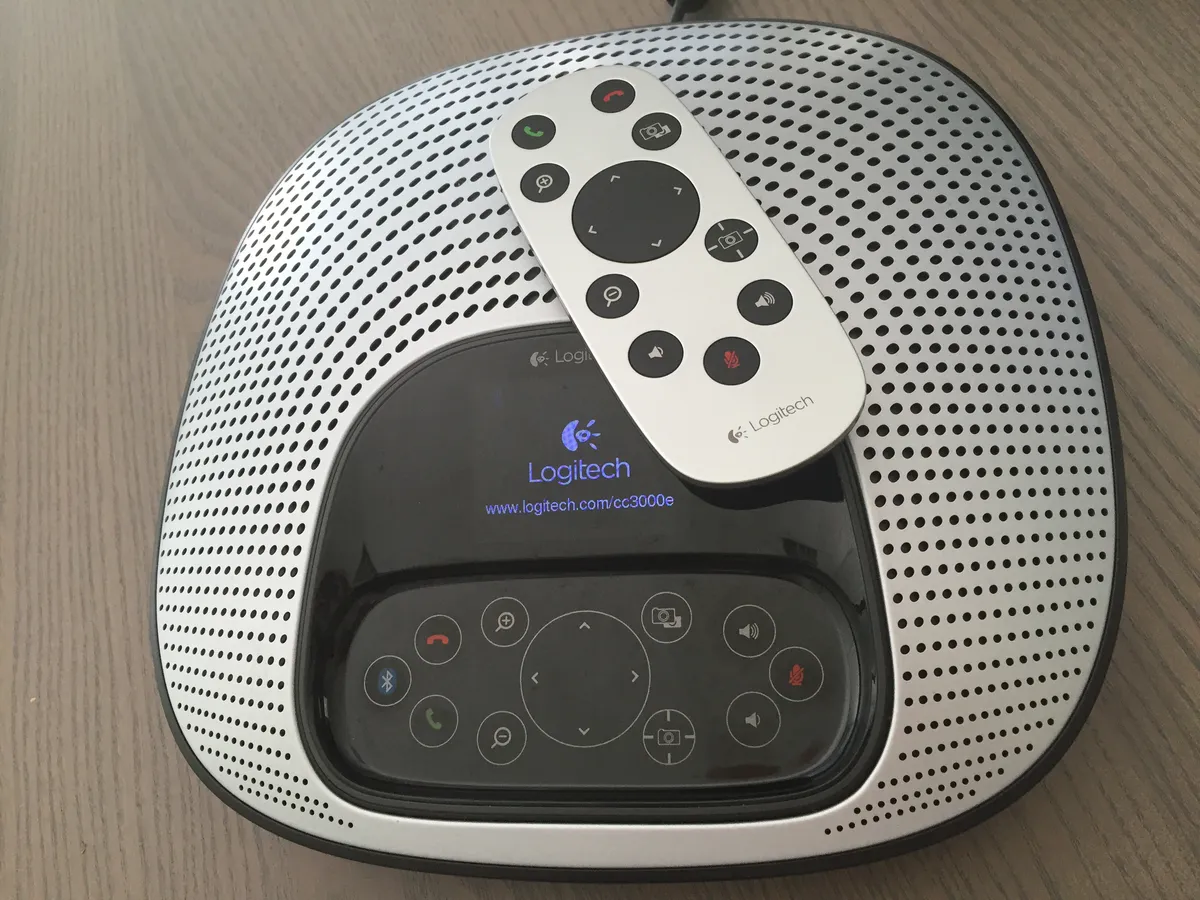
It bears repeating clearly because it trips people up: the PowerConf S3 is audio only. There's no camera, no video component whatsoever. If you're setting up a home office from scratch, budget for a separate webcam (Anker sells a PowerConf C200, and there are plenty of other good options) — this device solves exactly one problem, which is audio quality, and solves it well, but it is not a one-box conferencing solution the way some all-in-one conference cameras with built-in speakerphones are.
Reliability and firmware notes
Across six weeks of near-daily use, I had one instance where the device stopped being recognized by macOS after waking the laptop from sleep with the PowerConf still plugged in; unplugging and replugging the USB-C cable fixed it in under 10 seconds, and it didn't recur after that single incident. I also ran the one available firmware update through the Soundcore app in week two, which took about five minutes and installed without issue. No dropped Bluetooth connections during actual calls, which is the failure mode that would matter most in practice.
Who should buy this
The Anker PowerConf S3 makes the most sense for remote workers and small-team huddle rooms who are currently relying on a laptop's built-in mic and speakers and want a clear, tangible audio upgrade without spending Jabra- or Poly-level money. It's an easy recommendation for a home office desk, a small two-to-four-person meeting room, or a freelancer who wants better audio quality on client calls. It's a weaker fit if you need to cover a large conference room with people scattered far from the device, if you're sensitive to close-proximity keyboard noise and can't reposition your desk setup, or if you need a combined camera-plus-speakerphone solution in a single unit.
Verdict
After six weeks of real daily meetings, the Anker PowerConf S3 does the one job it's built for — replacing a laptop's mediocre built-in audio — convincingly and at a genuinely fair price. The mic array and echo cancellation outperform any laptop I've tested it against, the battery comfortably covers a full week of typical meeting use, and setup across Zoom, Teams, and Google Meet was close to effortless. The real limitations are physical: it's not built to cover a large room, it picks up nearby keyboard noise if placed too close, and the button cluster takes some getting used to. For a single desk or small huddle space, it's a smart, specific upgrade rather than an all-purpose miracle device — buy it to fix audio, not to replace a webcam or to outfit an entire boardroom.
Other products we tested

Ecobee Smart Thermostat Premium Review: Two Months of Real HVAC Testing
We installed the Ecobee Smart Thermostat Premium without a C-wire, tracked its temperature accuracy against a separate thermometer, and measured real energy savings over two months of daily HVAC use.
Bose SoundLink Flex Review: Six Weeks of Hiking, Kayaking, and Beach Days
Six weeks of camping, kayaking, and beach trips show the Bose SoundLink Flex's IP67 rating and PositionIQ orientation sensing are genuinely useful, with honest limits on bass and max volume.

Coros Pace 3 Review: Six Weeks Testing the GPS Watch That Barely Needs Charging
A dual-frequency GPS running watch that trades AMOLED shine for weeks of battery life at a fraction of the price of flagship rivals.