
Logitech MX Master 4 Buying Guide: Ergonomics, Compatibility, and Value
Evaluate the Logitech MX Master 4 by hand fit, operating-system compatibility, haptic controls, Logi Options+, connectivity, battery, and workflow value.
The Logitech MX Master 4 is a productivity mouse with an 8,000-DPI sensor, MagSpeed scrolling, customizable controls, haptic feedback, and software-based workflow shortcuts. Those features can save time for the right user, but a premium mouse is not automatically ergonomic or productive for every hand and task.
This guide explains how to compare a Logitech MX Master 4 deal by hand fit, operating system, applications, connectivity, software permissions, and long-term use.
Quick answer: who should buy MX Master 4?
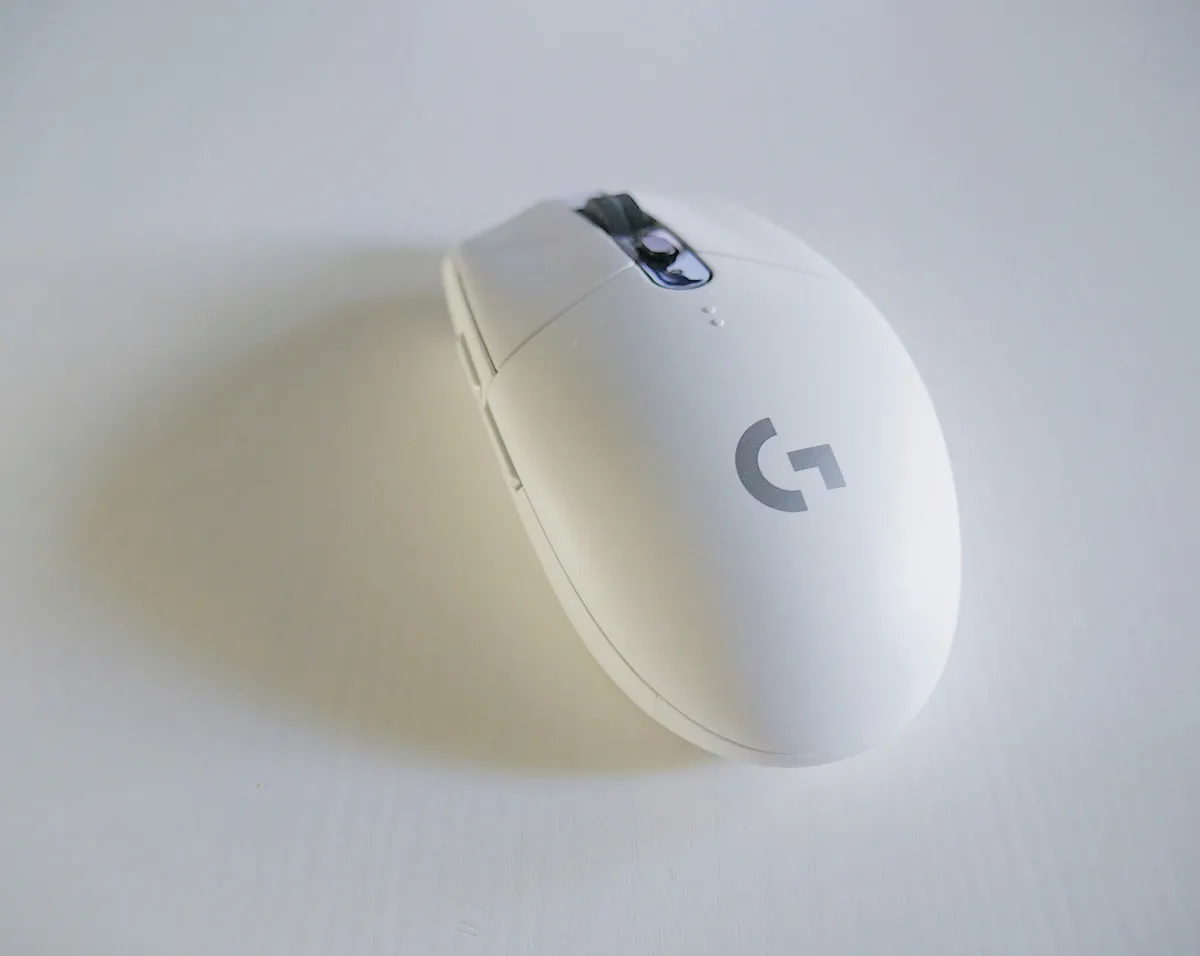
MX Master 4 is best suited to right-handed users who spend substantial time in documents, spreadsheets, browsers, creative tools, coding environments, or multi-device workflows and will customize its buttons. A basic mouse may be better for light use, travel, shared desks, left-handed operation, or users who prefer a small, symmetrical shape.
Ergonomics begins with fit, not marketing
Measure the hand from wrist crease to longest fingertip and note grip style. The sculpted right-handed body supports a resting hand position, but users with small hands or fingertip grips may find it large. A shape that feels comfortable for five minutes can still create fatigue after a full workday.
Test reach to the thumb controls, side wheel, main wheel, and gesture area without shifting the palm. Keep the wrist near neutral and the mouse close to the keyboard. Ergonomics also depends on desk height, chair, forearm support, sensitivity, and break habits.
| User need | MX Master 4 feature | Fit question |
|---|---|---|
| Long documents | MagSpeed scrolling | Is the wheel easy to reach and control? |
| Creative work | Horizontal wheel and app actions | Can the thumb use controls without strain? |
| Multiple computers | Multi-device connectivity | Does every work device allow required software? |
| Precision work | 8K DPI any-surface tracking | Does higher sensitivity improve the actual task? |
| Repeated shortcuts | Actions Ring and customization | Will setup time be recovered through daily use? |
Standard versus Mac version
Logitech offers a standard MX Master 4 and a version optimized and styled for Mac. Compare included receiver, colors, stated operating-system compatibility, and the devices used. Do not choose only by appearance. A mixed Windows and macOS workflow may favor the standard package, while a Mac-focused desk may prefer the Mac edition.
Check operating-system and software compatibility
Core pointer and scrolling functions may work without extensive setup, but advanced customization depends on Logi Options+. Confirm support for every operating system and whether a managed work computer allows installation, accessibility permissions, background services, or Bluetooth pairing.
Corporate security policies can remove much of the mouse's value if software cannot be installed. Ask IT before buying for a locked-down device. Also verify remote desktop, virtual machine, and application-specific behavior if those workflows are central.
Actions Ring and app-specific shortcuts
Logitech promotes the Actions Ring as a way to access tools near the cursor. The value depends on repeated actions that are slow or awkward with keyboard shortcuts. Start with three or four high-frequency actions rather than creating a complex layout immediately.
Measure whether the shortcut reduces time and context switching. Good candidates include timeline navigation, brush controls, window management, tab actions, copy formats, or application commands that are used dozens of times per day.
Haptic feedback: useful signal or distraction?
MX Master 4 adds customizable haptic feedback for selected actions and status signals. Some users may value tactile confirmation; others may turn it down or off. Test intensity and application support. Haptics should clarify interaction, not become an effect that consumes attention or battery without improving control.
Sensor resolution and real precision
The mouse supports tracking up to 8,000 DPI and is marketed for use on many surfaces, including glass under specified conditions. Higher DPI is not automatically more accurate for the user. It changes pointer movement relative to physical movement.
Choose a sensitivity that allows the pointer to cross the working area without excessive wrist movement while retaining control for small targets. Large or multiple high-resolution displays may benefit from higher settings. Keep operating-system acceleration and application behavior consistent during testing.
Connectivity and multi-device use
Confirm whether each device will use Bluetooth or a compatible Logitech receiver and whether the receiver is included with the selected edition. Wireless reliability depends on the computer, ports, interference, distance, and office environment.
For multi-device switching, test the exact workflow rather than assuming it will be seamless across every network and policy. Label device positions and verify keyboard pairing if the mouse is part of a larger Logitech setup.
Battery and charging
Logitech states that MX Master 4 can run for up to 70 days on a full charge, with actual life depending on use and computing conditions. Official setup guidance says a short USB-C charge can provide substantial use, and the mouse reports battery through LEDs and Logi Options+.
Place a charging cable where the mouse is used and test whether it can remain usable while charging. Battery longevity over years cannot be inferred from the maximum runtime claim. Consider warranty, repair options, and expected ownership period.
MX Master 4 versus cheaper mice
Compare the MX Master 4 with a basic office mouse, MX Anywhere, vertical mouse, trackball, or the previous MX Master generation. A lower-priced product wins when it fits better or covers the required controls. A vertical mouse may suit a user seeking a different forearm posture, but it requires its own fit test.
The premium is easier to justify when horizontal scrolling, customizable controls, multi-device switching, and application profiles are used daily. It is harder to justify when only left click, right click, and basic scrolling are used.
Workflow value calculation
Estimate how many repeated actions the mouse can shorten. Saving a few seconds on an action performed 100 times per day can matter. Saving a second on an action used twice per week does not.
Add mouse price, tax, any receiver or adapter, wrist rest, and software-management effort. A bundle discount has value only when the bundled keyboard, webcam, or ergonomic product was already needed.
Return-window test
Logitech's online-store support information describes a 30-day money-back policy for new products in applicable regions. Confirm the live US order terms. Keep packaging and test the mouse intensively but carefully.
- Use it for several full workdays.
- Test every button without changing hand position.
- Configure profiles for the two most-used applications.
- Test Bluetooth or receiver reliability on every device.
- Check wrist, thumb, and finger comfort at day's end.
- Evaluate whether shortcuts remain memorable after a week.
Common buying mistakes
- Assuming a premium shape is ergonomic for every hand.
- Buying for software features blocked by company policy.
- Choosing the Mac or standard edition without checking package differences.
- Setting maximum DPI because it is the largest number.
- Creating too many shortcuts to remember.
- Counting bundle savings on unnecessary accessories.
- Testing comfort for minutes instead of full workdays.
Frequently asked questions
Is MX Master 4 good for small hands?
It may feel large because of its sculpted shape. Test reach to the thumb wheel and controls over a full work session.
Does MX Master 4 work on glass?
Logitech advertises any-surface tracking including glass under supported conditions. Surface thickness and environment can affect results.
How long does the battery last?
Logitech lists up to 70 days, but actual life varies with usage, haptics, connectivity, and computing conditions.
Do I need Logi Options+?
Basic mouse functions may work without it, but advanced button, Actions Ring, and application customization depend on supported Logitech software.
Final Logitech checklist
- Confirm right-handed shape and hand-size fit.
- Verify OS, work-policy, and Logi Options+ compatibility.
- Map only high-frequency workflow actions.
- Test connectivity, scrolling, haptics, and comfort for full days.
- Compare against simpler and alternative ergonomic devices.
- Review current Logitech deals and MX Master offers after validating fit.
Sources checked
More coupon shopping advice

Home Security Camera Buying Guide: Local vs. Cloud Storage
A practical, balanced buying guide to home security cameras that weighs local storage against cloud subscriptions, wired versus battery power, camera placement, night vision, smart detection accuracy, and smart home integration.

Beginner Mirrorless Camera Buying Guide
A practical, honest walkthrough of what actually matters when buying your first mirrorless camera, from sensor size and lens mounts to autofocus, video specs, and the real total cost of a beginner-friendly system.

Air Purifier Buying Guide: CADR, ACH, and Filter Costs Explained
A practical walkthrough of the numbers that actually matter when buying an air purifier — CADR and ACH for sizing, true HEPA versus marketing terms, real three-year filter costs, realistic noise levels, and when a purifier won't help at all.