
Home Wi-Fi Buying Guide: Router, Mesh, or Wired Backhaul?
Diagnose what is actually wrong with your Wi-Fi before spending money, then choose between a better router, a mesh system, and running a cable.
Home networking is the rare category where the most expensive product on the shelf is frequently the wrong answer. Router boxes advertise numbers like "AX11000" and "tri-band 10 Gbps," and those numbers describe a theoretical sum of speeds across radios that no single device will ever see. Meanwhile the actual problem in most homes — a dead spot in the back bedroom — is a geometry problem that no amount of throughput fixes.
This guide is about diagnosing what is actually wrong with your Wi-Fi before spending money, and then choosing between a better single router, a mesh system, or wired backhaul. The three solve genuinely different problems, and picking by price is how people end up with a $400 mesh that performs worse than the $90 router it replaced.
The quick answer
If your speeds are fine near the router and poor further away, you have a coverage problem. Buy mesh, or better, run an Ethernet cable and add a second access point. A faster single router will not help.
If speeds are poor everywhere, including next to the router, the problem is your internet service, your modem, or the router being genuinely old. Check what you are paying for first — a 100 Mbps plan cannot deliver 300 Mbps regardless of hardware.
If everything is fast until 8pm and then video calls stutter, you have congestion — either from neighbours on the same channel or too many devices for an ageing router's processor. A modern router with Wi-Fi 6 and decent silicon fixes this; more antennas do not.
Read the spec numbers correctly
"AX5400" means the router's radios add up to a theoretical 5,400 Mbps: perhaps 4,800 on 5GHz and 574 on 2.4GHz. No client connects to both at once, so the honest ceiling for a single laptop is the 5GHz figure — and in practice, at real distance with real interference, you will see roughly 40-60% of that. A 4,800 Mbps radio delivering 600-900 Mbps to a phone across the room is normal and good.
The specification that actually predicts real-world performance is spatial streams, written as 2×2, 4×4 and so on. Most phones and laptops are 2×2 devices, meaning they can use at most two streams no matter how many the router has. Extra router streams help only when several devices transmit simultaneously — real, but a smaller benefit than the box implies.
Wi-Fi generation matters more than raw numbers. Wi-Fi 5 (802.11ac) is still fine for browsing and streaming. Wi-Fi 6 (802.11ax) added OFDMA and improved scheduling, which is specifically about handling many devices at once rather than making one device faster — the single most useful upgrade for a busy household. Wi-Fi 6E and Wi-Fi 7 add the 6GHz band, which is empty, fast, and stopped cold by walls.
Bands, and the trade you cannot avoid
Radio physics sets the terms here and no manufacturer can escape it: higher frequency carries more data and penetrates less material.
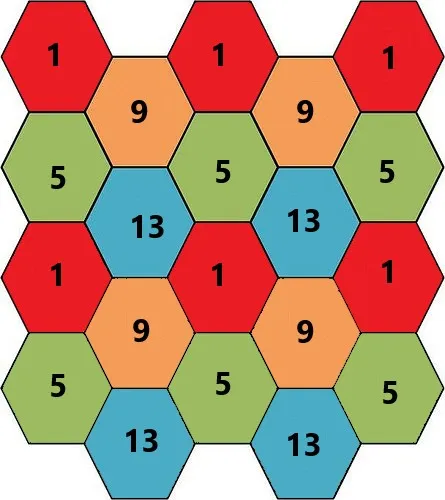
2.4GHz travels furthest and passes through walls best, which is why it is the band your smart plug in the garage uses. It is also crowded — microwaves, Bluetooth, baby monitors, and every neighbour's router share it — and it has only three non-overlapping channels. Expect real speeds of 50-150 Mbps.
5GHz is the workhorse. Far more channels, much less congestion, and real speeds of 300-900 Mbps at moderate range. It loses roughly half its usable range compared with 2.4GHz and struggles through more than one or two solid walls.
6GHz, available on Wi-Fi 6E and 7 hardware, is effectively empty spectrum with enormous channel widths. In the same room it is spectacular. Through a brick wall it is often worse than 5GHz. Treat it as a same-room, high-bandwidth band — excellent for a VR headset or a desktop in the office, not a whole-home solution.
Coverage: why one router cannot cover a long house
A router radiates roughly spherically. Put it in the corner of a house and you are broadcasting half your signal into the garden. Put it in the middle and coverage improves for free. This is the single highest-return change most people can make and it costs nothing.
Building materials are the other half. Drywall costs you a couple of decibels. Brick, concrete, and tile cost far more. Foil-backed insulation and metal-mesh plaster are close to Faraday cages. A stone-walled house or a home with a concrete floor between levels will defeat any single router at any price, which is precisely the case mesh exists for.
Mesh systems: the real trade-off
A mesh replaces one router with two or three units sharing one network name, handing devices between them as you move. The convenience is genuine. The cost is that satellite nodes must talk back to the main unit somehow, and how they do it determines whether the mesh helps or hurts.
Dual-band mesh nodes use the same 5GHz radio to talk to your devices and to the main router. That radio can only do one thing at a time, so throughput at a satellite is roughly halved — and halved again at a second hop. A device connected through two hops on a dual-band mesh can be slower than it was on a weak direct signal.
Tri-band mesh dedicates a third radio to backhaul, so the client-facing radio keeps its full capacity. This is the version worth paying for, and the difference between a good mesh experience and a frustrating one usually comes down to this single specification.
Node placement follows from that. Satellites should sit where they still receive a strong signal from the main unit — roughly halfway to the dead zone, not inside it. A node placed in the dead spot has nothing good to relay. Two nodes placed correctly beat three placed badly.
Wired backhaul: the answer nobody wants to hear
If you can run a single Ethernet cable between floors or across the house, do it. A mesh node connected by cable has zero wireless backhaul cost, delivers its full radio capacity to clients, and eliminates the entire category of problems above. Most mesh systems support wired backhaul out of the box and simply work better with it.
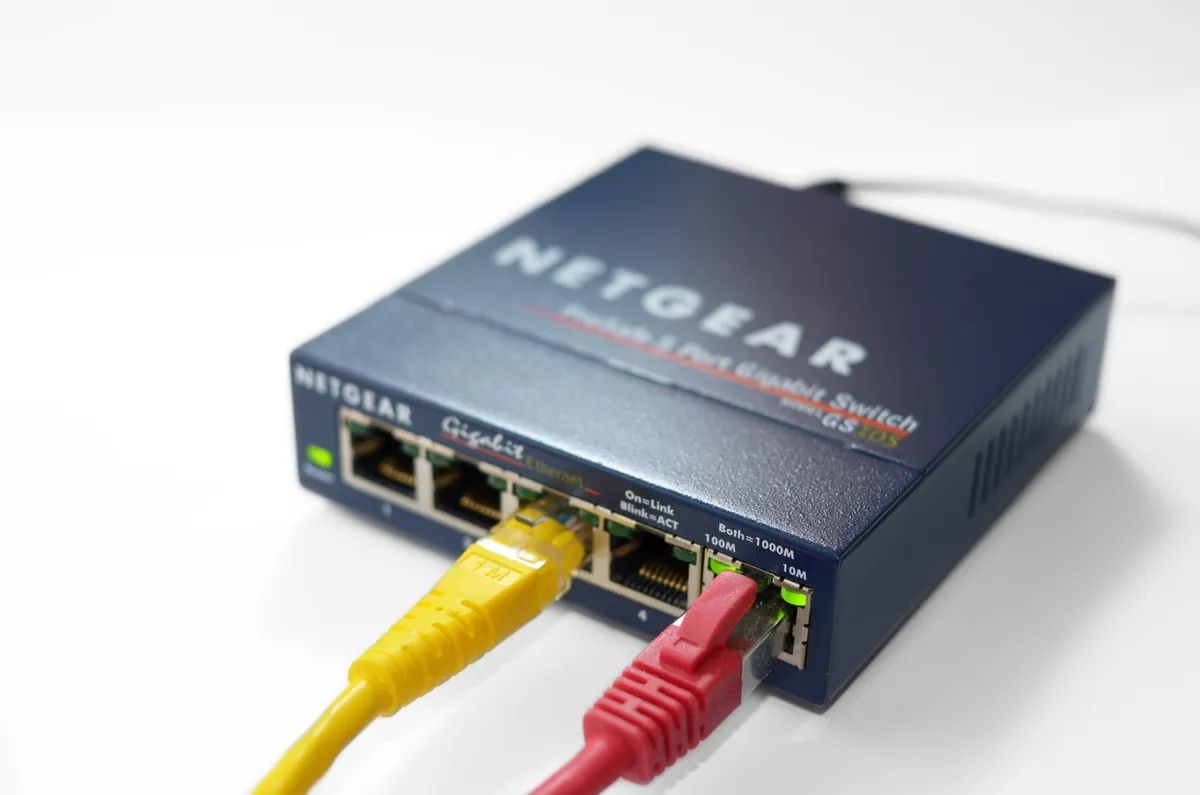
Cat 6 cable costs under $0.60 per metre and handles multi-gigabit over household distances. A five-port gigabit switch costs $20. If running cable through walls is impossible, MoCA adapters use existing coaxial TV cabling and reliably deliver 700 Mbps-plus, which is far better than any powerline adapter. Powerline over mains wiring is the last resort: it works acceptably on a single circuit and collapses across circuits, across a consumer unit, or near anything with a motor.
Anything wired that stays wired — a desktop, a games console, a TV — also removes load from the wireless spectrum, which improves things for every device that must be wireless.
Features worth paying for, and features that are marketing
Worth it: enough Ethernet ports that you are not immediately buying a switch; a 2.5 Gbps WAN port if your internet plan exceeds 1 Gbps or plausibly will; automatic firmware updates, which is a genuine security matter given how many routers run unpatched for years; and a guest network with client isolation, which is the right place for smart home gadgets of uncertain provenance.
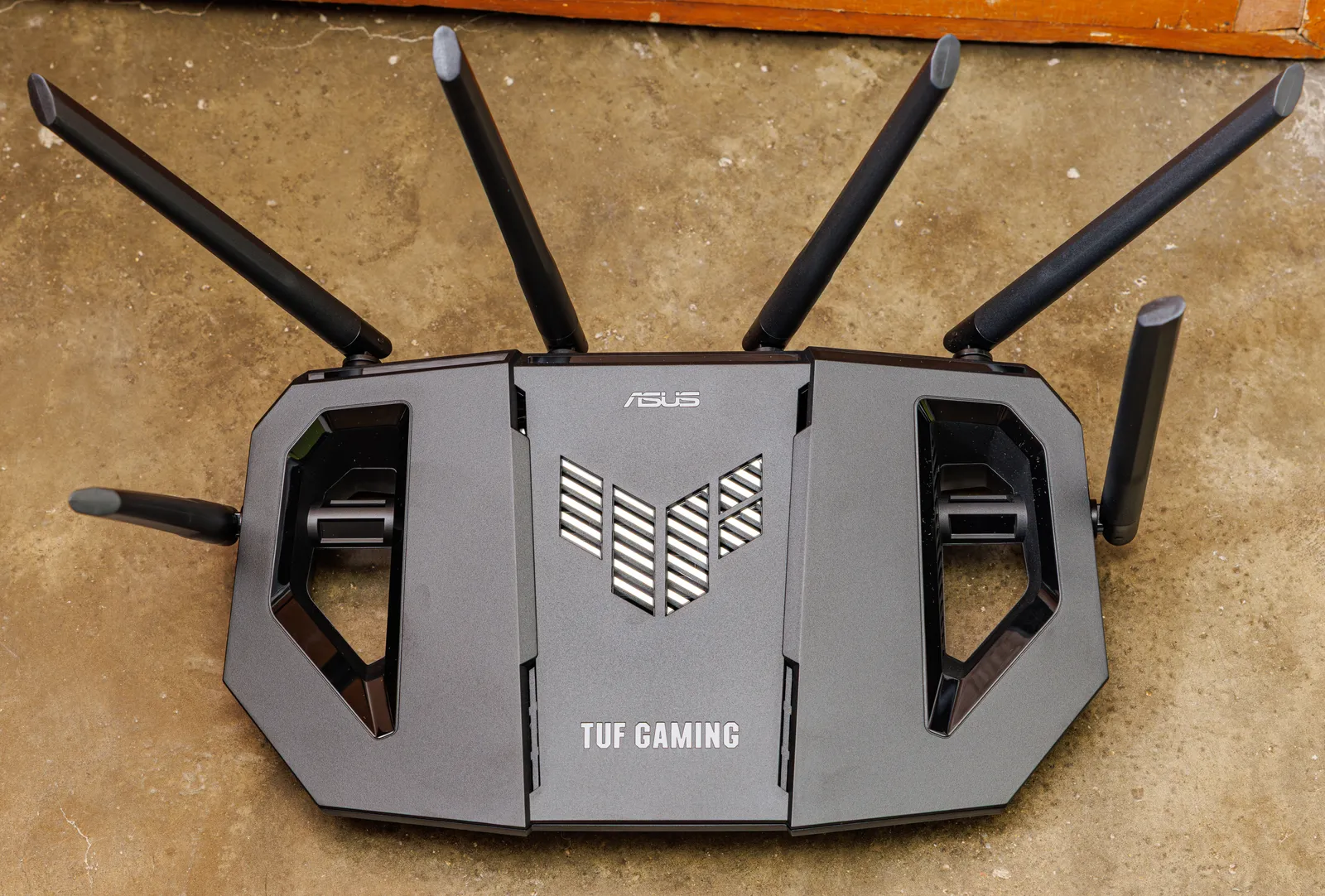
Not worth it: gaming routers with red plastic fins, which are ordinary routers with QoS presets and a 40% markup. Antenna count as a proxy for range — antenna design matters, count does not. Subscription security suites bundled at $60 a year for what is largely DNS filtering you can get free. And "AI optimisation," which in practice means occasionally changing channel.
One feature deserves special mention because it is quietly becoming a subscription trap: several manufacturers now put parental controls, remote management, or traffic analytics behind monthly fees. Check the pricing page before buying, because "free tier" scope has been shrinking across the industry.
The ISP router question
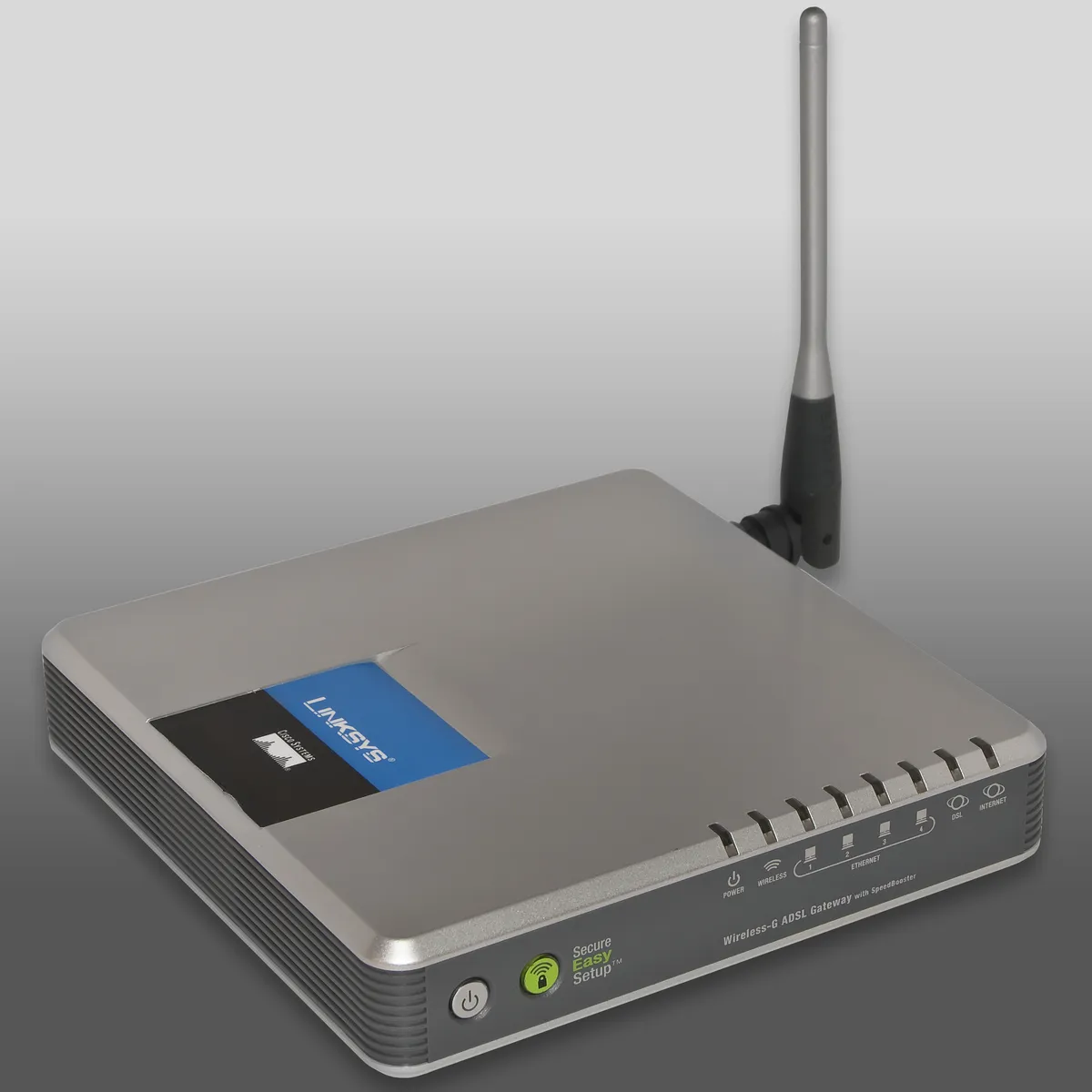
Most people already have a router — the box the internet provider supplied. These are usually adequate for a small flat and usually mediocre beyond that: modest processors, older Wi-Fi generations, and firmware you cannot control. But before replacing one, check whether it is a combined modem-router. If so, you either need a device that also handles your connection type or you need to put the ISP unit into bridge or modem-only mode and let your new router do the routing.
Running both in router mode creates double NAT, which mostly works and then mysteriously breaks games, VPNs, and port forwarding. If your ISP box has no bridge mode — some do not — factor that limitation in before buying.
Budget by home, not by ambition
A one or two bedroom flat: a single Wi-Fi 6 router at $80-$150 is genuinely sufficient. Mesh here is usually wasted money, and the nodes may even interfere with each other in a small space.
A two-storey house up to about 200 square metres: a two-piece tri-band mesh at $200-$320, or one good router plus a wired access point upstairs at roughly the same price with better results.
A large or awkward home with thick walls: three nodes with wired backhaul where possible, $350-$550. At this size, the cabling matters more than the brand.
Above roughly $600 you are buying either Wi-Fi 7 early-adopter pricing or prosumer gear with a configuration interface that assumes you enjoy networking. Both are legitimate; neither is necessary for streaming and video calls.
Before you buy anything
Run a speed test wired directly to the router, then the same test on Wi-Fi in the problem room. If the wired result is already low, the router is not your problem. Move the router to a central, elevated, open position and retest — this alone resolves a surprising share of complaints. Use a phone Wi-Fi analyser app to check whether your 2.4GHz channel overlaps with three neighbours, and move it to 1, 6, or 11 accordingly.
Then count your devices. A modern home with a doorbell, several smart plugs, two TVs, and four phones is running thirty-odd clients, and device count — not speed — is what overwhelms older routers. If you are adding cameras and a video doorbell to the mix, our video doorbell buying guide covers the bandwidth and upload-speed side of that decision, which is the part most people discover after installation rather than before.
More coupon shopping advice

Home Security Camera Buying Guide: Local vs. Cloud Storage
A practical, balanced buying guide to home security cameras that weighs local storage against cloud subscriptions, wired versus battery power, camera placement, night vision, smart detection accuracy, and smart home integration.

Beginner Mirrorless Camera Buying Guide
A practical, honest walkthrough of what actually matters when buying your first mirrorless camera, from sensor size and lens mounts to autofocus, video specs, and the real total cost of a beginner-friendly system.

Air Purifier Buying Guide: CADR, ACH, and Filter Costs Explained
A practical walkthrough of the numbers that actually matter when buying an air purifier — CADR and ACH for sizing, true HEPA versus marketing terms, real three-year filter costs, realistic noise levels, and when a purifier won't help at all.